Knowing exactly how email interactions are tracked helps your team measure the real impact of your messages. This guide explains how Positive User gathers open and click data, giving you a clear picture of your campaign performance so you can improve future sends.
Positive User automatically applies specific rules to calculate your open rates.
When you send a campaign, Positive User systematically adds an invisible tracking pixel to your email. When a contact opens the email with their provider, this tracking image is downloaded from our servers, and we count it as an open.
Blocked Images and Offline Reading
Some email providers, like Outlook Enterprise, block image downloads by default. If images are not displayed, the open is only counted when a contact clicks a link or manually downloads the images. Similarly, reading an email offline prevents the tracking image from loading.
There is an opposite example. Apple pre-downloads (caches) all images (including the tracking pixel) via their own proxy servers as soon as the email hits the inbox, regardless of whether the recipient actually opened it.

Link tracking helps your team see when contacts click the links in the campaigns you send. This shows you exactly how people engage with your messages without requiring any complex setup.
When you send a campaign from Positive User, the system automatically adds a special tracking parameter (__ca__chat) and a unique key to every link. When a contact clicks that link, Positive User registers the click for your metrics and instantly directs them to the intended webpage. You don’t need to configure anything - this element is added automatically.
At the same time this mechanism allows you start tracking the contact on the website. “__ca__chat” cookie connects a record from your database with the real person visiting the website.
To provide a more accurate open rate, Positive User automatically considers clickers as openers. If a contact clicked a link but their initial open wasn't detected due to blocked images, they are still counted as an opener. We then apply a ratio of openers to clickers across your entire base to define a final adjusted open rate.
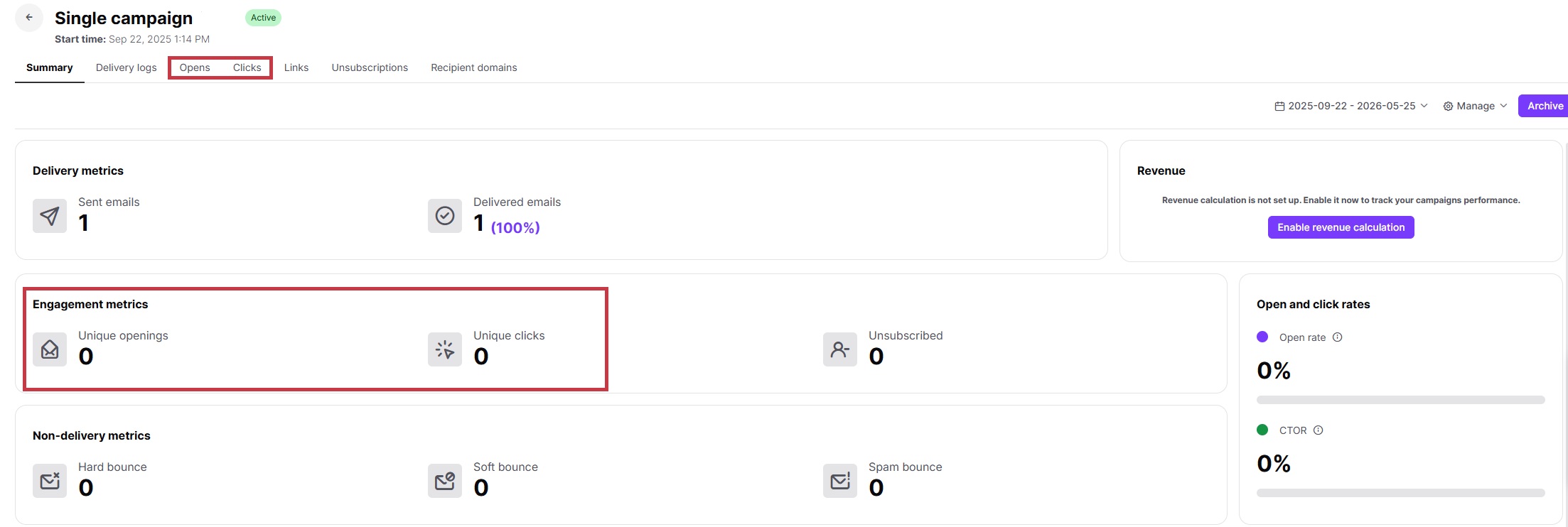
You can review all the open and click data for your sent messages directly inside your Workspace.
In the main menu, go to "Campaigns" → "Email".
Click on the specific campaign you want to review from the list. Once opened, you can view the total number of opens and clicks performed by your contacts. Went to one of the chosen tabs with the logs if you need more detail.