In-app messages are targeted alerts and pop-ups that appear directly inside your mobile application while contacts are actively using it. They give your team a direct way to guide contacts, highlight new features, or share timely promotions without interrupting their app experience.
With in-app messages, you can capture attention when interest is highest helping your contacts get more value from your mobile app and keeping them engaged.
In-app message is a customizable pop-up notification displayed inside your mobile application during an active session. Unlike push notifications that land on a lock screen, in-app messages only appear when a contact is actively navigating inside your mobile app.
Access and build them under "Campaigns" → "In-App Messages", and then straight away or incorporate them directly into your automation flows using the "Send mobile in-app message" [LINK] module.

Positive User offers two campaign types for delivering in-app messages:
One-Time Campaigns: One-time messages sent to a selected audience at a scheduled time ideal for major announcements or limited-time promotional sales.
Automated Campaigns: Event-triggered messages that display automatically when a contact performs a specific action inside your mobile app suitable for onboarding guidance or feature tips.
Each in-app message campaign has a status that shows whether your team can edit or send it:
Draft: The campaign is not active yet, so your team can edit content and recipient settings freely until it is ready for delivery.
Active: The campaign is ready to send or use in automations; campaign settings are locked, but you can still update the connected message content.
You can quickly check a campaign's status by looking at the colored dot near the name of the campaign on the list:
Orange dot: Indicates a draft campaign.
Green dot: Indicates an active campaign.
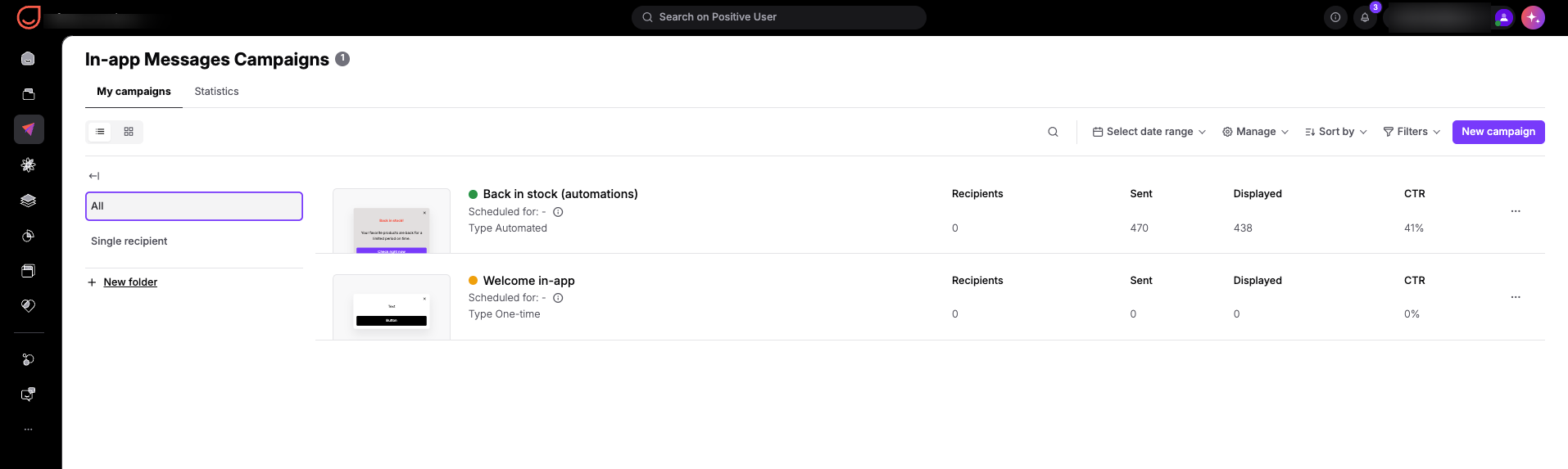
Your team can build and manage in-app message campaigns directly from "Campaigns" → "In-App Messages" in Positive User. From this area, you can track message performance, group campaigns into folders, and access related resources.
You can also open campaign creation directly from the "Send mobile in-app message" [LINK] action module inside an automation flow. Keep in mind that only active in-app campaigns can be selected inside automation modules.
To review detailed step-by-step instructions on setting up your campaigns, check out these guides:
How to Create a One-Time In-App Campaign [LINK]
How to Create an Automated In-App Campaign [LINK]
User Onboarding Walkthroughs: Guide new contacts through essential setup steps immediately after they log into your mobile app for the first time. By attaching an automated in-app message to key onboarding events, your team can highlight core features and help contacts get value quickly.
Feature Announcements and Tips: Introduce updated tools or explain specific app functions to active contacts as they navigate relevant areas of your application. These contextual tips capture attention when interest is highest without disrupting the contact's overall experience.
Promotional Banners and Flash Sales: Deliver targeted promotional offers, discounts, or announcements directly to contacts currently using your mobile app. A banner image paired with a clear action button directs contacts straight to relevant promotional pages or deals.
Positive User Integration for Mobile App [LINK]
How to Create a One-Time In-App Campaign [LINK]
How to Create an Automated In-App Campaign [LINK]
