Global variables allow your team to store text, numbers, or code in one central location and insert them into your marketing assets. When you update a variable's content, every message or automation using that variable updates instantly.
This helps you maintain consistent details across your workspace like business details, promotional offers, or campaign limits without manually editing individual templates.
A global variable is a custom data snippet that holds text, numbers, or HTML code that you can reuse across Positive User. It works like a custom dynamic content tag that you create and manage yourself. Unlike contact attributes, global variables store account-wide content rather than contact-specific data. You can apply it to the group of contacts.
You can access Global Variables by going to "Data" → “Advanced” → "Global Variables".
Go to "Data" → “Advanced” → "Global Variables" and click “Create global variable”.
Complete the fields in the "Create global variable" window:
"Name": Enter a title for your variable (required). The system automatically formats the variable tag with a “global.” prefix.
"Custom ID": Add an optional internal ID for identification in your own tracking systems.
"Language": Select a language if the variable holds localized content for specific language versions in multi-market campaigns.
"Parent variable": Select a parent variable if you want to nest this variable under an existing parent structure.
"Type": Choose whether the variable stores text or numbers by selecting string, integer, or float.
"Folder": Select an existing folder or click "New folder" to keep your variables organized by topic or campaign purpose.
"Value": Enter the variable content (required), which can include plain text, numbers, HTML code, or if statements.
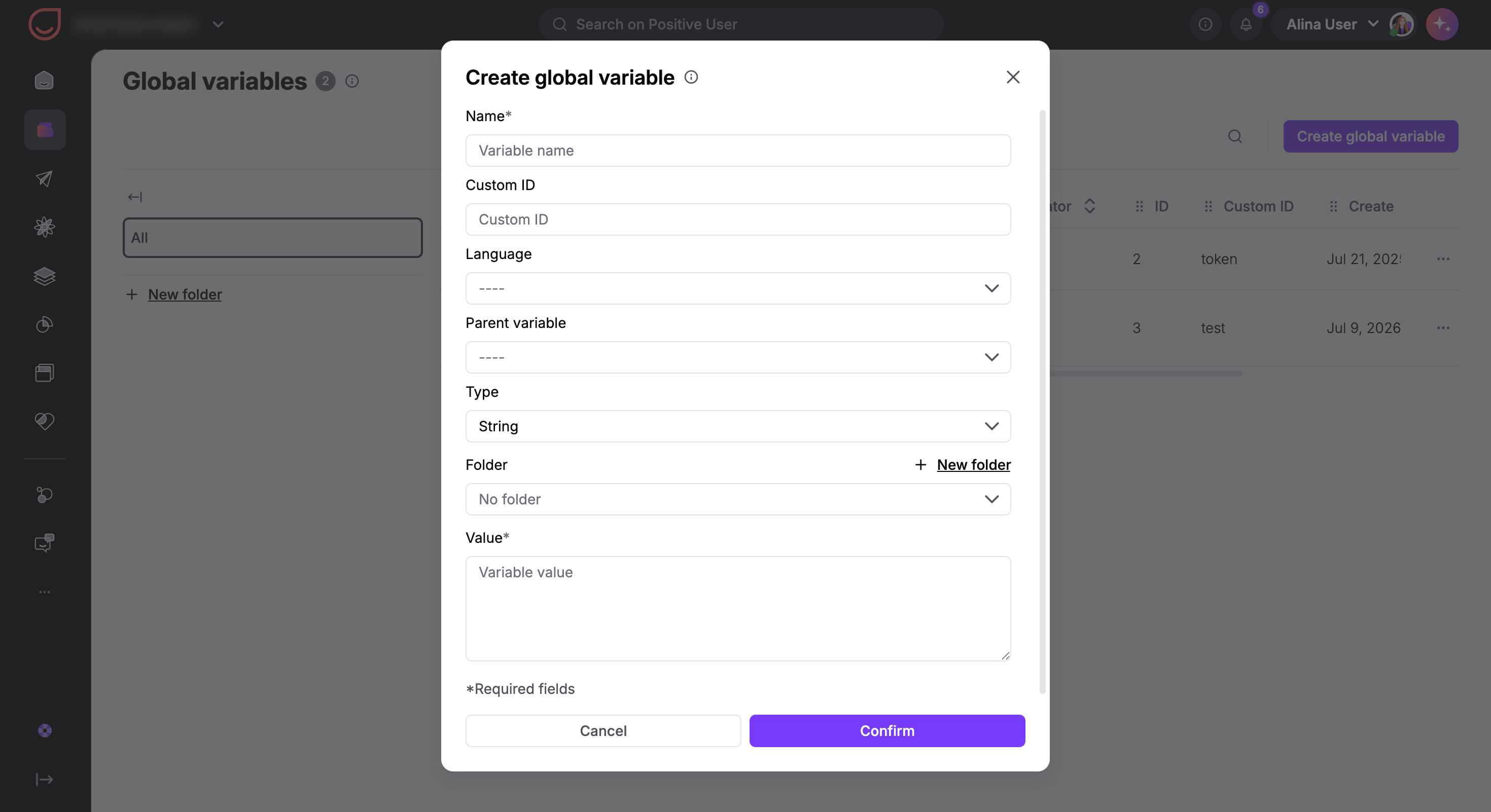
Click "Confirm" to save your variable. You can copy the variable name anytime using the copy icon next to it, or edit its content by clicking the cog icon on the right.
Global variables give your team a flexible way to manage dynamic content, track automation limits, and streamline campaign updates.
Coupon and Inventory Counters: Set up a numeric Global variable as a counter inside your automations. Every time Positive User assigns a coupon code or registers a contact for a limited promotion or contest, the automation reduces the variable's value by one. When the counter reaches a low threshold, the automation can automatically notify a team member to add more coupons or end the campaign when spots run out.
Recurring Promotional Updates: If you send recurring weekly campaigns that feature rotating promotional links or offers, save those links in a Global variable. Instead of opening and editing every scheduled campaign email, you only need to update the variable content each week to update all connected emails.
Centralized Campaign Footers and Signatures: Store static campaign elements, like team email signatures, legal footers, or company details in a global variable. You can insert the variable tag directly into your campaign templates like a ready-to-use block. If your address, disclaimer, or signature changes later, updating the variable changes it across every email automatically.
Multilingual Content Translations: Create separate global variables for different language versions of your content. By pairing these variables with “if” conditions based on contact language attributes, Positive User automatically renders the correct language version for each contact.
Grammar and Name Adaptations: In languages where contact names change form based on grammatical case or greeting context, store a library of name variations inside global variables. This lets you address contacts naturally across call scripts, emails, and chat messages.
If your Global Variable contains HTML code, format the variable using the safe filter like {{global.example|safe}} so Positive User renders the HTML properly instead of displaying raw code.
