Global variables give your team a simple way to manage dynamic content, track campaign limits, and keep information consistent across all messages. Instead of editing dozens of individual emails manually, you can update a single variable to refresh connected content instantly. Read “What Is a Global Variable” to learn more about how they work in Positive User.
There are various options of global variables’ usage. This article focuses on the most popular use cases.
Use an integer format to keep count of available promo codes, contest entries, or limited spots in real time.
Go to "Data" → “Advanced“ → "Global Variables" and click "Create global variable". Select "integer" as the data type, enter a starting whole number (e.g., 500), that suits the number of the items you have available or the number of the coupons imported to the promotion.
Go to "Automations", open your workflow, and add an action module to decrease the global variable value by 1 each time a contact registers or claims a promotion.
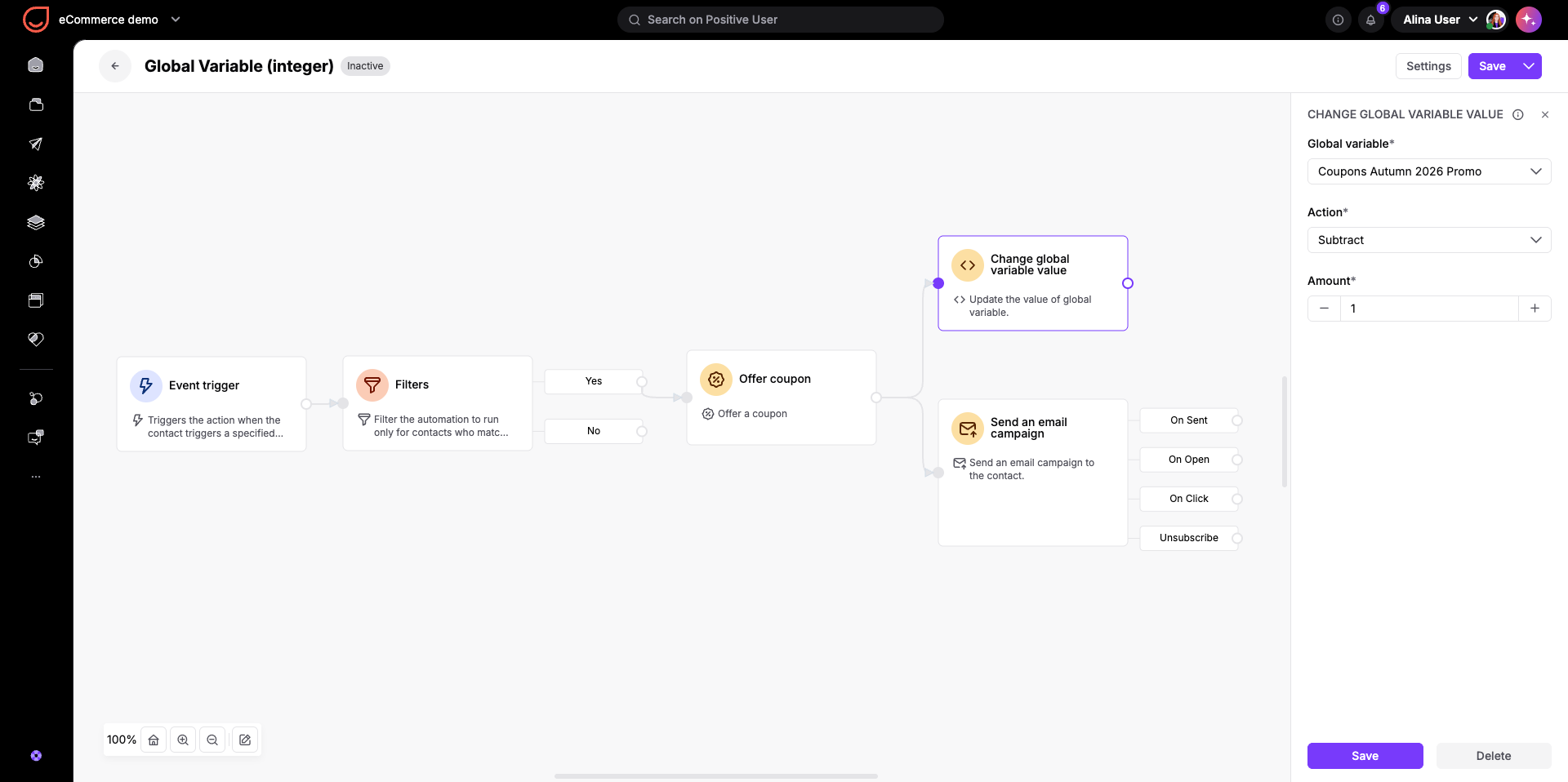
Add a condition to check when the variable reaches a low threshold. Connect an “Send an email to team member” action module to notify a team member to add more coupons, or automatically route contacts to a closed campaign path when the variable reaches 0.
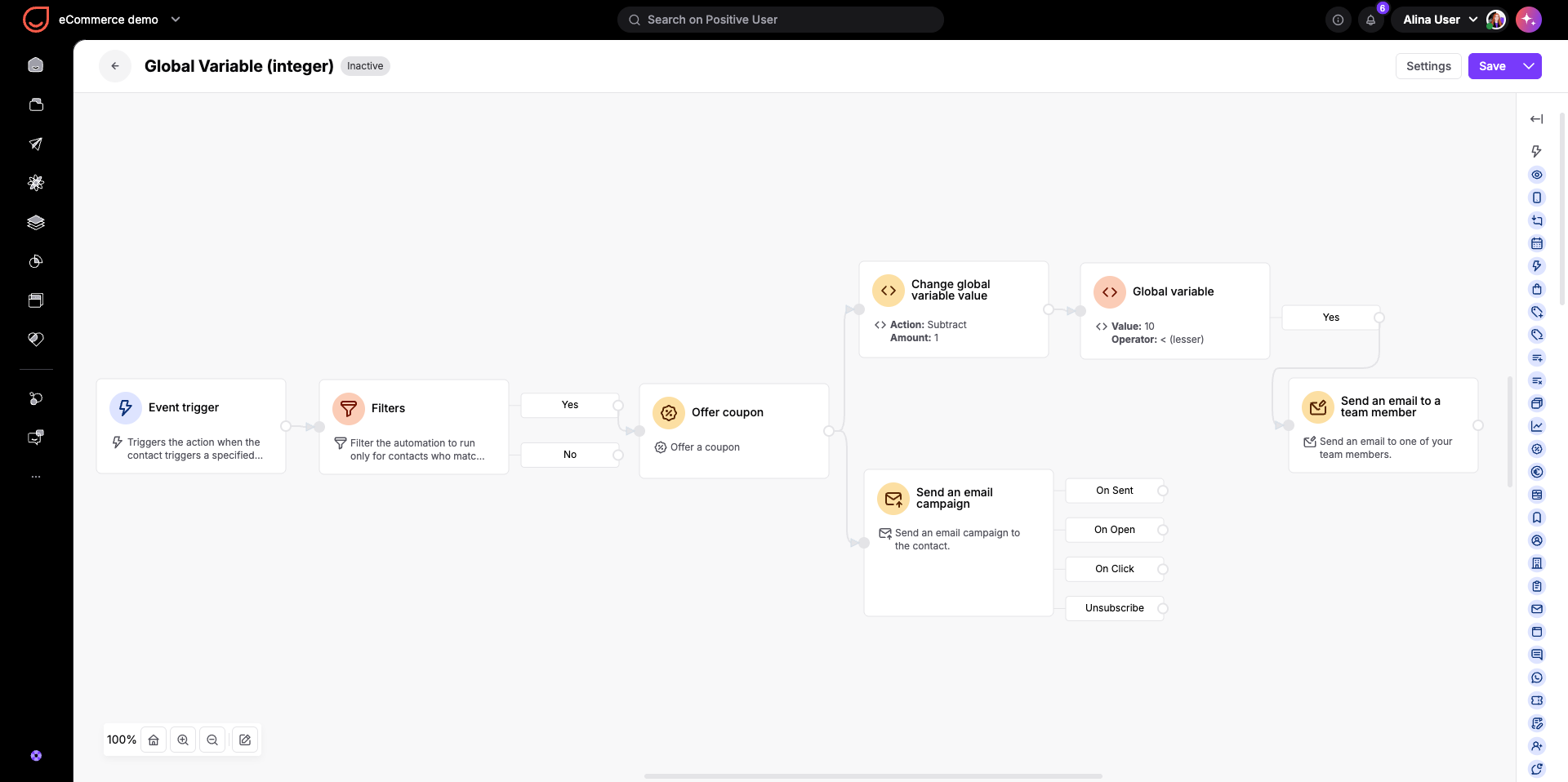
Similar scenarios can be applied to other use cases with the numeric values.
Use string format for dynamic links or float format for decimal values (like promotional prices or discount rates) that rotate on a regular schedule.
Go to "Data" → “Advanced“ → "Global Variables" and click "Create global variable". Select "string" for promotional URLs or "float" for dynamic values with decimals (e.g., 19.99 or 15.5), then click "Confirm".
If you want to use the variable in emails, then go to "Campaigns" → "Email”, edit your campaign message, and insert the global variable tag.
When your seasonal banner text, delivery promotion threshold, or discount rules change, edit the value in a global variables. All active, draft, and scheduled emails using that tag update instantly. From a business perspective, managing storewide rules and general promo terms centrally prevents price discrepancies across active flows, saves your team from editing dozens of individual templates, and ensures contacts always see accurate offer details.
Keep static content like company addresses, legal disclaimers, or team signatures synchronized across all templates.
Go to "Data" → "Advanced" → "Global Variables" and click "Create global variable". Select "string" as the data type, paste your signature text or address details into the value field, and click "Confirm".
Go to "Campaigns" → "Email" (and edit the campaign) or “Studio” → “Templates”, open your template, and place your variable in the footer section.
Now you don’t need to create a repetitive part of the email in each template. It’s enough to use the global variable.
If your business address or legal disclaimer changes, edit the string value in "Global Variables". The change immediately updates across every email template using that tag.
Deliver personalized content versions, translated copy, or audience-specific messaging based on contact profile attributes.
Go to "Data" → "Advanced" → "Global Variables" and click "Create global variable". Select "string" as the data type and create separate variables for each content variation, such as language versions or role-based messaging tailored to contact profile parameters like job title or position.
Go to "Campaigns" → "Email" (and edit the campaign) or “Studio” → “Templates”, open your template, and place your variable. Use "if" conditions directly in the template editor to check contact profile attributes such as language, job title, or position and insert the matching global variable tag.
Save your template and send your message as a one-time campaign or through an automation flow. When the message sends, Positive User checks each contact's profile attributes directly and renders the targeted global variable version automatically.
While these methods highlight common marketing setups, global variables can be adapted to many other custom workflows in Positive User. Depending on your team's needs, you can combine string, integer, and float variables in creative ways, such as maintaining regional support contact details, managing dynamic event schedules, or tracking custom system thresholds. Any recurring piece of data across your workspace can be centralized with a global variable to keep your messaging accurate and save manual effort.
