Positive User gives your team workspace-wide control over email tracking. By understanding how email tracking works and when to turn it off, your team can align campaigns with legal standards while maintaining seamless communication.
To stay compliant with modern privacy standards and guidance from European data protection authorities (such as France's CNIL and Italy's Garante), recipients must give explicit consent before their email engagement can be tracked. Adding a tracking consent link gives your recipients direct control over whether their email opens and clicks are recorded. Pay attention on this aspect, if you send emails to recipients from France and Italy.
Much like a subscription management link allows contacts to control which email lists or marketing messages they receive, a tracking consent link gives contacts self-service control specifically over whether their open and click engagement is tracked.
{% email_tracking_consent %}When you insert the tracking consent dynamic content into an email, Positive User automatically replaces it at send time with a unique, recipient-specific URL. Clicking this link takes the recipient to a dedicated confirmation page where they can grant or revoke consent for email tracking at any time. This link remains active and fully functional regardless of your workspace's current tracking setting.
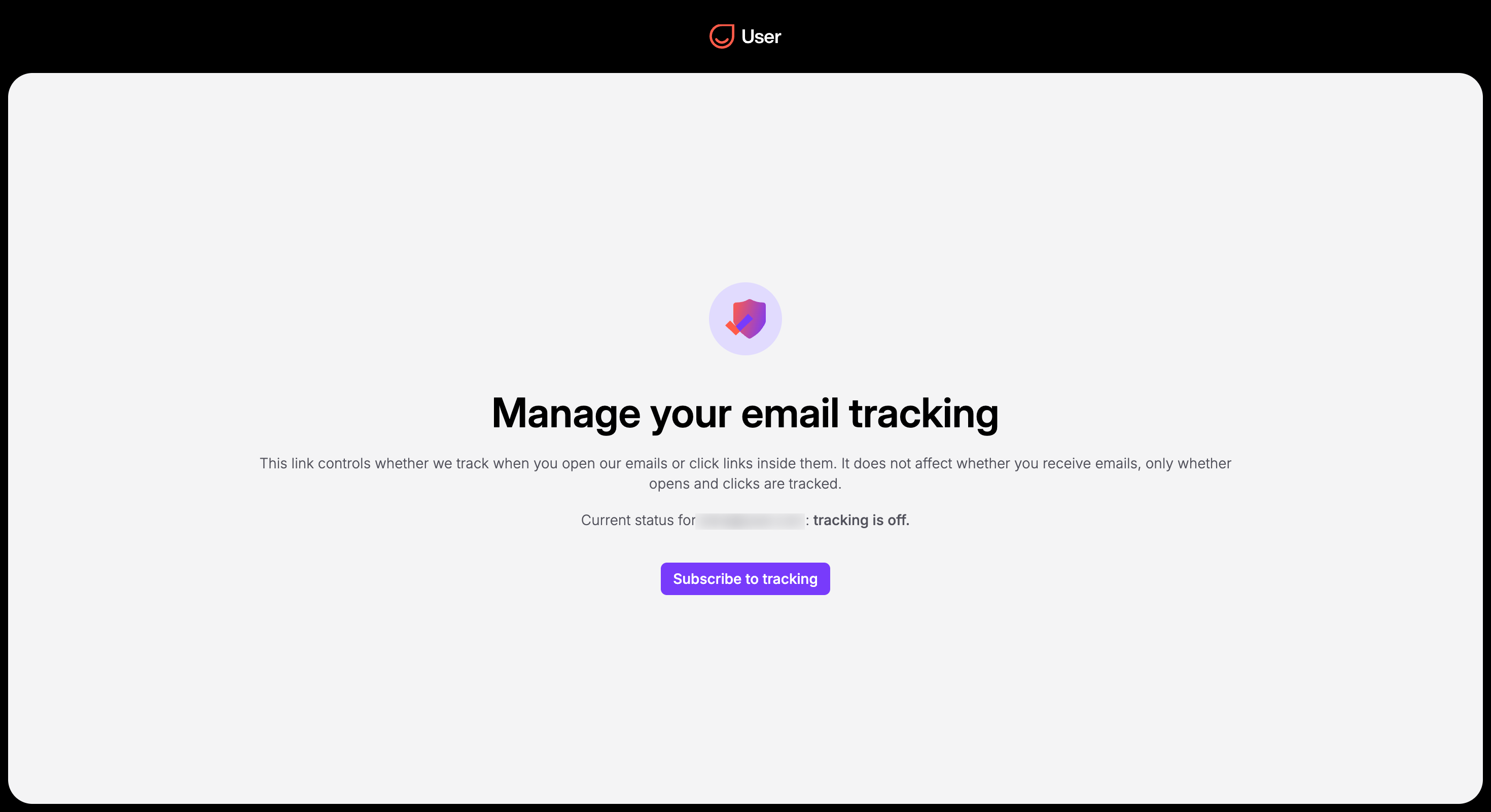
Understanding how Positive User handles consent choices behind the scenes helps your team manage contact data accurately and maintain auditable records.
A single standard contact field, “Email tracking consent”, controls tracking gating across your workspace. This attribute can hold one of three values:
true: The contact explicitly opted in to email tracking. When your workspace uses "Per contact" tracking, Positive User attaches tracking pixels and wraps links for this recipient.
false: The contact explicitly opted out of email tracking. Their emails are sent without tracking pixels or wrapped links.
none (Default): The contact has not made a choice yet. In "Per contact" mode, Positive User treats contacts with no selection as unconsented and sends their emails untracked.
Positive User checks each contact's choice at the exact moment an email is delivered, not when the campaign is scheduled. If a recipient updates their tracking preferences after you schedule a campaign, Positive User automatically honors their updated selection when the email goes out.
When a contact clicks the consent link in an email:
Confirmation Page: They reach a simple page where they can turn open and click tracking on or off whenever they like.
Instant Status Update: Their choice updates the "Email tracking consent" field on their profile right away.
Automatic Timeline Record: Positive User fires an "Email tracking subscription" event on the contact's timeline. This event has a boolean attribute “opt in”, which shows the recent choice of the contact:
true: Added when a contact turns email tracking on.
false: Added when a contact turns email tracking off.
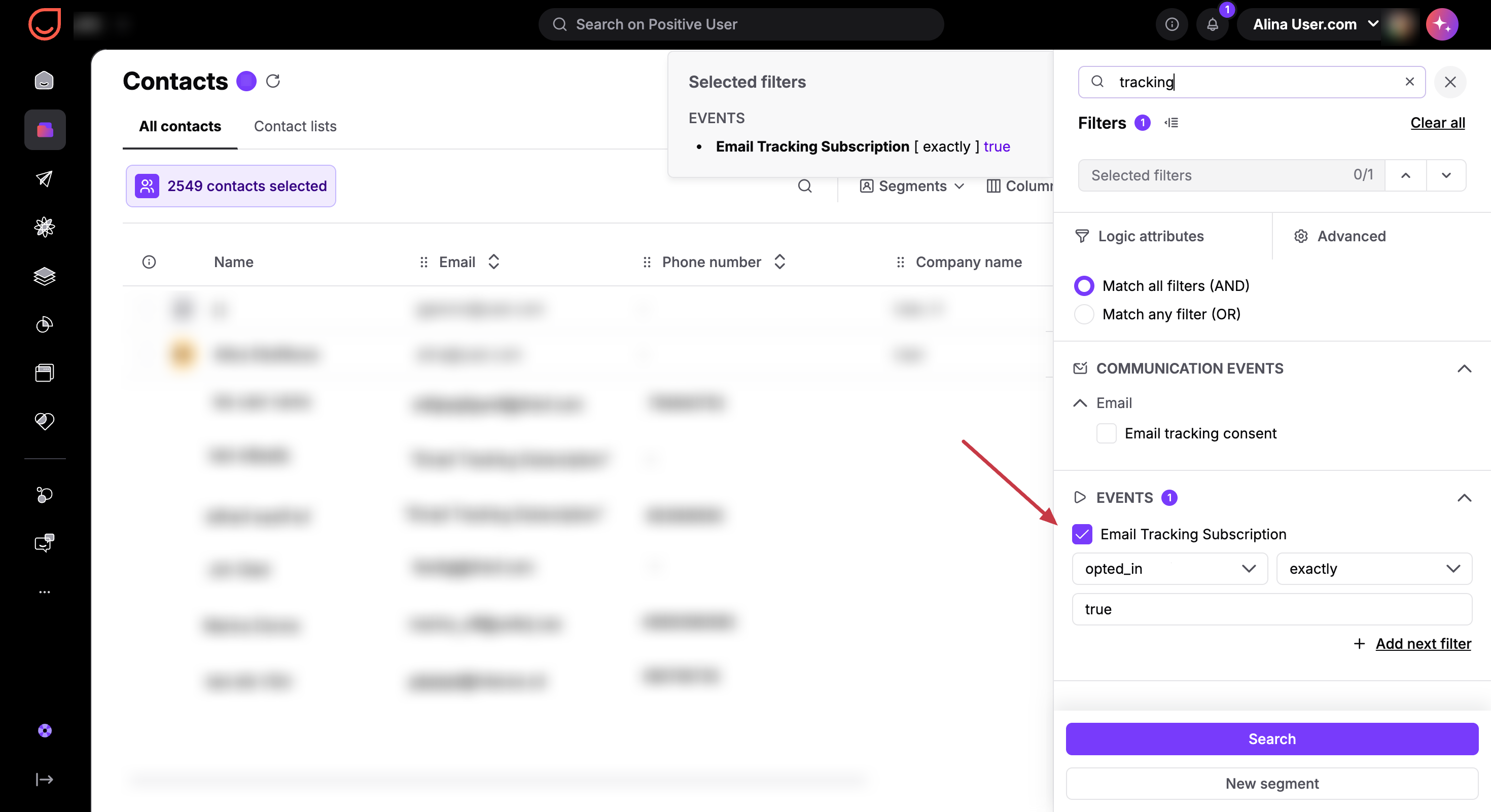
The “Email tracking subscription” event is also displayed on the contact’s timeline in the contact’s profile.

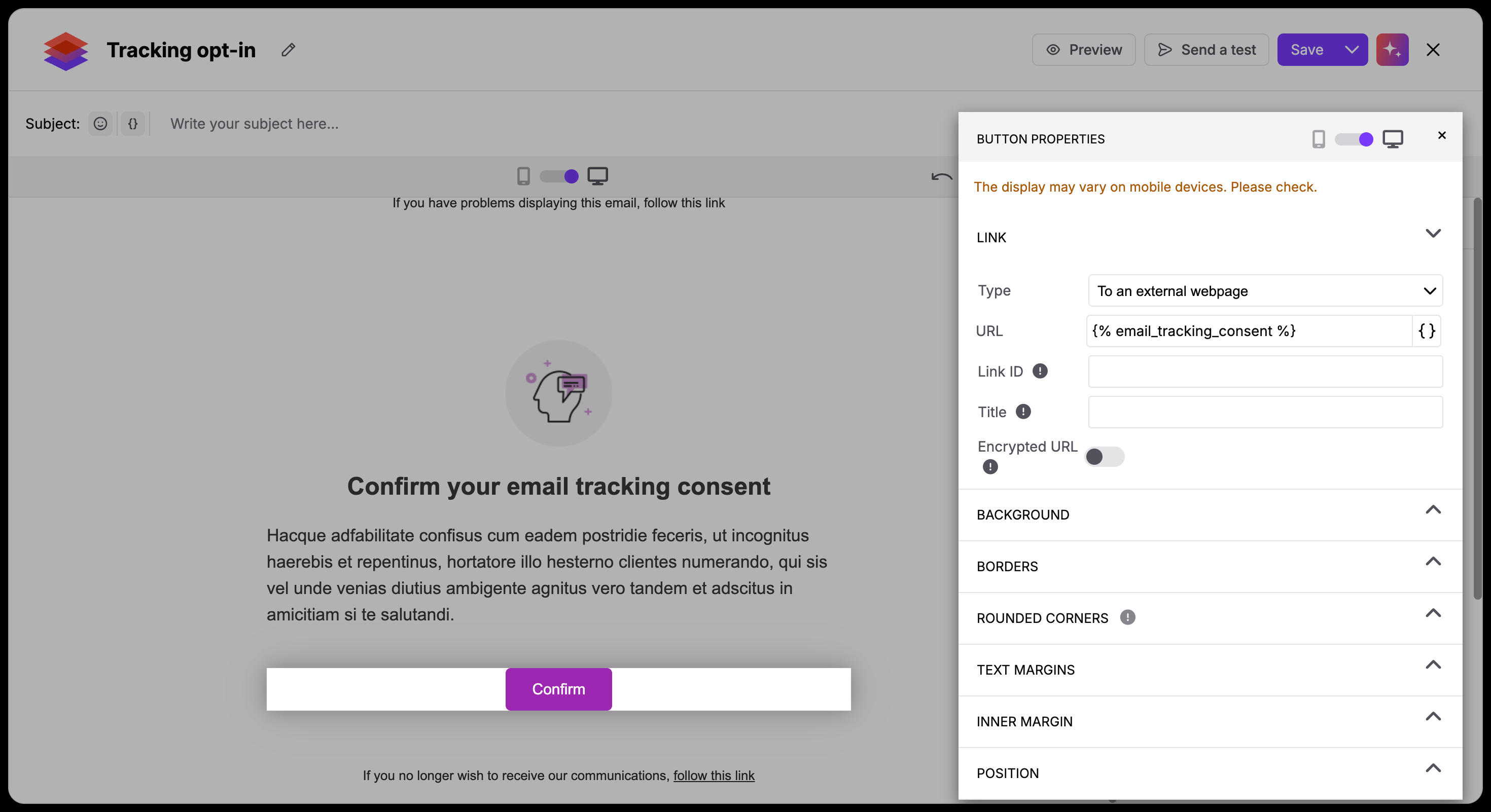
Using the drag-and-drop editor allows your team to add interactive tracking consent options directly into email text blocks without editing raw code.
Highlight a piece of text you want to include the link to or open the button settings.
Choose “Link” text option.
In the pop-up configuration window choose “To the external webpage” type of the link.
Paste the {% email_tracking_consent %} snippet to the URL field.
For those who are creating custom HTML templates, inserting the dynamic content snippet directly into your code gives you precise control over styling, CSS button formatting, and exact layout placement.
Paste the dynamic content snippet {% email_tracking_consent %} into your HTML code exactly where you want the unique link URL to generate. During email delivery, Positive User automatically transforms this dynamic content element into a personalized URL.
Customize link text. Wrap the dynamic content snippet with your preferred HTML markup or anchor text. For example, "Click here to manage email tracking preferences"- to match your brand voice and visual style. Customizing the anchor text keeps your email copy approachable while maintaining compliance.
