Authenticating your domain in Positive User protects your brand reputation and helps your emails land directly in your contacts' inboxes instead of their spam folders. If your domain status stays "Invalid", a record typo, an expired setup timer, or mismatched domain settings is usually the cause.
Domain authentication is like a digital passport for your emails. It relies on standard security checks SPF, DKIM, and DMARC, that tell inbox providers (like Gmail or Outlook) that your messages genuinely come from your business. SPF lists the tools allowed to send email for you, DKIM attaches an invisible digital signature to prove the message wasn't altered in transit, and DMARC tells receiving servers how to handle messages that fail these checks. When these records align with your sending domain, email providers trust your messages and deliver them safely.

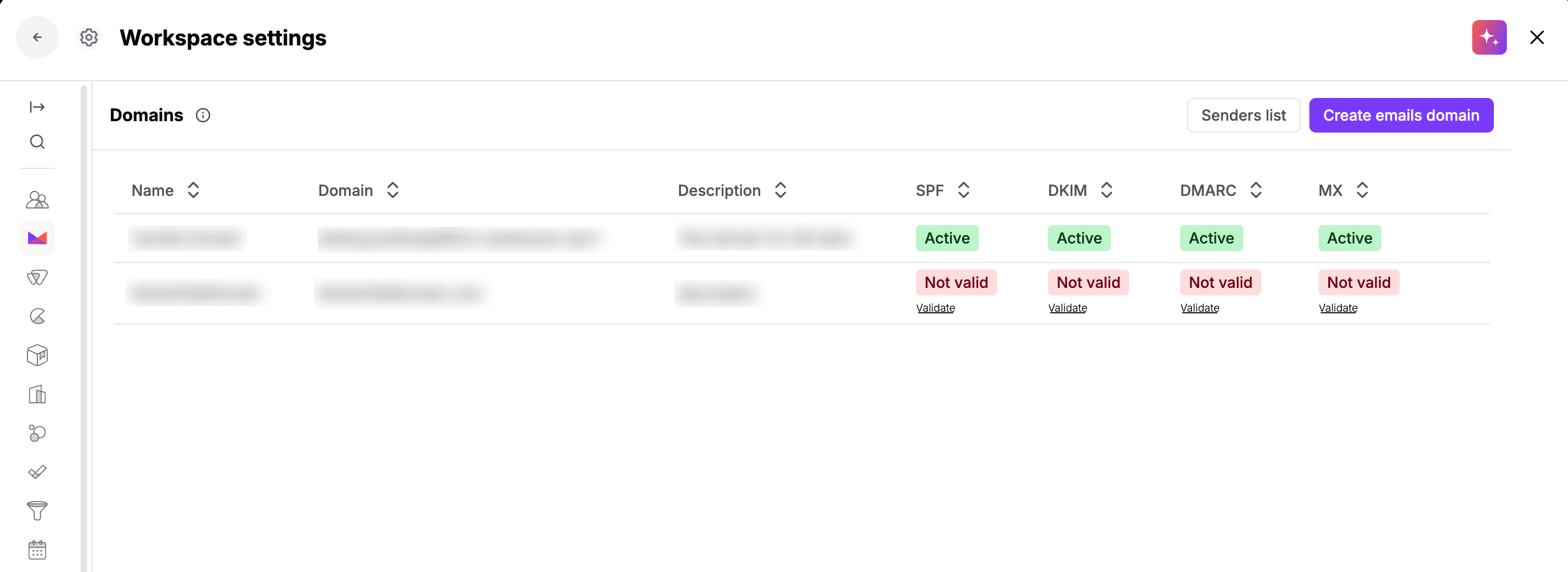
Go to "Workspace Settings" → "Email" → "Domains". Look at the status indicators next to your domain name to see if SPF, DKIM, or DMARC show an "Active" or "Not valid" status. You can also send a test email to get more details.
Review your domain host's documentation to confirm how they format DNS values and hostnames.
Different domain hosts handle record formatting in unique ways. For example, some hosts automatically append your main domain name to the end of host fields, while others require trailing dots or specific quote marks around record values. Checking your provider's help guide prevents formatting errors before you paste keys from Positive User.
Check that the required authentication keys are accurately published with your domain host.
Fix SPF record configuration, add or correct your DKIM key and verify DMARC record syntax and alignment.
Follow the instructions from “How to Connect a Company Email Domain”.
Review your published DNS records for extra domain names or leftover records from old email platforms. A common mistake is accidentally doubling domain names in host fields (for example, entering subdomain.yourdomain.com.yourdomain.com) or leaving old TXT records from previous marketing tools. Remove outdated records and make sure the record names match Positive User instructions exactly.
Wait up to 48 hours for DNS updates to spread across global servers.
Once records are correctly published with your hosting provider, domain validation occurs automatically, and the subdomain status changes to "Active" with a green check mark.
Keep these essential email deliverability practices in mind when managing your domain authentication:
Maintain only one SPF record on your domain. Publishing multiple SPF records causes permanent authentication failure (PermError).
Keep SPF lookups under 10 total DNS queries. Exceeding 10 lookups causes mail servers to drop the lookup, causing SPF validation to fail.
Ensure DMARC alignment between the domain in your visible "From" address and the authenticated SPF and DKIM domains.
Allow up to 48 hours for global DNS propagation before deleting or recreating domain settings.
Perform regular list hygiene to remove invalid addresses and hard bounces, protecting your domain's reputation across all major inbox providers.
