To ensure optimal email deliverability, stronger security, and better inbox placement, you can send emails directly from your own domain with the help of Positive User servers.
To activate this direct sending capability and authorize our new servers to send emails on your behalf, you need to configure DNS records in your domain provider's settings. While "DNS" sounds highly technical, this configuration simply involves copying and pasting a few values.
Positive User servers provide several key benefits for your domain:
Faster Delivery: Direct sending removes the middleman, meaning fewer hops between our platform and your customer's inbox.
Better Inbox Reach: Using our own dedicated infrastructure gives us total control over sender reputation, significantly reducing the chance of your emails landing in the spam folder.
Stronger Security: Direct sending allows us to implement the strictest, most modern security protocols for your brand.
To tell receiving email providers (like Gmail, Outlook, and Yahoo) that our new servers are officially authorized to carry your mail, you will need to update your domain's SPF, DKIM, and DMARC records.
These settings let you send emails from your domain. To authorize Positive User to send emails on your behalf, you must add the correct DNS records. The configuration includes SPF, DKIM, and DMARC.

SPF allows mail servers to verify that Positive User is allowed to send emails from your domain.
Record type: TXT
Name: Usually your domain name (e.g., example.com). It may differ depending on your hosting provider.
Value: v=spf1 mx a include:_spf.positivegroup.email include:_spf.mail03-userengage.com -all
If your domain already has an SPF record, update its value instead of adding a second record.
Example
Current value: v=spf1 mx a include:_spf.mail03-userengage.com -all
Updated value: v=spf1 mx a include:_spf.positivegroup.email include:_spf.mail03-userengage.com -all
If your provider uses an SPF builder, add a new “include” element.
DKIM acts as a digital signature, proving to the receiver that the email hasn't been tampered with along the way. You need to add two records:
Record type: CNAME
Name: userengage._domainkey.yourdomain.com
Value: userengage._domainkey.mail03-userengage.com
and
Record type: CNAME
Name: usercom2048._domainkey.yourdomain.com
Value: usercom2048._domainkey.userengage.com
For providers using DirectAdmin, add a period (.) at the end of the value. If you're not sure about this, check your provider knowledge base or contact their support directly.
DMARC tells receiving servers what to do if an email fails the SPF or DKIM checks. This strengthens your domain’s email security and ensures DMARC reports are delivered straight to your inbox.
Record type: TXT
Name: _dmarc.yourdomain.com
Value: v=DMARC1; p=quarantine; sp=reject; rua=mailto:[email protected]
As in the previous example, you may need to add a period at the end of the record value. If you have any doubts, check your hosting provider knowledge base or contact their support.
To configure the missing MX records for your subdomains, you must replicate the mail routing settings from your root domain. Because an MX record dictates how incoming mail is handled, it is typically already active on your main domain (example.com).
Simply review the existing MX configuration of your root domain—such as a record pointing to Google Workspace or Microsoft servers - and add an identical MX record for your subdomains, such as newsletter.example.com, to ensure proper delivery.
DNS propagation may take time. You can check your records with Google Dig or any DNS lookup tool.
In the provided example on a screenshot below, we can see that the DKIM record returns the correct value.
Once DNS is ready, add and verify your domain inside Positive User.
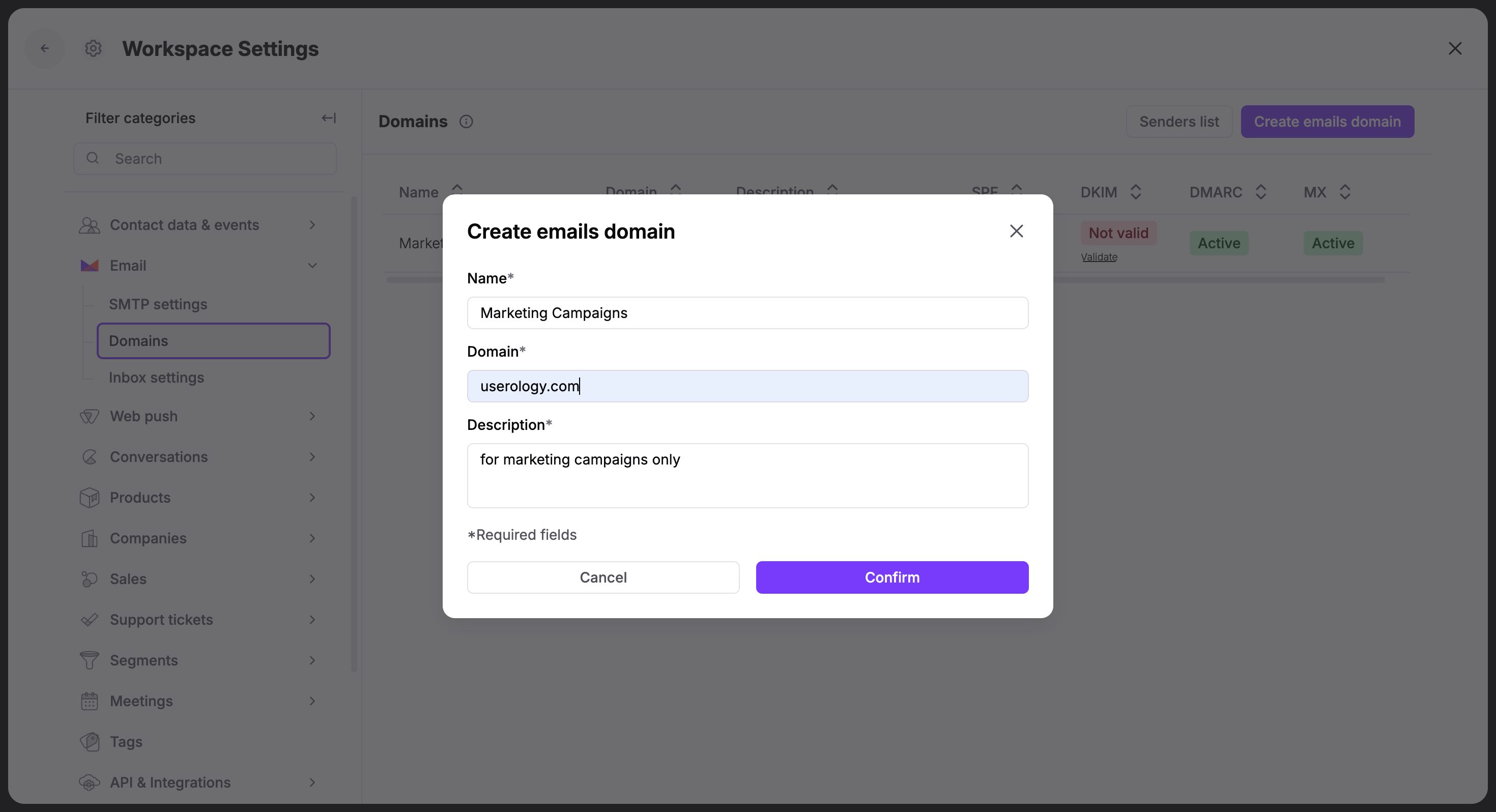
Go to Settings → Workspace Settings → Email → Domains.
Click the “Create emails domain” button.
Fill the form with the required details:
Name: The label displayed on your domain list inside Positive User app. Example: Marketing Communication.
Domain: The domain you want to send the emails from. Example: userology.com
Description: Useful details for your team.
Validate DNS Records
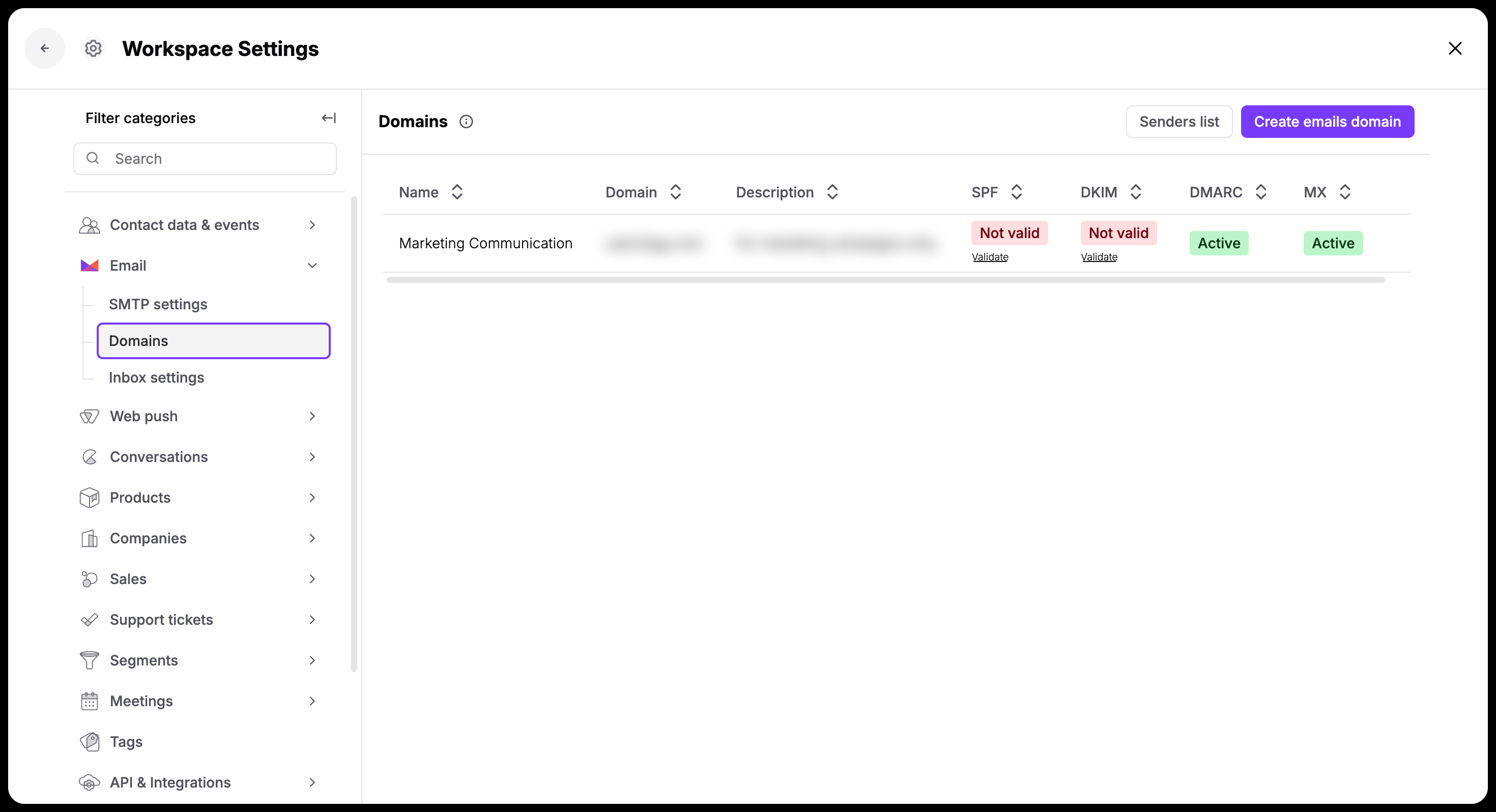
Once the DNS records are validated the domain can be used for the email campaign delivery.
Deliverability Optimization: Sending from your own domain improves credibility with mailbox providers, reduces spam filtering, and increases open and click rates.
Brand Trust: A recognizable sender domain increases trust and supports consistent communication.
