Creating visually appealing, responsive, and effective email templates should be accessible to everyone. That’s why Positive User offers a drag&drop Email Builder that allows you to design professional emails without any knowledge of HTML or CSS.
As part of our ongoing product evolution, the previous Unlayer Email Builder has been replaced by the native Sarbacane Email Builder. This article explains what has changed, highlights the key differences between the two editors, and outlines why this transition benefits you in the long run.
The most important change is not just visual - it’s strategic. The new Email Builder is an in-house solution integrated more deeply into the Positive User platform. Unlike third-party editors, this gives us significantly more control and flexibility for future development.
By moving away from an external dependency, we can:
Develop new features faster
Better align the editor with Positive User use cases
Improve long-term stability and performance
Respond more quickly to customer feedback
In short, the native Email Builder gives us a stronger foundation for innovation compared to third-party solutions.
At first glance, both editors look and feel very similar. The overall layout, drag‑and‑drop mechanics, and core building blocks remain familiar, making the transition smooth.
Most of the features you already know are still available, and in many cases enhanced with solutions designed specifically for Positive User use cases.
In addition to parity with the previous editor, the native Email Builder introduces new, tightly integrated modules that allow you to build advanced, data‑driven emails faster and with less manual configuration.
Unlayer: Unsubscribe link was added using a dedicated “Unsubscribe” module that had to be manually inserted into the email content. “Unsubscribe from specific list” link had to be added via “Custom HTML” module.
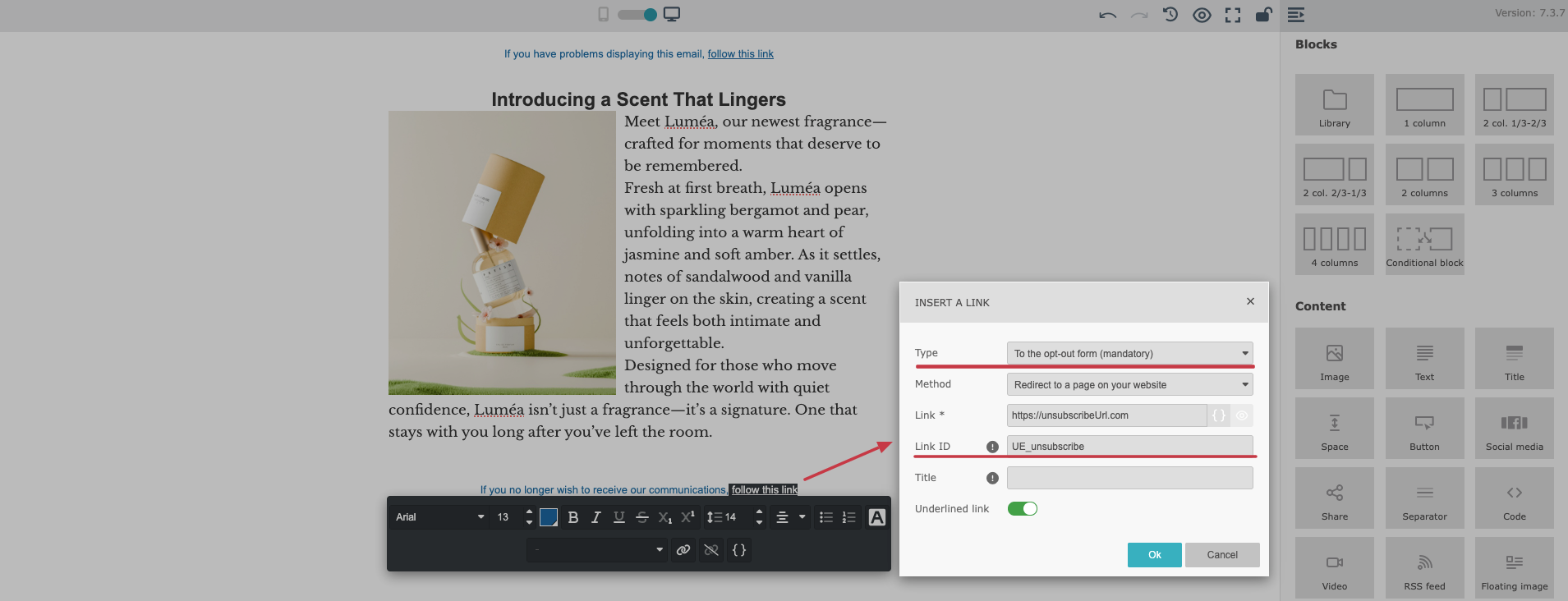
Native Email Builder: A general unsubscribe link is added automatically to every template in the footer. You can easily modify it into the “Unsubscribe from specific list” link.
You can click the unsubscribe text in the footer and edit it using the standard text editor (text, font, size, color, and styling).
If you click the “Link” icon and choose the “Opt-out form” link type, you can change the “Link ID” from global unsubscribe to an “unsubscribe from a specific list” link.
This makes managing unsubscribe links faster and significantly easier than in the previous editor.

Unlayer: Element settings opened in a fixed configuration panel on the right side of the editor.
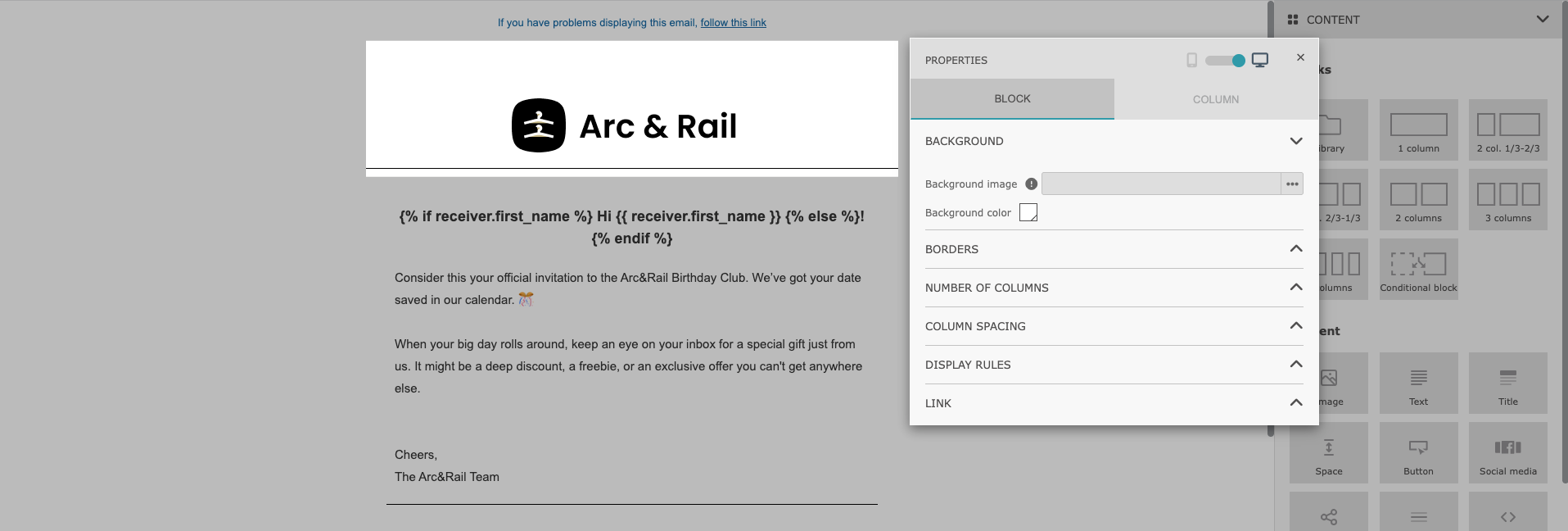
Native Email Builder: Element settings open in a movable pop-up window.
This pop-up can be placed anywhere on your screen, giving you more flexibility and comfort, especially when working on complex layouts or smaller screens.
Unlayer Email Builder: Allowed layouts without limit of columns in a single row.
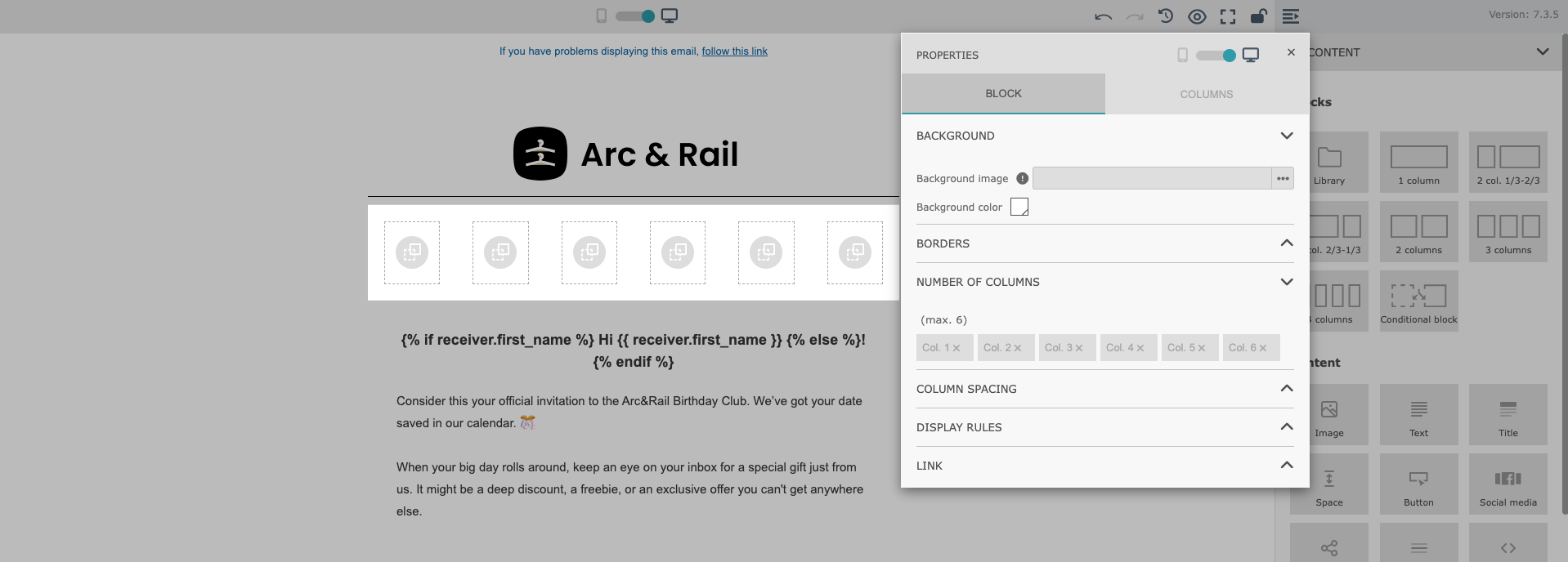
Native Email Builder: Supports up to 6 columns per row.
While the maximum number of columns has been reduced, this limit is intentional. Six columns are considered the optimal maximum to ensure proper rendering across almost all major email inbox providers. This approach results in cleaner, more readable layouts and minimizes the risk of display issues on different devices and email clients.
Unlayer: Image width was defined using percentages.
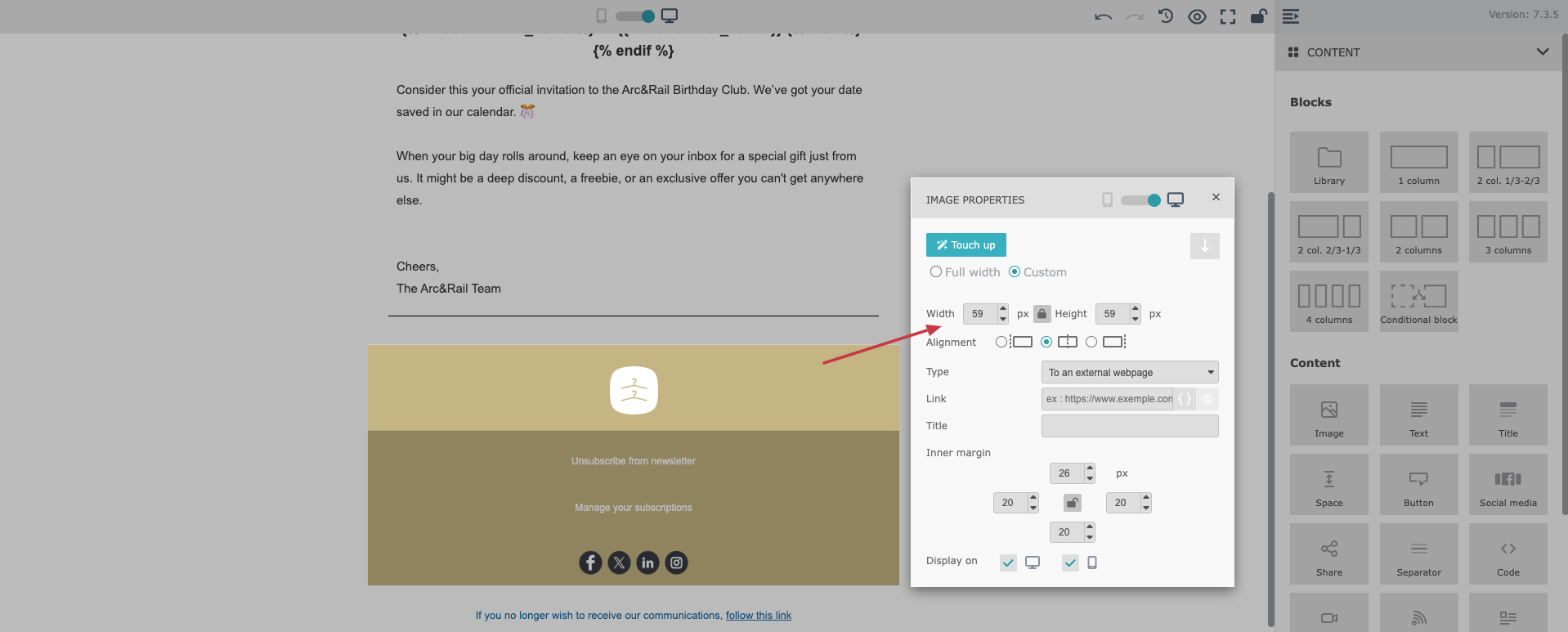
Native Email Builder: Image size is defined using pixel values.
Pixel-based sizing offers more precise control over how images appear, helping you maintain consistent visual proportions across different email layouts.
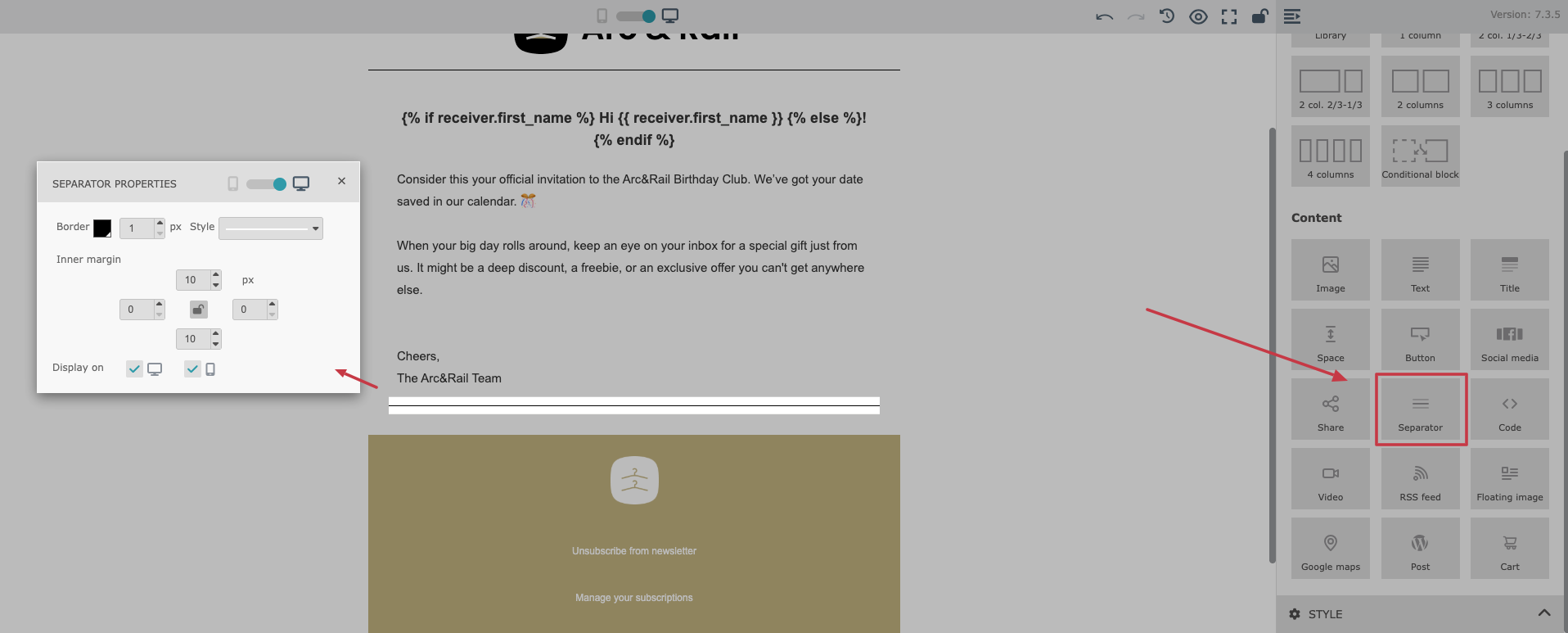
Unlayer: The “Divider” element allowed a custom width, enabling narrower horizontal lines.
Native Email Builder: The element is now called a “Separator” and always spans 100% width of its container.
This change ensures more consistent rendering across different email clients, many of which handle custom-width dividers inconsistently.
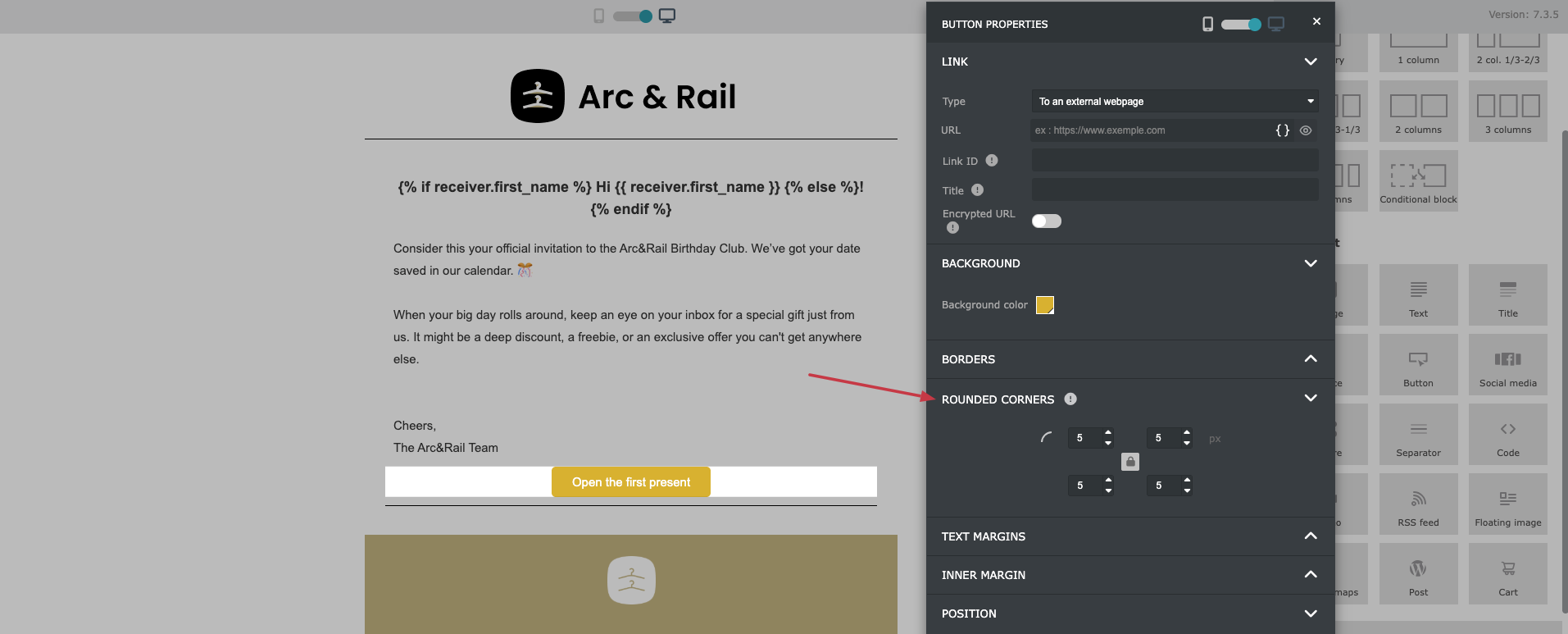
Unlayer: Rounded corners were mostly achievable only by using custom HTML.
Native Email Builder: Rounded corners are a built-in configuration option available for each content block.
This makes it much easier to create modern, visually polished designs without relying on custom code.
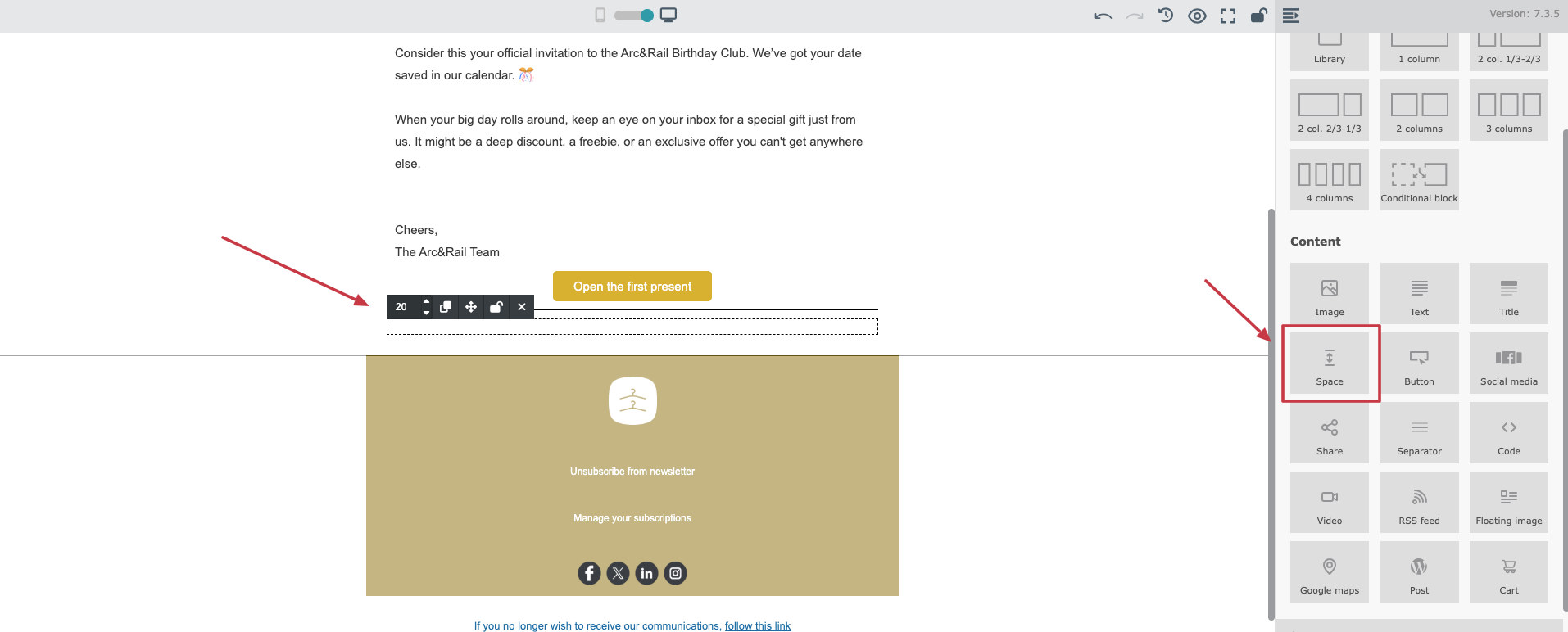
Unlayer: Spacing was mainly controlled via row properties, allowing you to define margins above or below blocks.
Native Email Builder: Spacing is handled through a dedicated “Space” module.
The “Space” module can be placed anywhere in your email content, giving you clearer control over layout structure and vertical rhythm.
These two modules will not be available in Native Email Builder. However, all templates and messages with the content built with their help should be migrated without any change.
It’s still possible to replicate similar solutions with the help of “Code” module.
The transition to the native Email Builder doesn’t just preserve existing functionality - it unlocks entirely new possibilities. Thanks to deeper integration with the Positive User platform, you now have access to smart, purpose-built modules that significantly speed up email creation and enable more advanced, data-driven use cases.
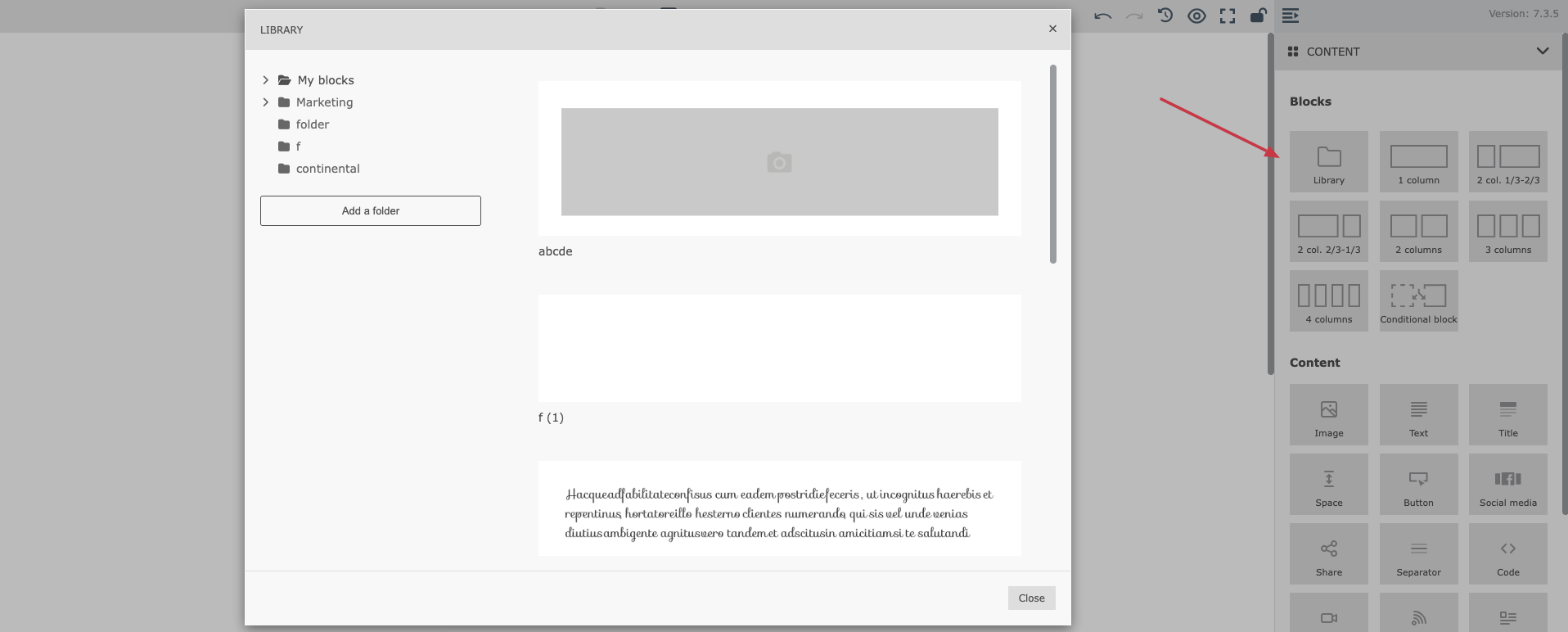
The “Library” feature helps you save time and maintain a consistent visual identity across all your email communications.
What it does:
Allows you to create, configure, and save reusable blocks (for example: headers, footers, banners, product sections, CTAs)
Saved blocks are stored in a shared library, accessible to your entire team
Any saved block can be reused in:
new email messages
new email templates
The “Library” is available directly inside the Native Email Builder, in the “Blocks” section on the right. By clicking on it you open the library of the saved blocks that can be easily injected into the email content you are working on.
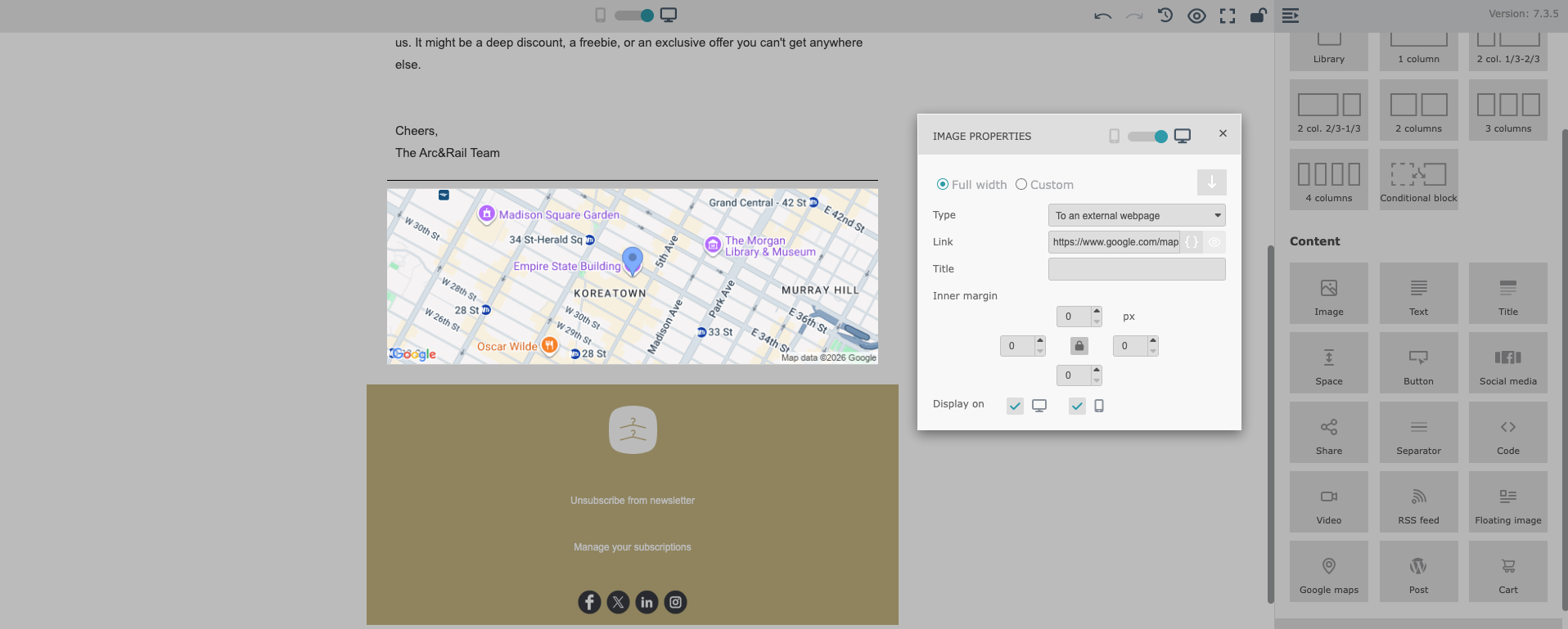
The “Google Maps” module makes it easy to showcase physical locations in your emails. Simply enter an address, and the module generates:
A map preview of the location
A clickable link that opens the address directly in Google Maps
This is ideal for highlighting the location of your business, shop, office, or any other place you want to present clearly to your recipients.
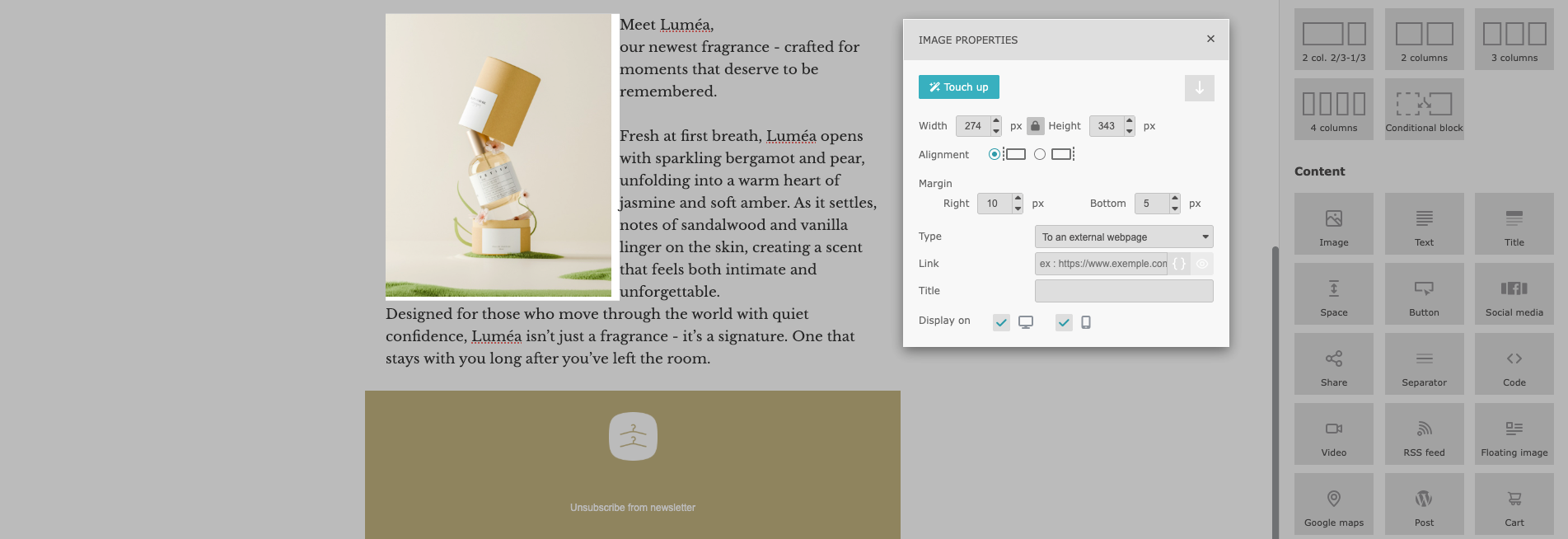
The “Floating Image” module combines an image with surrounding text, giving you finer control over layout balance and visual storytelling.
Displays an image with text flowing next to it
Lets you decide whether the text appears on the left or right side of the image
Supports images:
uploaded directly from your device
selected from the media gallery
added via an external URL
Includes a built-in touch-up feature that allows you to adjust the image directly within the Email Builder
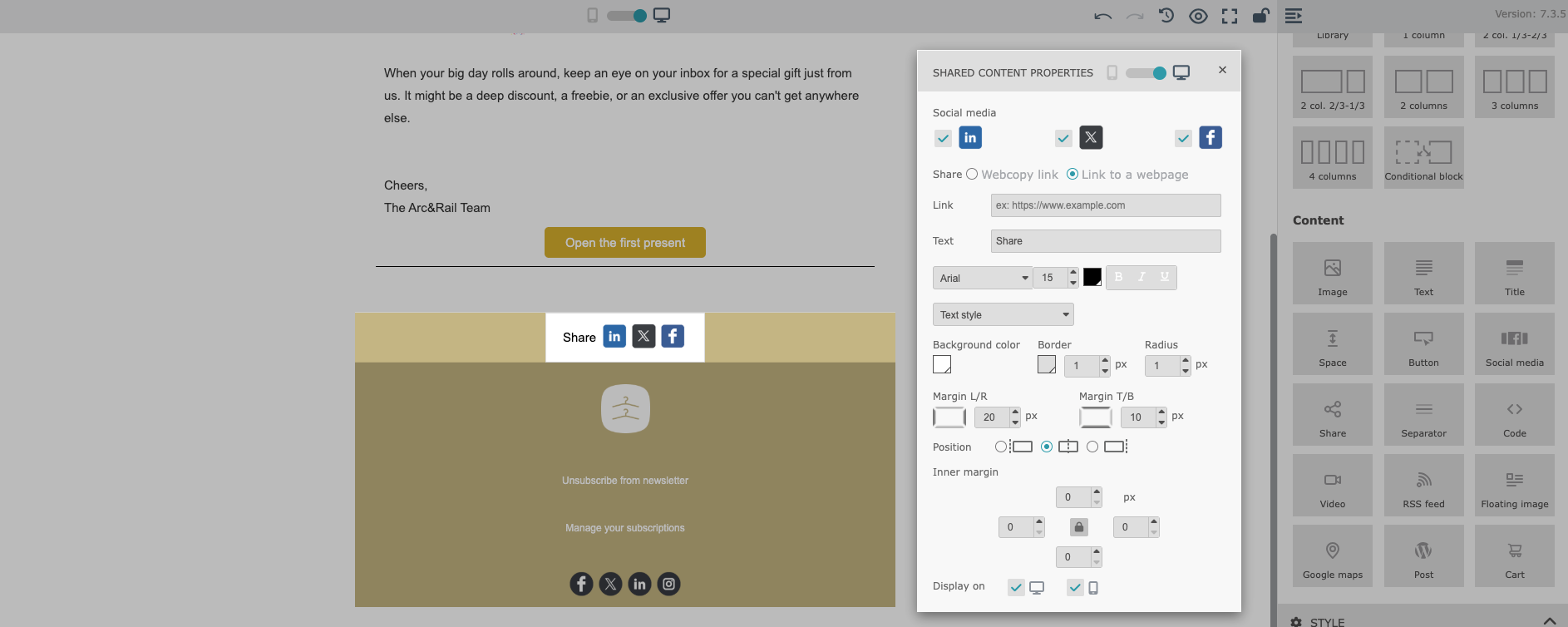
The “Share” module enables recipients to easily share your content on social media directly from an email. It allows recipients to click a social media icon and generate a draft post on the selected platform.
You can configure sharing for multiple platforms, including:
X (formerly Twitter)
The shared link can be:
a direct web page URL
or a web copy link related to the email content
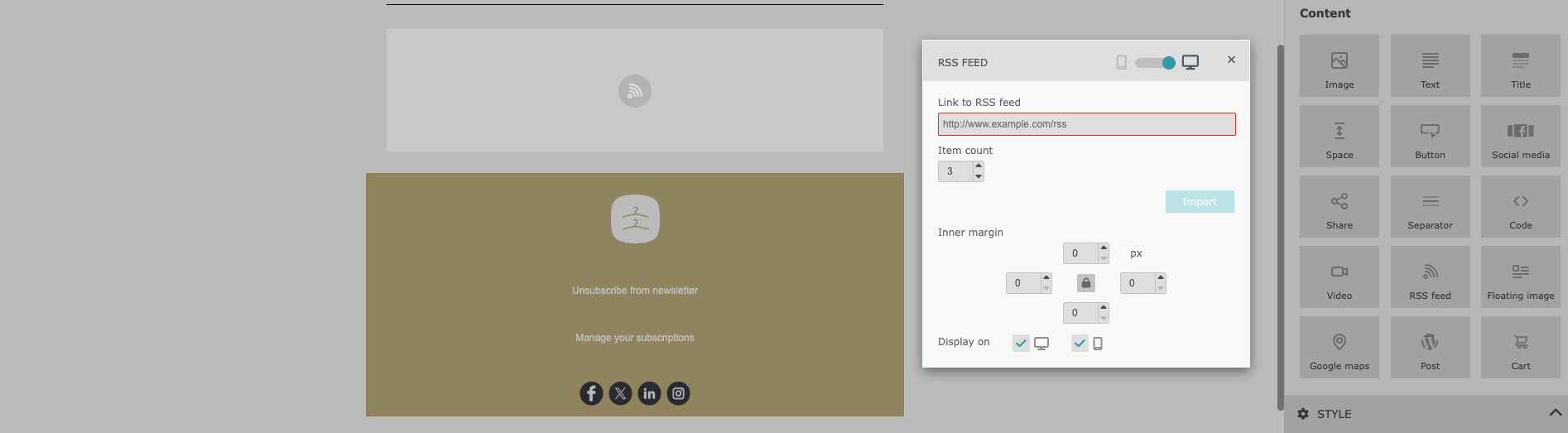
The “RSS Feed” module allows you to automatically include content feeds directly in your email messages.
The RSS Feed module is ideal for keeping your emails fresh, relevant, and up to date without manually updating content every time. Once configured, the email content updates automatically based on the feed:
Lets you paste an RSS feed URL
Automatically pulls content from the feed into your email
Displays up to 10 items, each containing:
article title
link
short description
You can fully control the number of items shown in the email, depending on how content-heavy you want the message to be.
After the release of the native Email Builder, all existing email messages and templates remain unchanged and fully available in your account.
When you open an existing template or email message to edit or modify it, it will be automatically migrated to the new native Email Builder. You can then continue working on the content seamlessly in the new environment, without any manual conversion or additional steps.
All new templates and email messages will be created in the native Email Builder by default.
In addition, the new editor comes with a rich collection of professionally designed, flexible, and highly effective templates that you can easily adapt to your brand and marketing goals - helping you get started faster and create high-quality content with minimal effort.
