Deals are at the core of your sales process in User.com. They represent opportunities that you want to track, qualify, win, or follow up on. While you can always create deals manually for full control, User.com also provides automation, import, and API options that help you scale deal creation based on real contact behavior and data flows.
In this article, you’ll learn all available ways to create deals so your pipeline stays accurate, actionable, and aligned with your sales workflow.
If you want to know more about the concept the deals and their main characteristics, please check this article first.
Manual deal creation is quick and flexible. It’s ideal for sales representatives, account managers, or support agents who want to log new opportunities as they arise and fully control initial deal details such as stage, value, and ownership.
You can create a deal from several places in the application. All options open the same deal creation form.
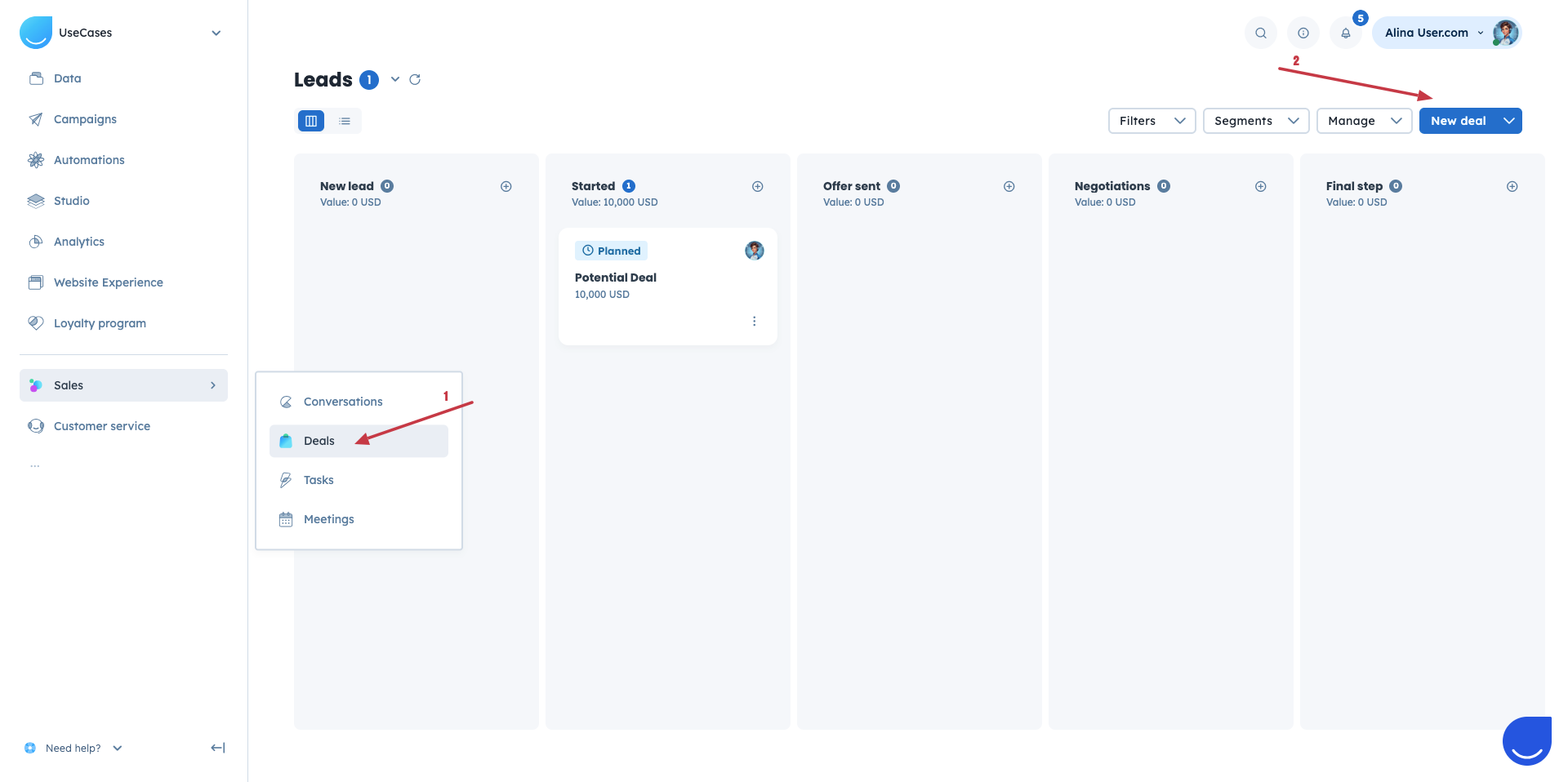
Go to “Sales” → “Deals” section.
Open a pipeline in the “Kanban” view.
Click the “New deal” button in the top-right corner of the panel.
Fill in the deal details and confirm.

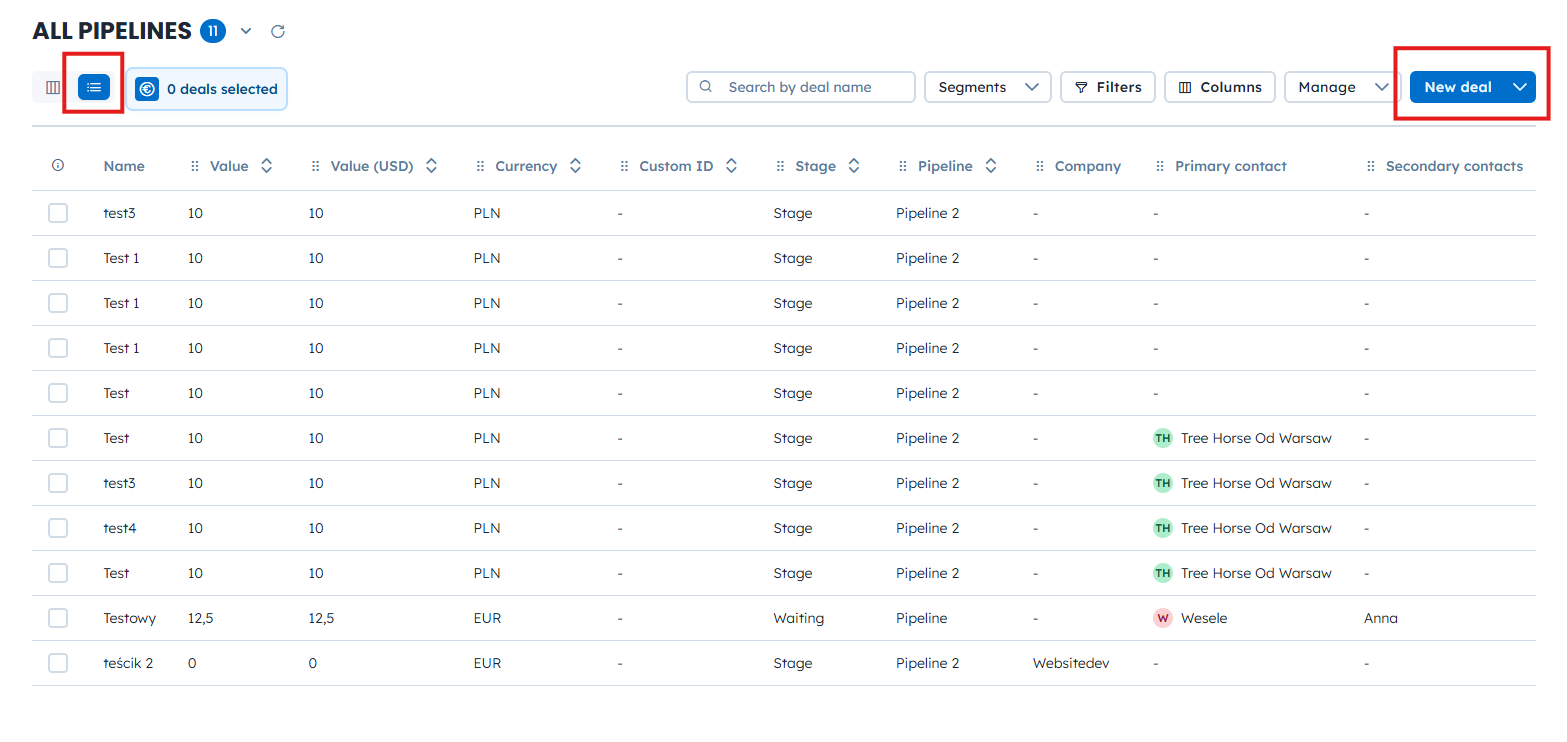
Go to “Sales” → “Deals” → “Table” view.
Click the “New Deal” button in the top-right corner of the panel.
Fill in the deal details and confirm.
The table view shows all deals across all pipelines, similar to other data sections such as People or Companies.
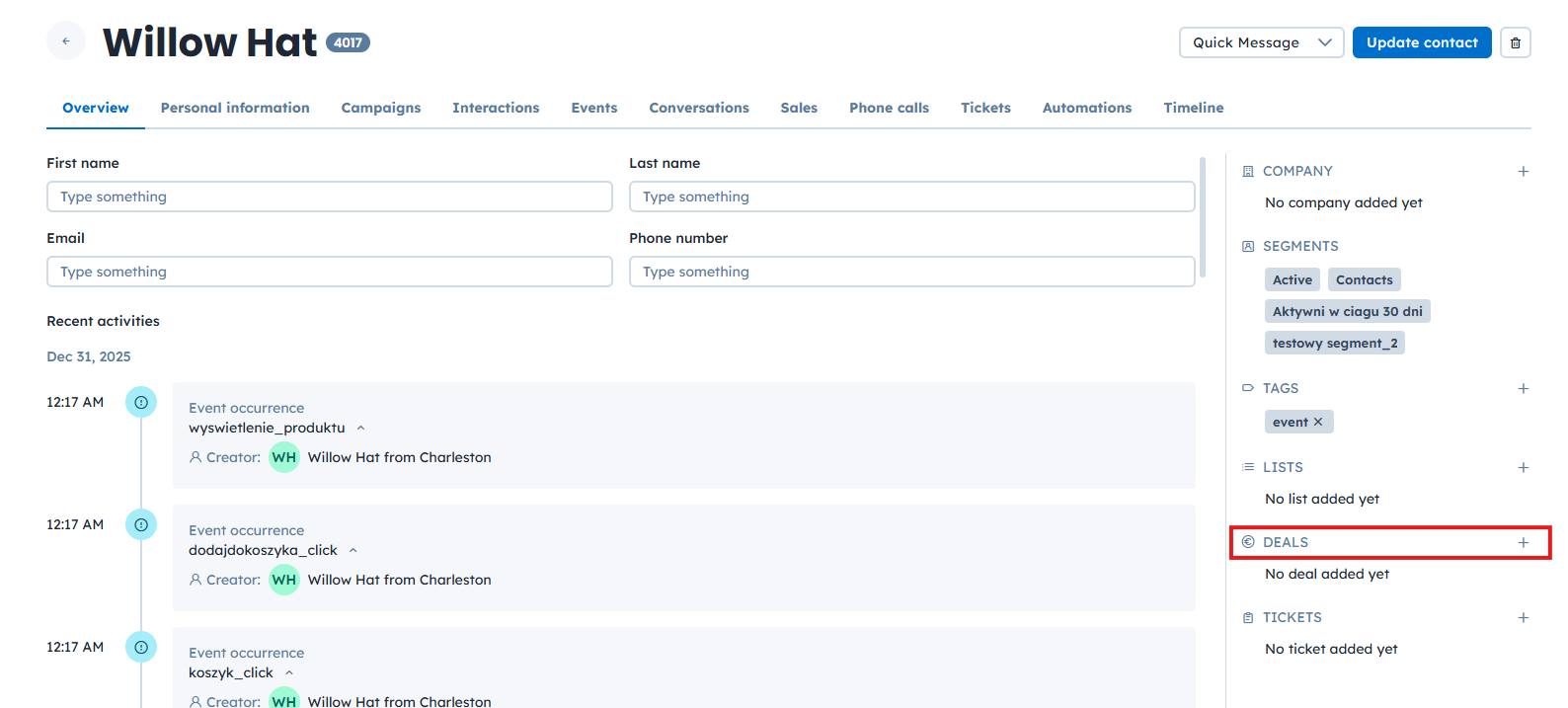
When working with a specific object you can create a deal directly from their profile.
Go to “Data” → “Contacts” / “Companies” section and open an object profile.
Find the “Deals” section on the right side of the profile.
Click the “+” icon to add a deal.
Fill in the deal details and confirm.
The deal is automatically assigned to the selected object.
All manual creation paths lead to the same deal creation form. The form includes standard and custom deal attributes. Some fields are required:
Name: Name of the deal (can include dynamic content).
Pipeline: The funnel deal should appear on.
Stage: The step of the pipeline the deal should start the path from.
Status: Current status of the deal.
Each organization may define additional internal standards, such as always setting a deal source, minimum value, or specific tags. Aligning with these rules helps keep your pipeline consistent and reliable.
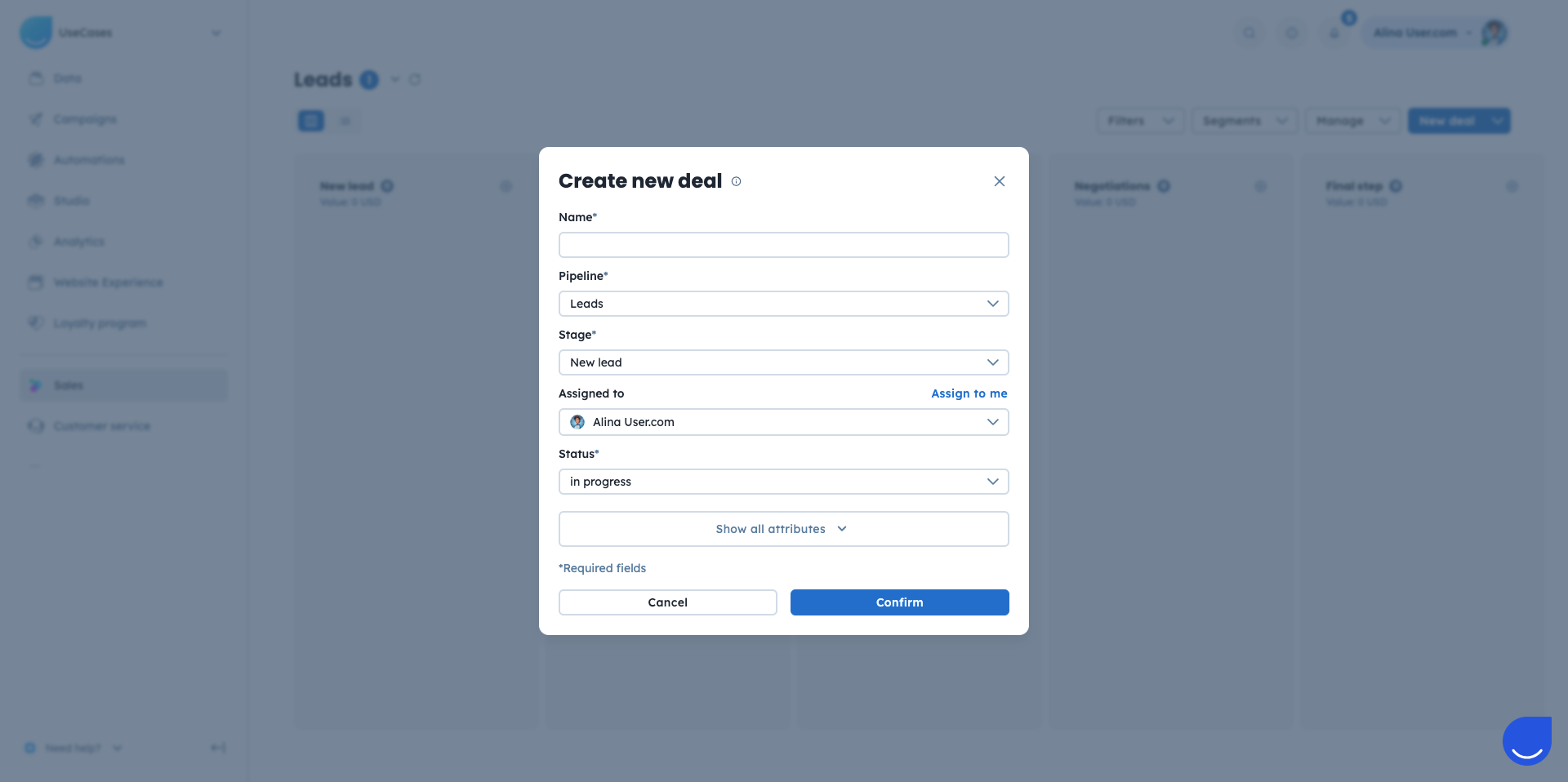
Example: After an inbound call, a sales representative creates a new deal with a value of $3,000, selects the “Qualified” stage in the “B2B Sales” pipeline, assigns it to themselves, and saves it for follow-up.
Deals can also be created automatically using automations. This approach helps you scale your sales process and ensures no opportunity is missed due to manual work.
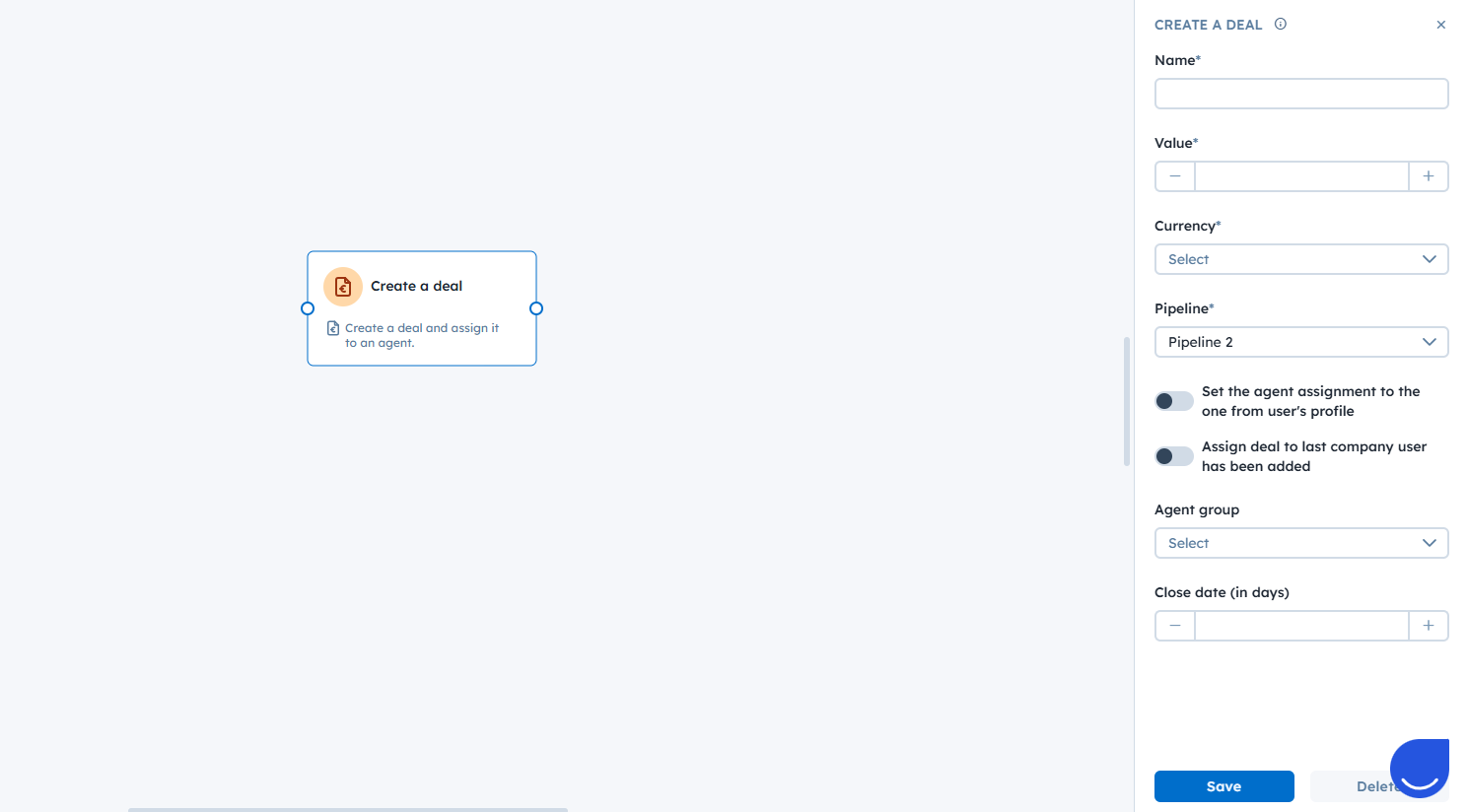
You can use the “Create a Deal” action module [LINK] in any automation flow. The module allows you to define:
Deal name
Value
Currency
Pipeline and stage
Assigned team member / group
Related company
Close date
You can use snippets to populate fields dynamically.
Example: Create a deal from a demo request
A contact submits a demo request form on your website. This event triggers an automation that:
Creates a deal in the “Sales” pipeline.
Sets the stage to “Requested”.
Builds the deal name using the form name and contact data.
Assigns the deal to one of the two sales representatives responsible for demos.
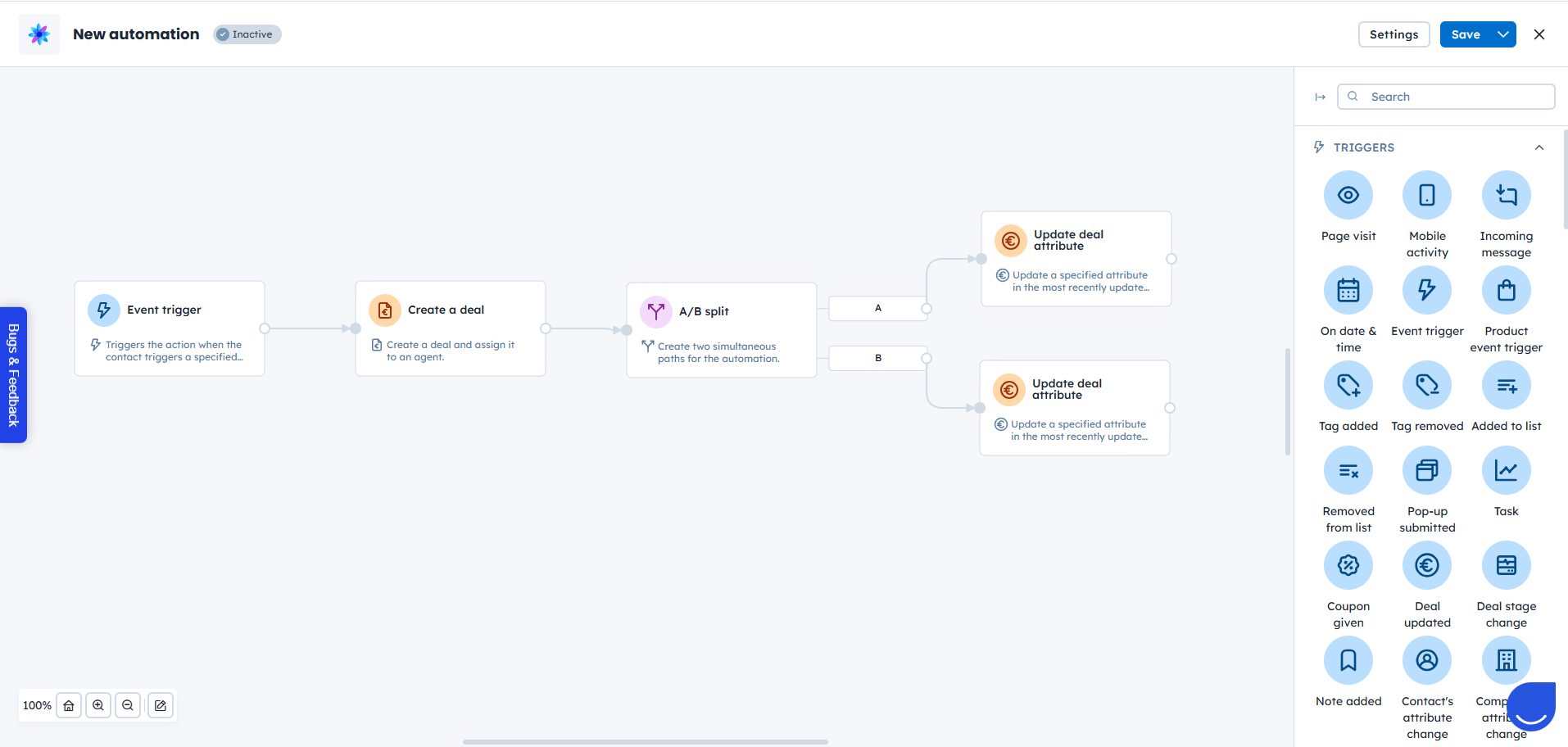
Automated deal creation improves collaboration between marketing and sales by converting intent signals directly into pipeline entries.
If you already have a list of opportunities, such as leads from events or data exported from another tool, you can import deals in bulk.
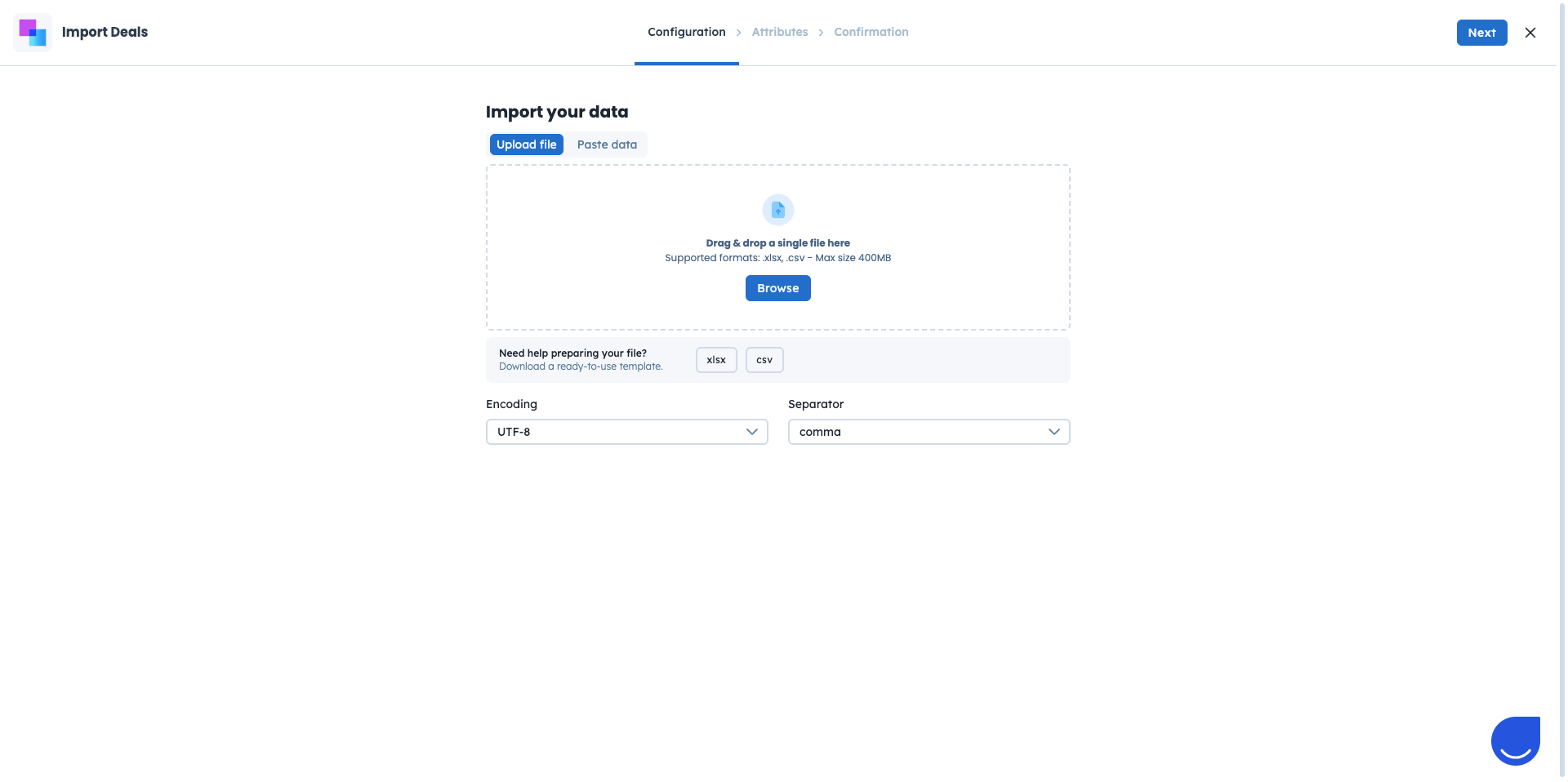
Go to “Data” → “Importers” → “Import Deals”.
Choose whether to upload a CSV file or paste data directly.
Verify the separator and encoding match your data structure.
Decide if you want to add tags to imported deals.
Start the import.
For detailed instructions and file requirements, see the dedicated CSV import article [LINK].
You can also create and update deals programmatically using the User.com REST API. This method offers maximum flexibility and is ideal for advanced integrations or high-volume workflows.
Use the Create a deal endpoint to add individual deals via API.
For mass imports, use the Bulk deals import endpoint. The uploaded CSV file must meet the same structure requirements as standard CSV imports [LINK].
Deal Profile Overview
Module Guide: Deal Updated Trigger
Module Guide: Deal Stage Changed Trigger
Module Guide: Deal Created Trigger
Module Guide: Create a Deal Action
Module Guide: Update Deal Attribute Action
Module Guide: Change Deal Status Action