An unsubscribe option is a required element of every marketing email. It helps you stay compliant with email regulations, protects your deliverability, and gives recipients control over the messages they receive. In User.com, you can add unsubscribe and subscription management links in several flexible ways, depending on how you build your emails and how granular you want subscription control to be.
This option allows you to automatically generate unsubscribe links in email messages and templates. User.com replaces dedicated HTML elements with unique unsubscribe URLs at send time.
This method is recommended if you create emails visually using the Email Editor (drag and drop).
1. Open the Email Template in The Editor.
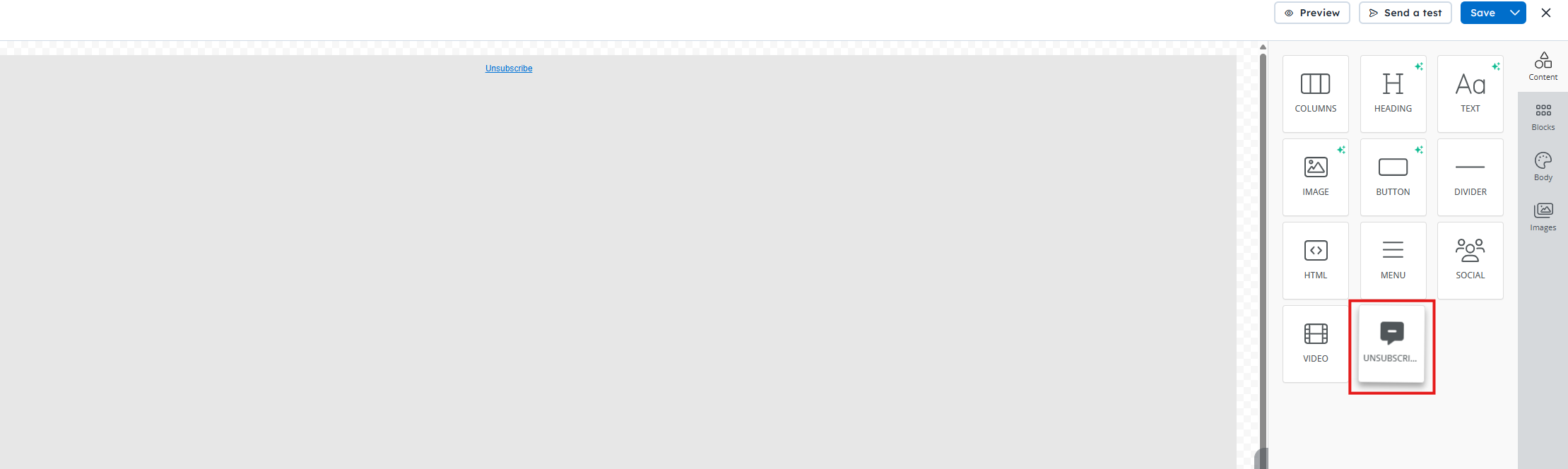
Open your email message or template in the email editor. Then go to the panel on the right and find the “Content” section.
2. Drag and Drop the “Unsubscribe” Element.
Drag the “Unsubscribe” element into the place where you want the link to appear in your message.
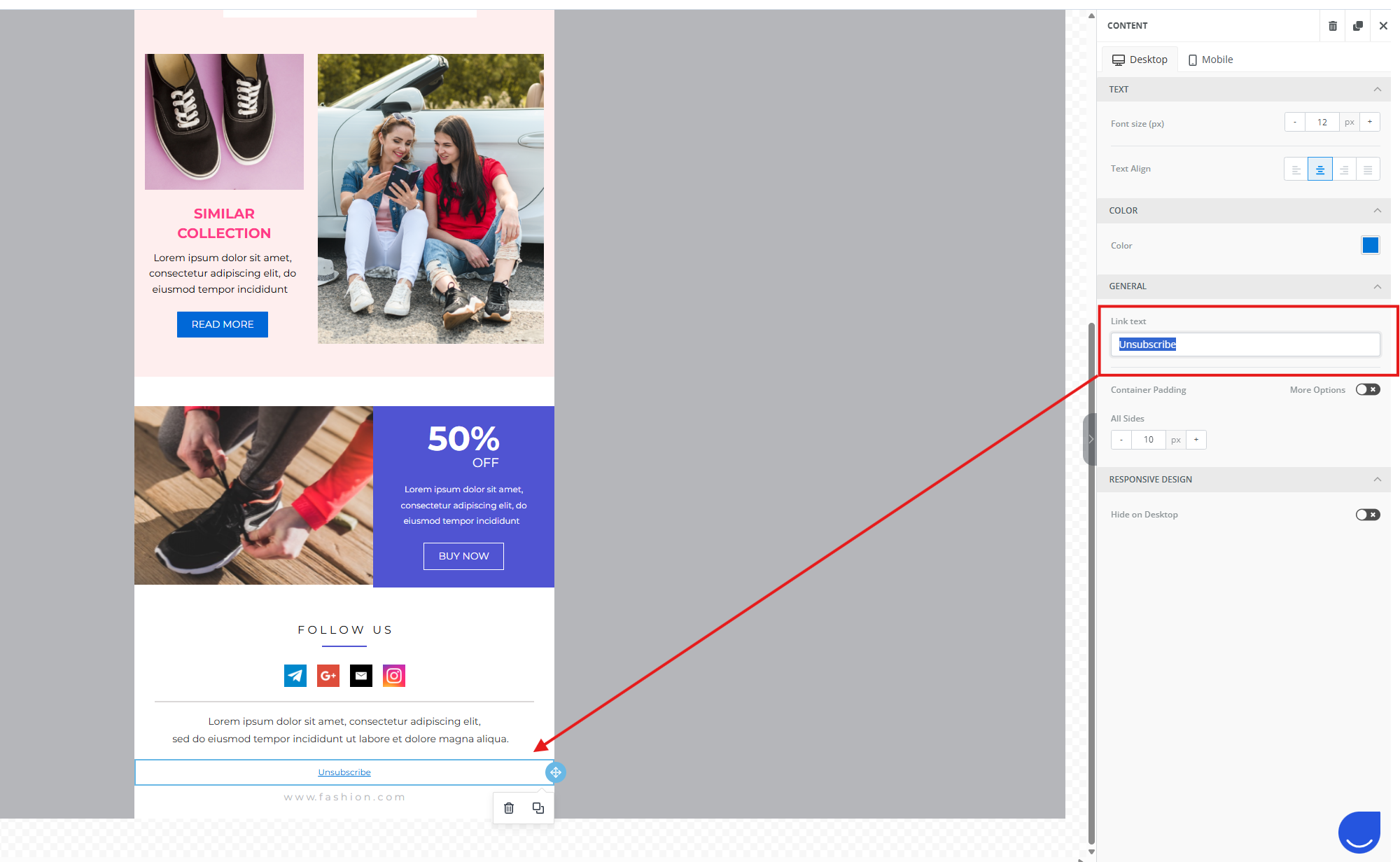
3. Edit the Unsubscribe Text.
Click the “Unsubscribe text” inside the email. The edit panel appears on the right, where you can change the wording to anything you like.
Use this method if you work directly with custom HTML templates or the code editor.
1. Add the Unsubscribe HTML Element.
Paste the following HTML element into your email template or message:
<div id="UE_unsubscribe">Unsubscribe message here</div>
2. Customize the Unsubscribe Text.
You can freely change the text inside the element, for example, to “Click here to unsubscribe” or any other wording that matches your brand voice.
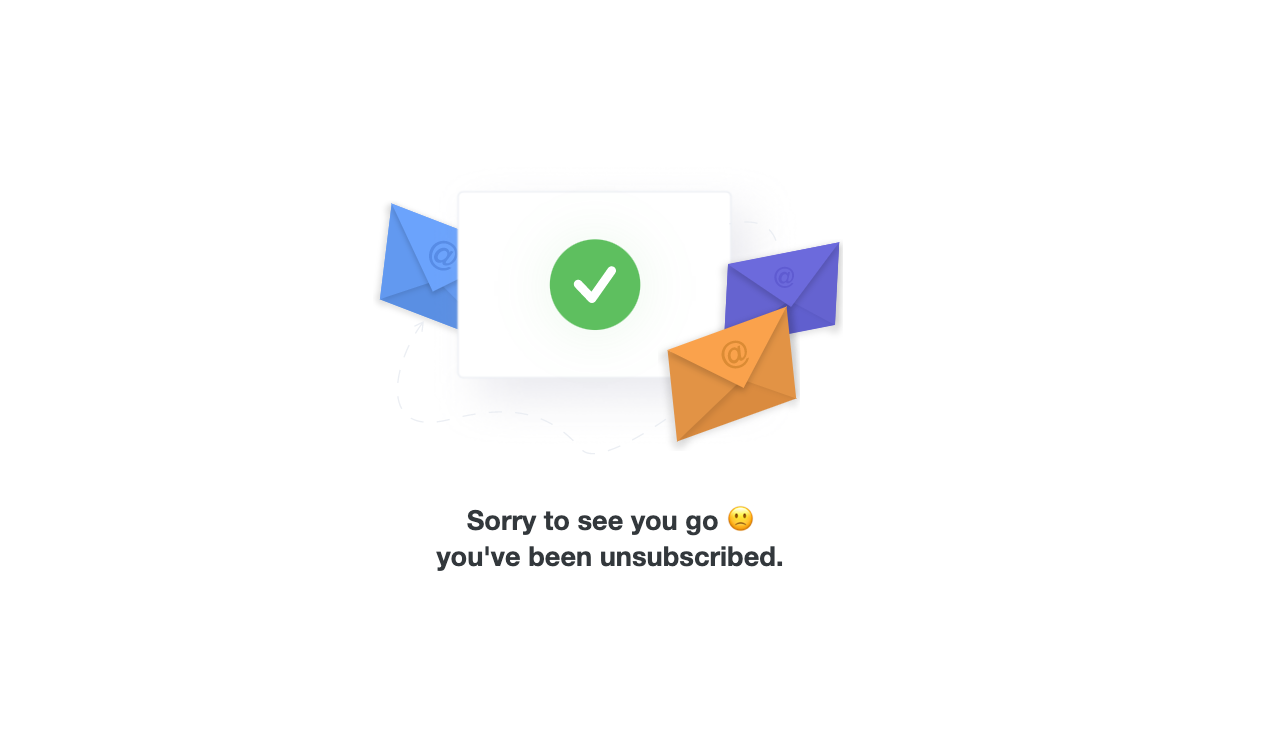
After a contact clicks the unsubscribe link, they are redirected to a confirmation page informing them about their subscription status.
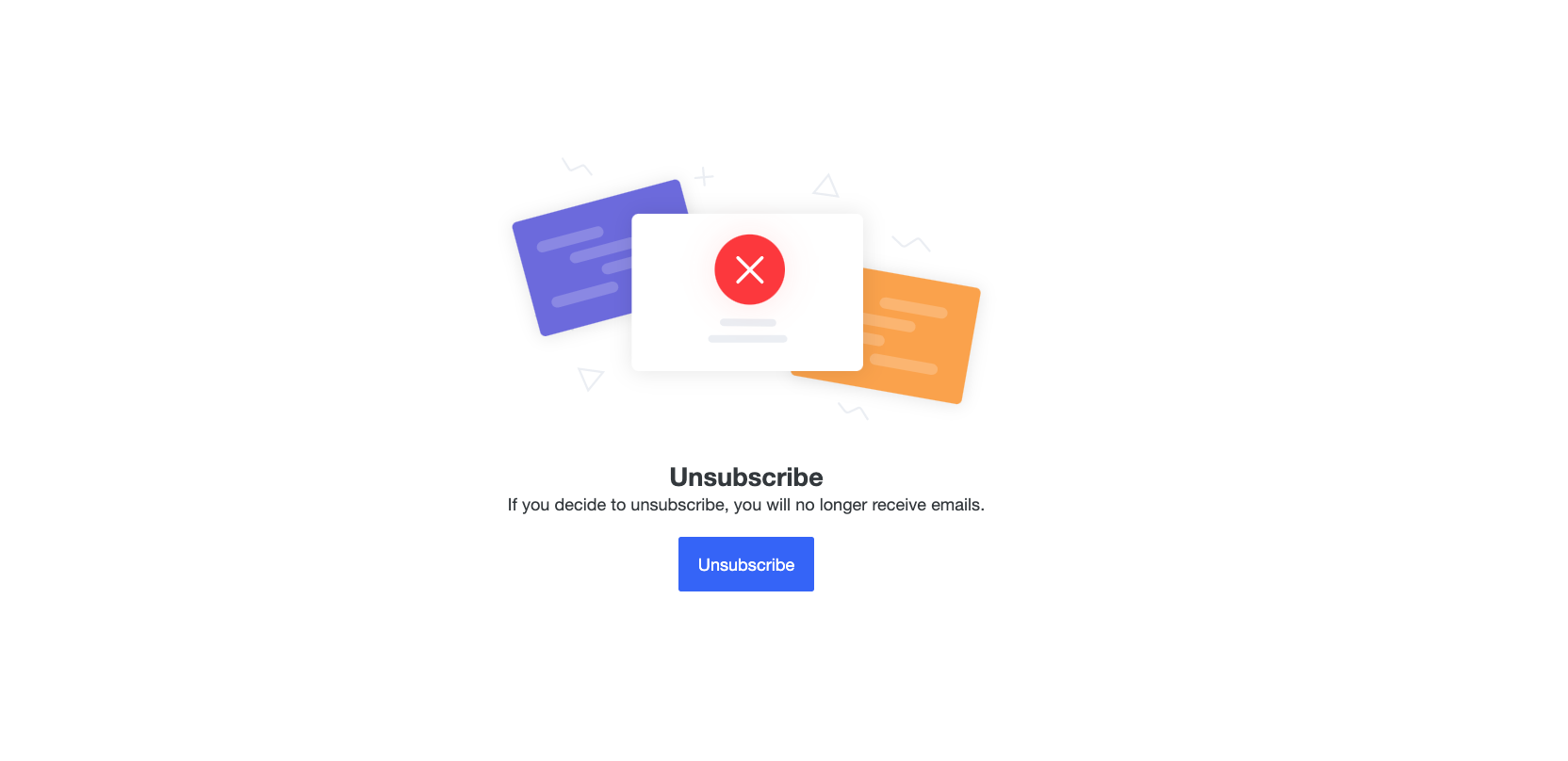
After clicking on the "Unsubscribe" button:
If you use contact lists to separate different types of communication, such as newsletters and important alerts, you may want recipients to unsubscribe from only one list instead of all emails.
Please check a dedicated article with the instruction about it.
In addition to a single unsubscribe link, you can let recipients manage their subscriptions across multiple public lists.
If you want to apply this option to your emails, please follow the instruction.
To test properly:
Create a new Email Campaign.
Select an existing email prepared for your recipients.
Send it only to yourself or your team.