Assigning contacts to companies helps you organize contacts under business accounts. This makes account-based sales, customer support, and segmentation easier to manage. In User.com, you can connect contacts with companies in several ways, depending on whether you work with single profiles or large datasets.
You can assign contact to companies manually, automatically based on email domains, through imports, or using integrations such as the REST API and JavaScript.
To better understand how contacts and companies work in User.com, we recommend reviewing the related articles first.
This is the simplest way to assign a contact to a company. It works well during support calls or one-on-one onboarding.
Open the contact profile (from global search or “Data” → “Contacts” section).
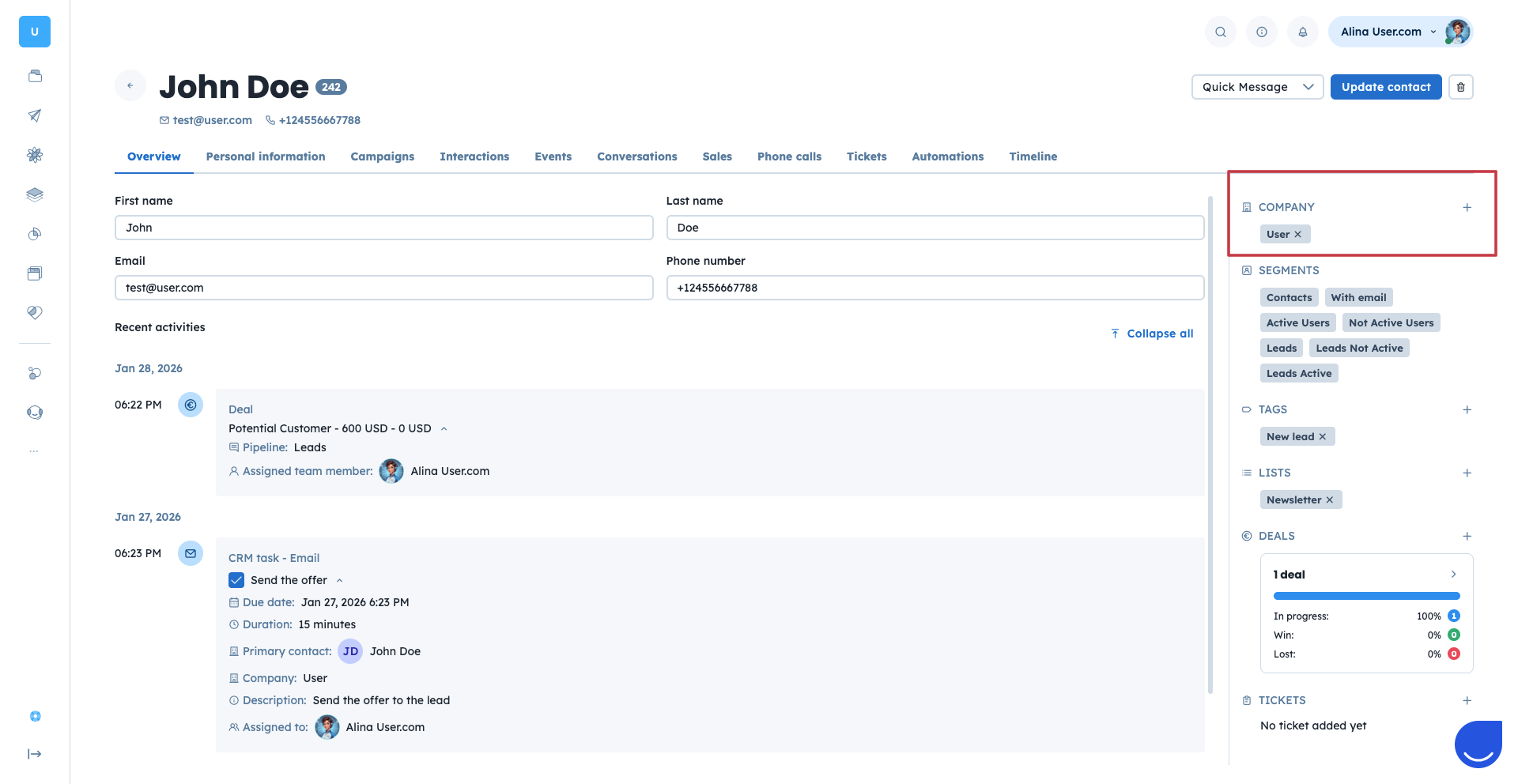
On the right side of the profile, find the “Company” section.
Click the “+” icon, then select an existing company or create a new one.
The contact is now listed as an employee in the selected company profile.
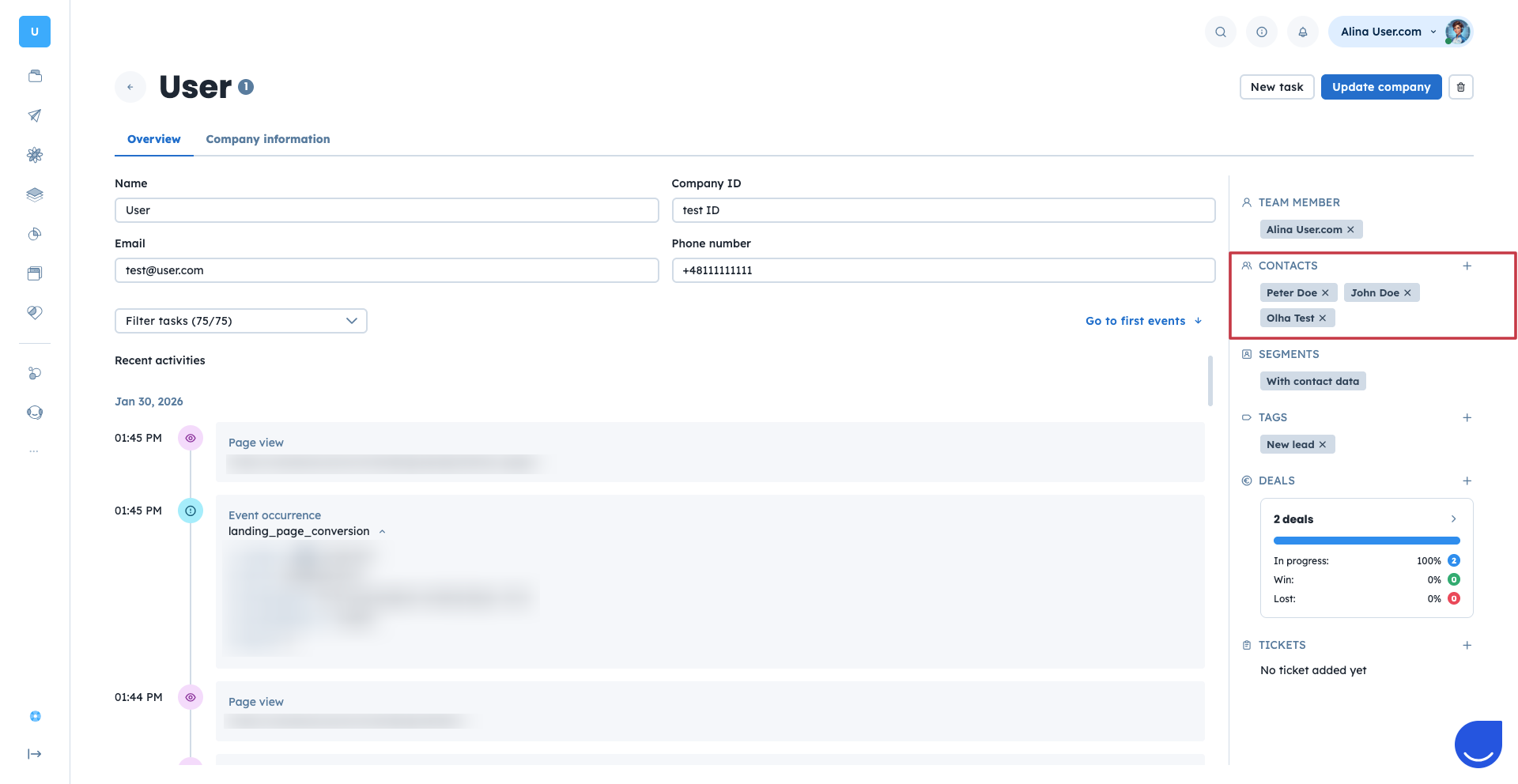
You can also add employees directly from a company profile. This approach is useful when updating company records or building a full team list.
Open the company profile (from global search or “Data” → “Companies” section).
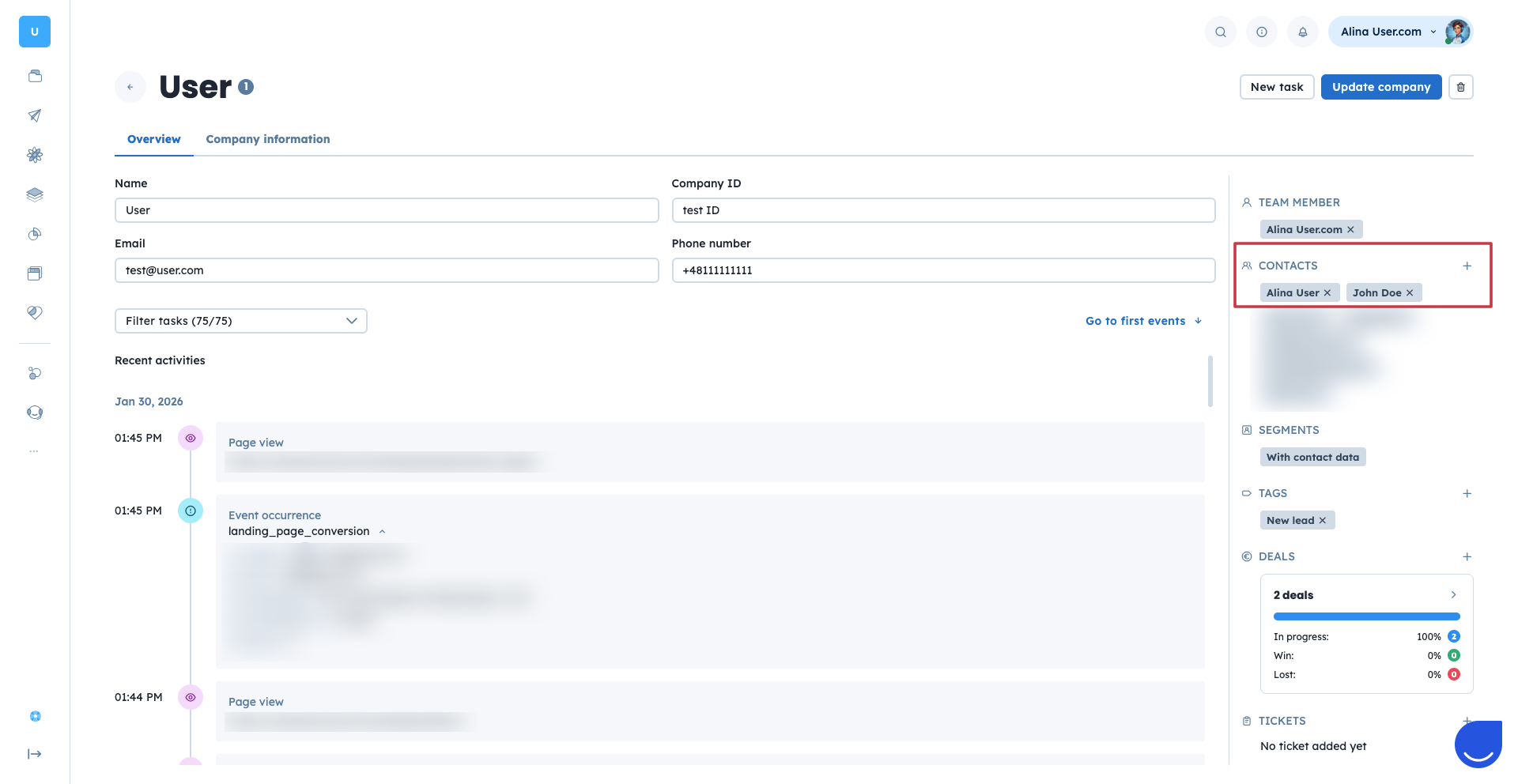
On the right side of the profile, find the “Contacts” section (Employees).
Click the “+” icon and type the contact’s name or email address.
The contact is now listed as an employee in the company profile.
User.com allows you to assign contact to companies automatically based on their email domain. When a new contact appears in the database, the system checks whether a company exists with a name matching the contact’s email domain.
If a matching company exists, the contact is assigned as an employee automatically.
If no matching company exists, a new company is created and the contact is assigned to it.
Any future contacts with the same email domain are assigned to this company automatically.
To enable or disable this option:
Go to top right corner of the panel → “Settings” → “Workspace Settings” → “Companies” → “Auto-assign contacts to companies”.
Turn the “Enable” toggle on or off.
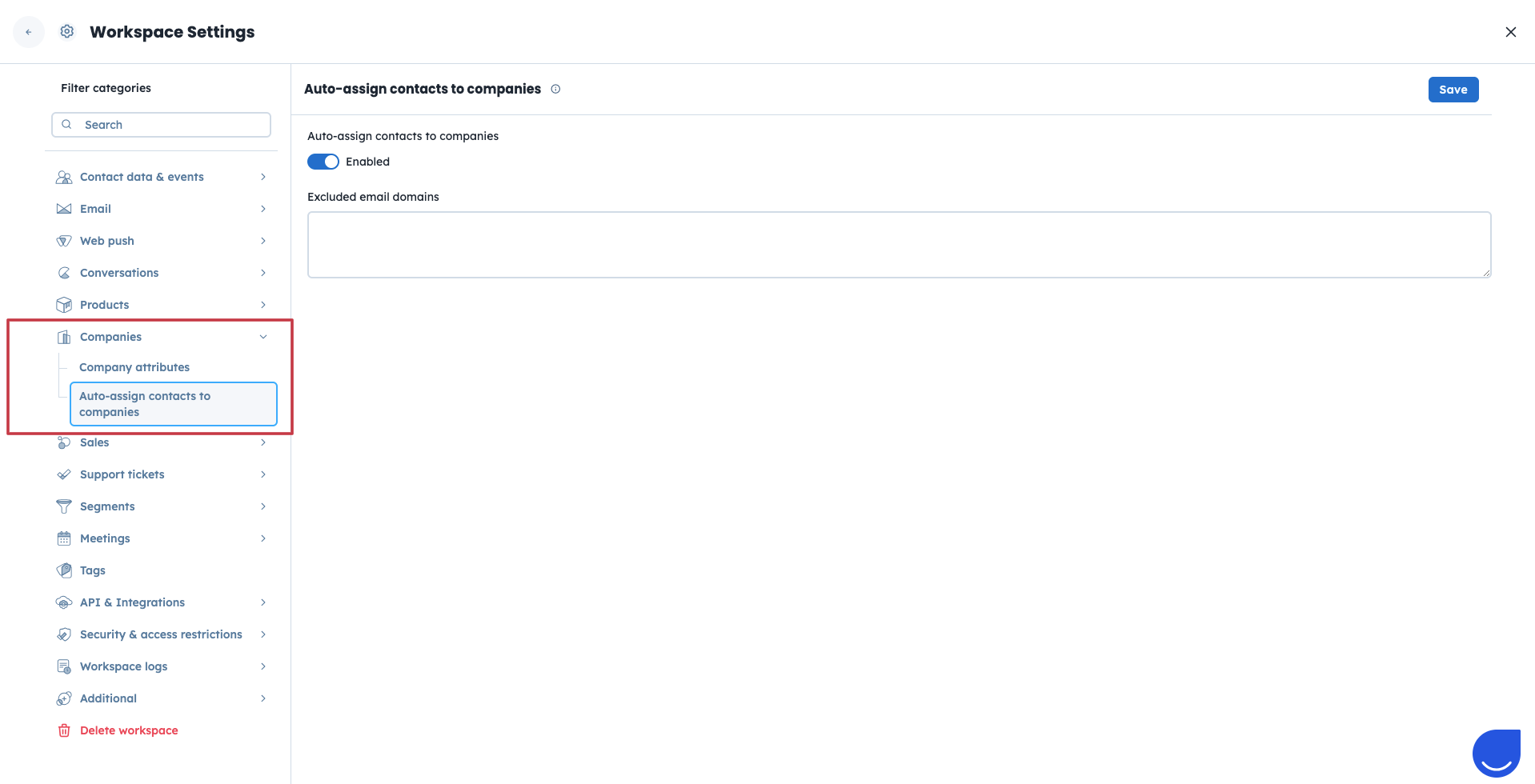
You can also use the “Exclude email domains” field to prevent company creation for selected domains, such as internal test domains.

Assigning contacts to companies in bulk is useful when migrating data or importing leads from external systems.
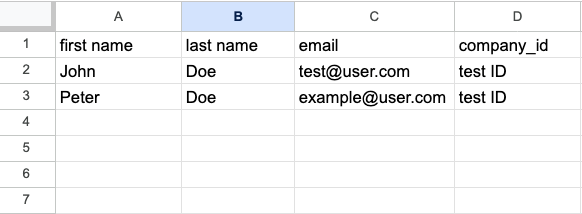
Make sure you have the companies with the “company_id” values created/imported to the system. If companies do not exist in your workspace, first import them along with the “company_id” values.
Prepare a CSV/XLSX file with contacts’ data. Add a “company_id” column and include the matching value for each contact.
If a contact should belong to multiple companies, separate “company_id” values with the pipe character “|” within one column.
Go to “Data” → “Importers” → “Import contacts” and upload the file.
During the import process, map the “company_id” column to the “company_id” attribute.
Finish the import process.
Contacts are now listed as employees in the relevant company profiles and visible in the “Companies” section and company profile.
You can also assign a contact to a company directly through the JavaScript integration. This is useful when identifying contacts at login or during account setup and sending company data automatically.
Company data is sent together with contacts details using the company object in the script.
Similar to import method “company_id” plays a crucial role in this type of assignment.
Example:
<script data-cfasync="false" type="text/javascript">
  window.civchat = {
    apiKey: 'YOUR_API_KEY',
    name: "John Doe",
    user_id: "idfromyourdatabase",
    email: "[email protected]",
    gender: 2,
    status: 2,
    date_attr: "2017-07-25T14:14:08.612Z",
    phone_number: "+44754123434",
    score: 0,
    company: {
      name: "My Company",
      company_id: "idfromyourdatabase",
      revenue: "$239.9 billion"
    }
  };
</script>
<script data-cfasync="false" type="text/javascript" src="https://.user.com/widget.js"></script>For full automation and integration with external systems, you can use the User.com REST API to manage contact-company relationships. Available endpoints allow you to add and remove employees, both by custom and internal ID.
This method is recommended when synchronizing User.com with external CRMs or internal databases.
Connection between contacts and companies can play a big role in the database structure. Let’s check some examples:
Account-Based Sales: Group contacts under company profiles to track interactions, deals, and engagement at the account level.
Customer Support: Give support teams a full view of everyone associated with a company to provide more contextual assistance.
Segmentation and Automation: Use company relationships to segment contacts and trigger automations based on company-level attributes.
