Sometimes you need to reach out to one person without launching a full campaign. This allows your team to respond quickly to support requests or follow up on specific sales leads with a personal touch.
Connected email domain (it might be either a domain connected to Positive User email providers or the one using your custom SMTP)
Senders (in case of using Positive User email providers)
Open the Quick Message Menu.
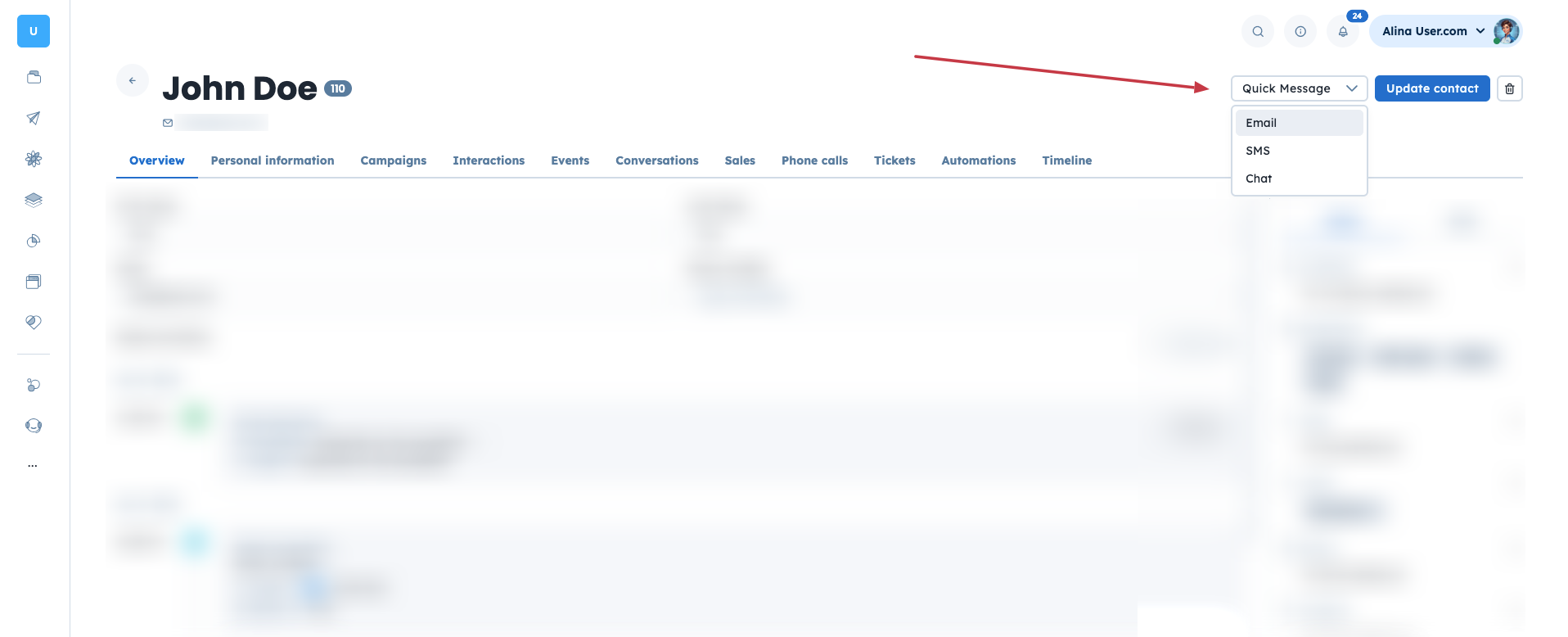
Go to the "Contacts" section and open a specific contact profile. In the top right corner, click the "Quick Message" button and select "Email".
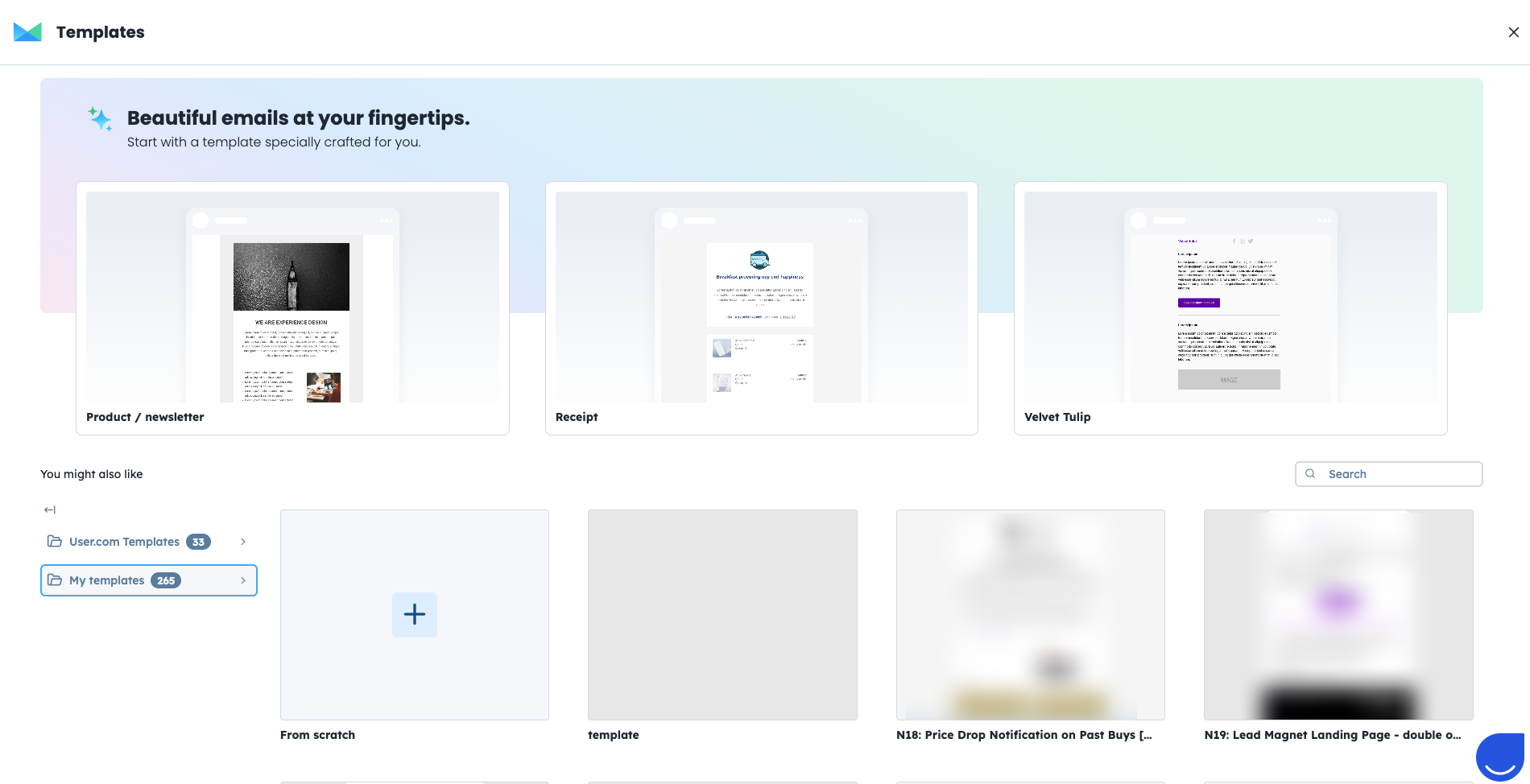
Choose a Template or Start From Scratch.
You will be redirected to the "Templates" view. You can select one of your pre-built templates to save time or choose to compose a completely new message.
Customize Your Content.
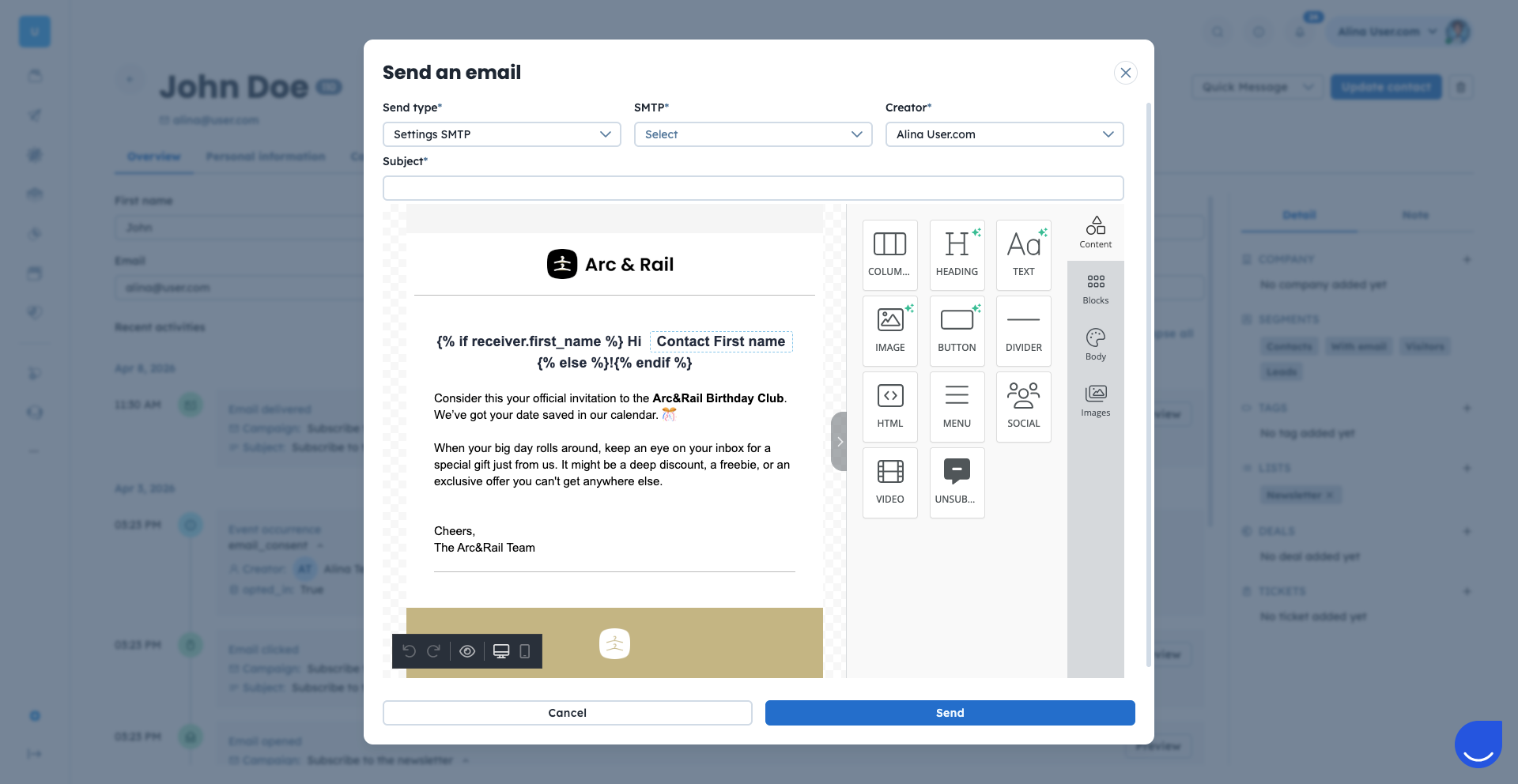
The email editor will open in a pop-up window. Here, you can modify the text and design to fit your specific needs. Check a detailed instruction about email builder.
Usually single recipient emails are just the plaint text messages with a personal touch.

Set Subject and Sender Details.
Enter a clear subject line and choose the sender. Remember, that the email delivery domain should be configured in prior. Check “How to Choose an Email Delivery Domain” instruction.
Send and Confirm.
When your message is ready, click the "Send" button and confirm the action in the final prompt.
Review the Delivery.
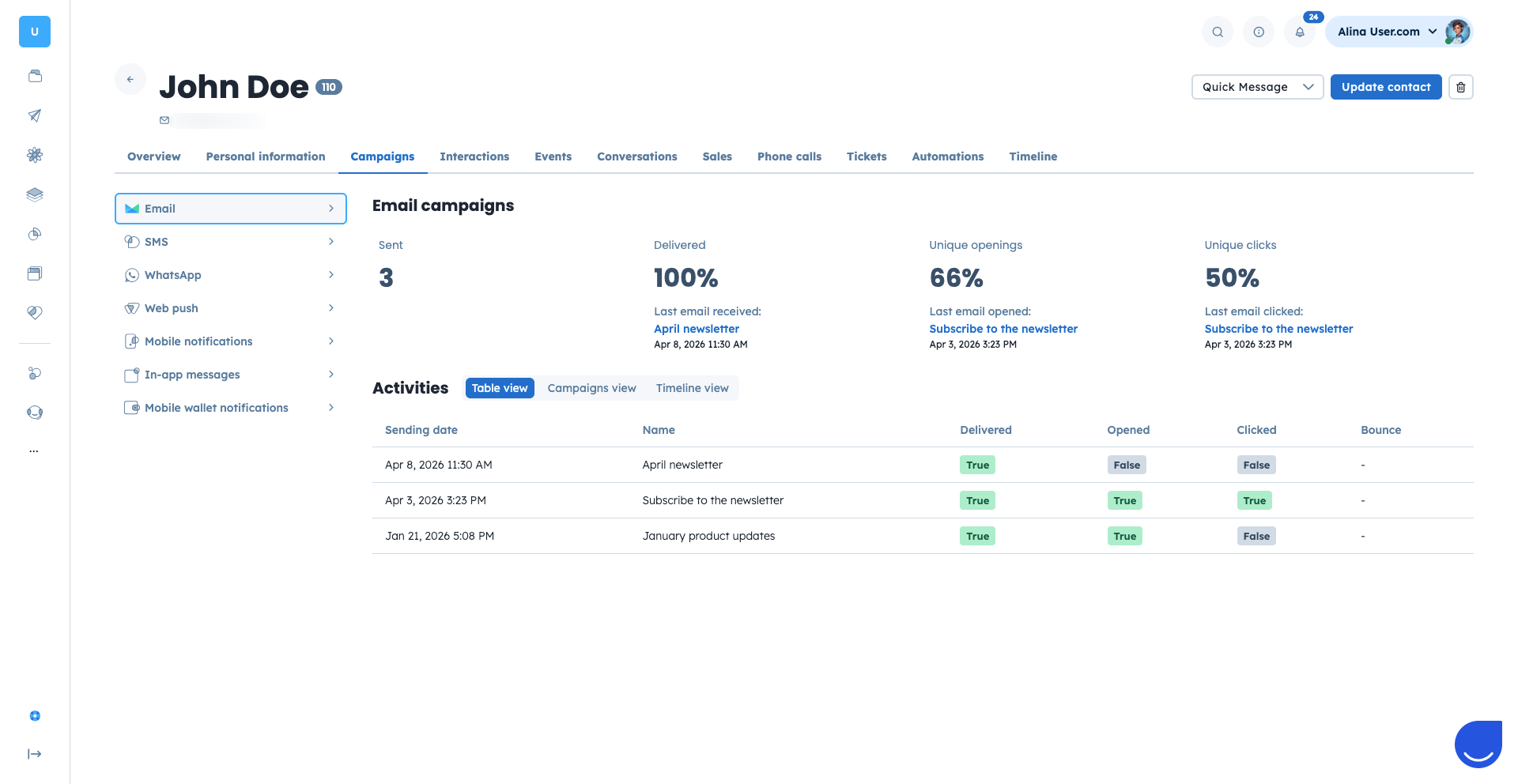
Once the email is sent, you can find the record and its status in the "Campaigns" section of the contact profile.
Sales Follow-up: Send a personalized pricing proposal or meeting summary to a high-value lead.
Support Resolution: Provide a direct answer to a complex customer question that doesn't require a mass announcement.
