Connecting a product feed is the best way to keep your product list in Positive User up to date. When you sync your feed, your team can automatically track what contacts are looking at, send emails based on specific product events, and show personalized recommendations.
To know more about product feeds check our “Introduction to Product Feeds” article.
Before connecting, ensure your feed meets these technical requirements:
Format: You should use an .xml file aligned to Google Merchant Center specifications.
Hosting: The file must be hosted on your server with one of these headers:
text/plain
application/xml
text/html; charset=UTF-8
Size limit: A single feed cannot exceed 4 GB. If your file is larger, split it into multiple feeds.
Mandatory fields: To sync correctly, each item must have:
Custom_id: <g:id>
Name: <title>
Non-mandatory fields with custom synchronization rules:
Category: <g:google_product_category>
Image URL: <g:image_link>
Product URL: <link>
“sale_price_effective_date_start”, “sale_price_effective_date_end” (two attributes updated by one field): <sale_price_effective_date>
Custom attributes: You can add other custom attributes. Any other field is synchronized on the attribute with the name relevant to the field name:
attribute name: <attribute_name>

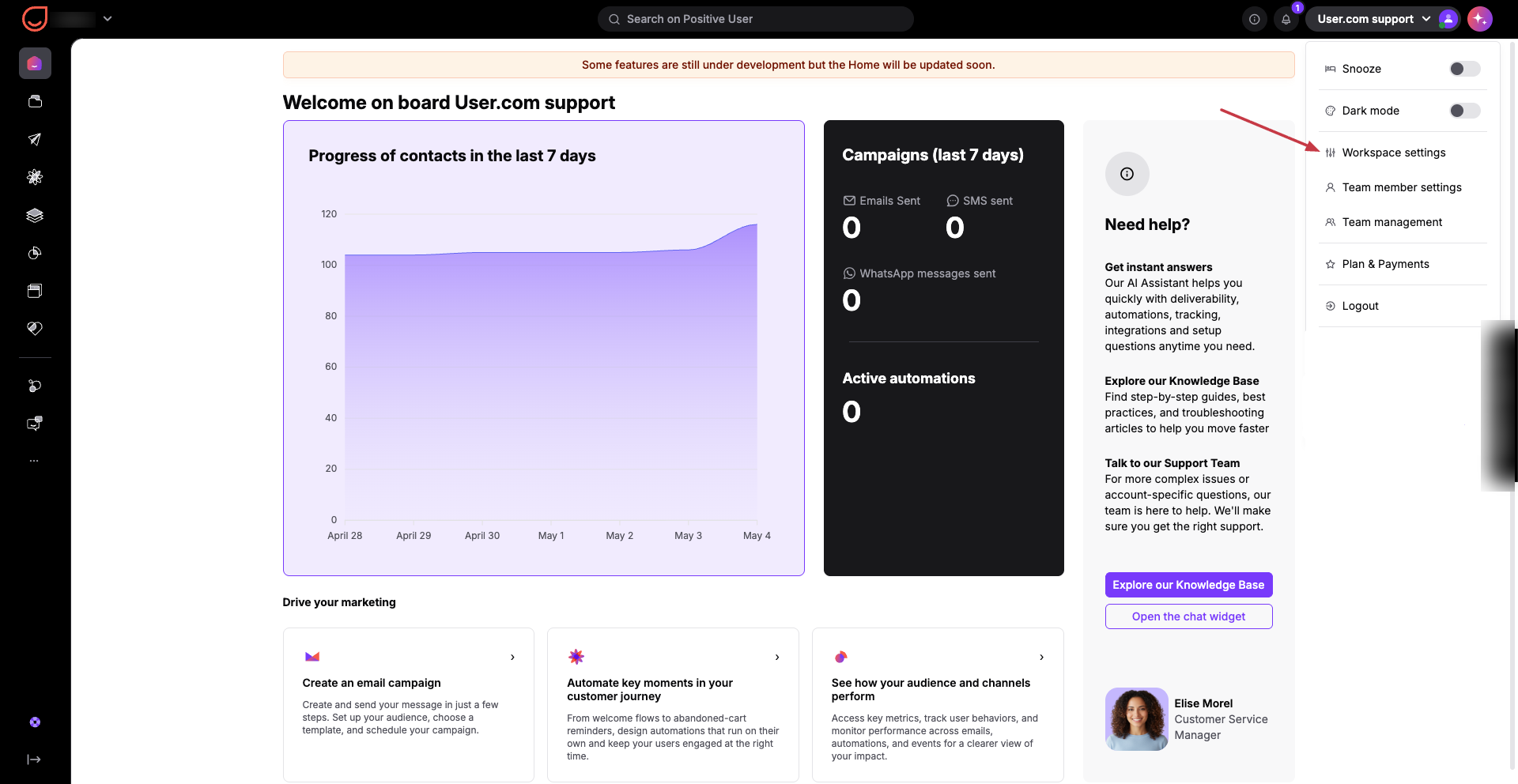
In your sidebar, go to “Workspace Settings” → “Products” → “Product feed”.
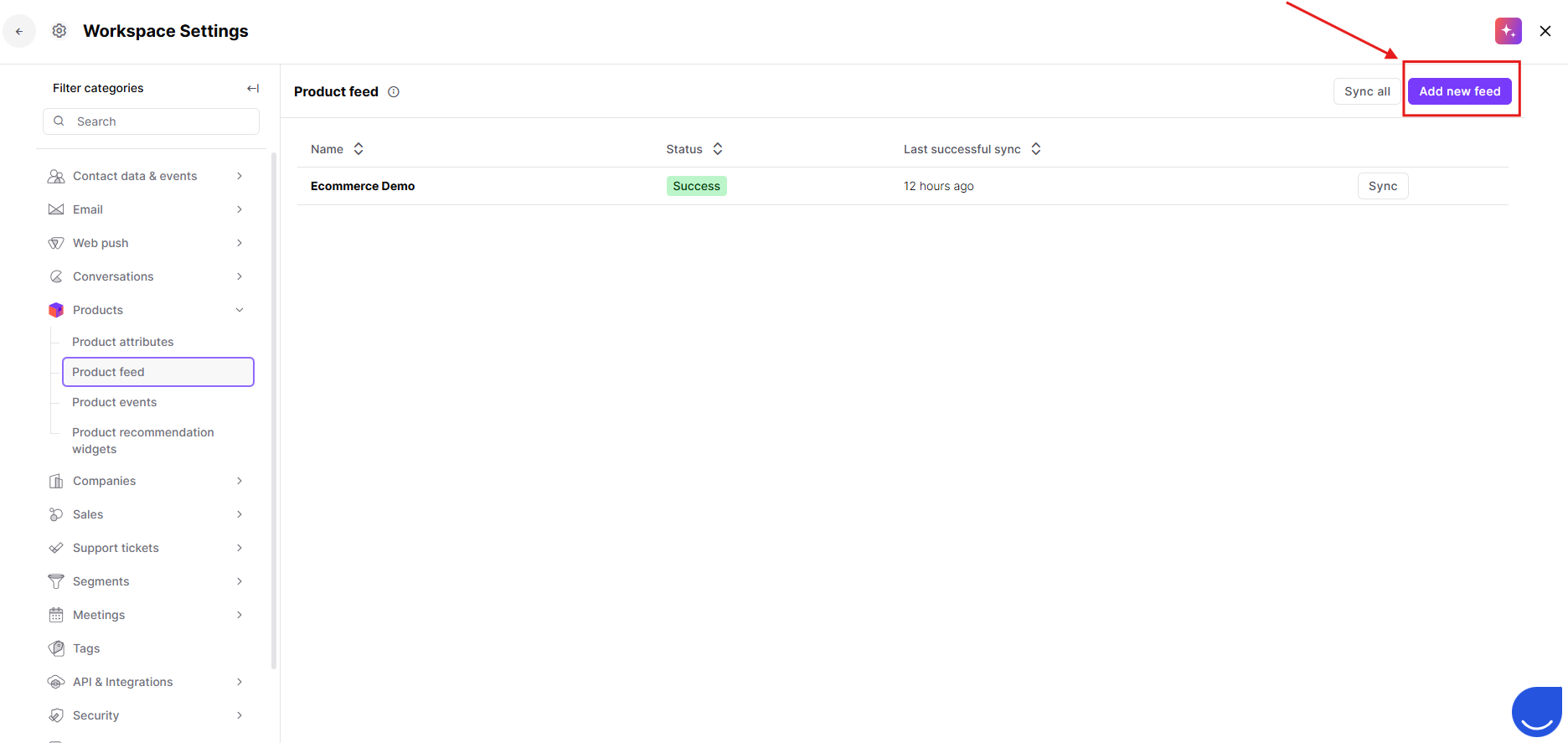
Click the "Add new feed" button in the top right corner.
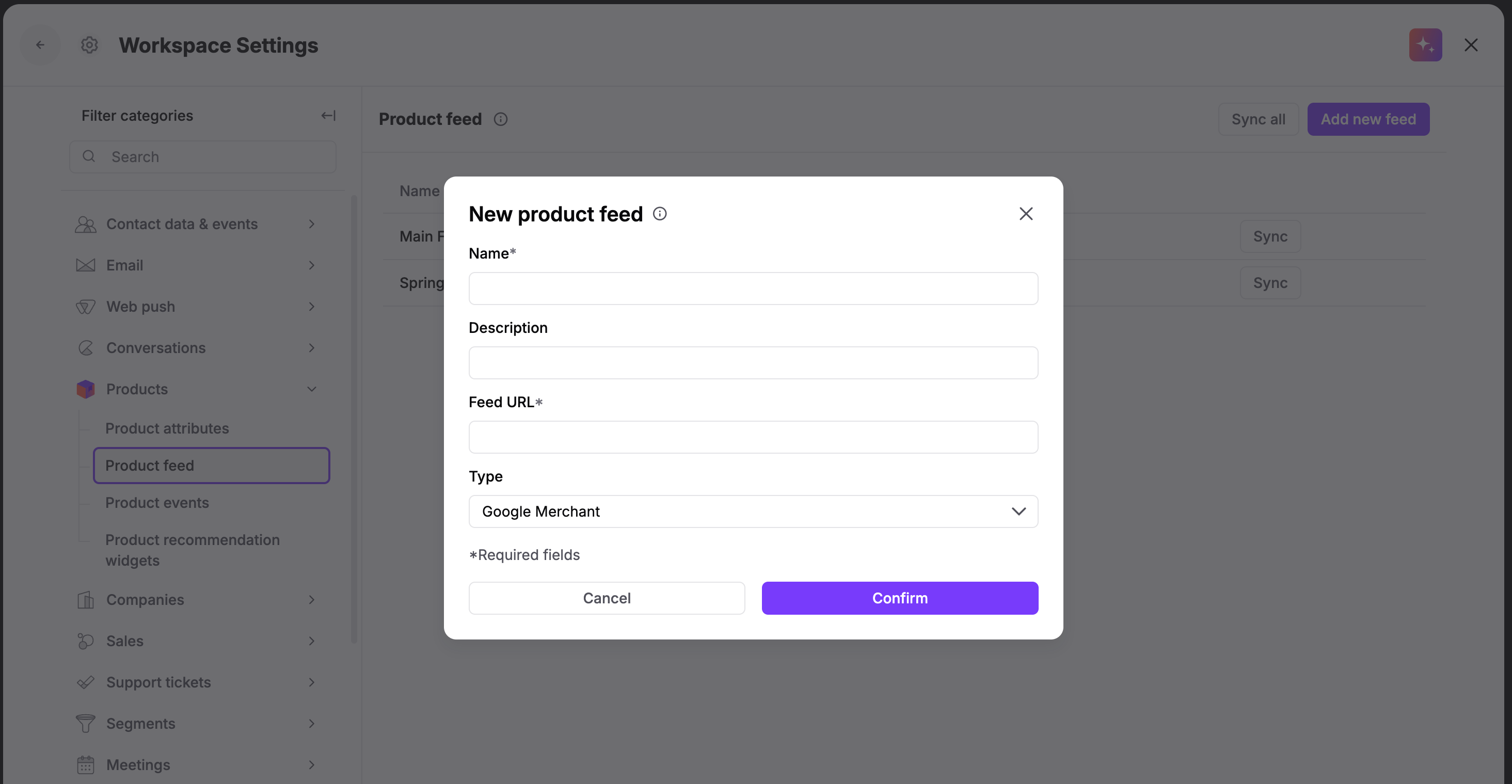
Fill in the form to connect your data:
Name: Use a name that your team will easily recognize.
Description: You can add a short note about what is in this feed.
Feed URL: Paste the link to your product file.
Feed Type: Choose Google Merchant (this is the most common) or your Data Feed Watch.
Click "Confirm" to save.
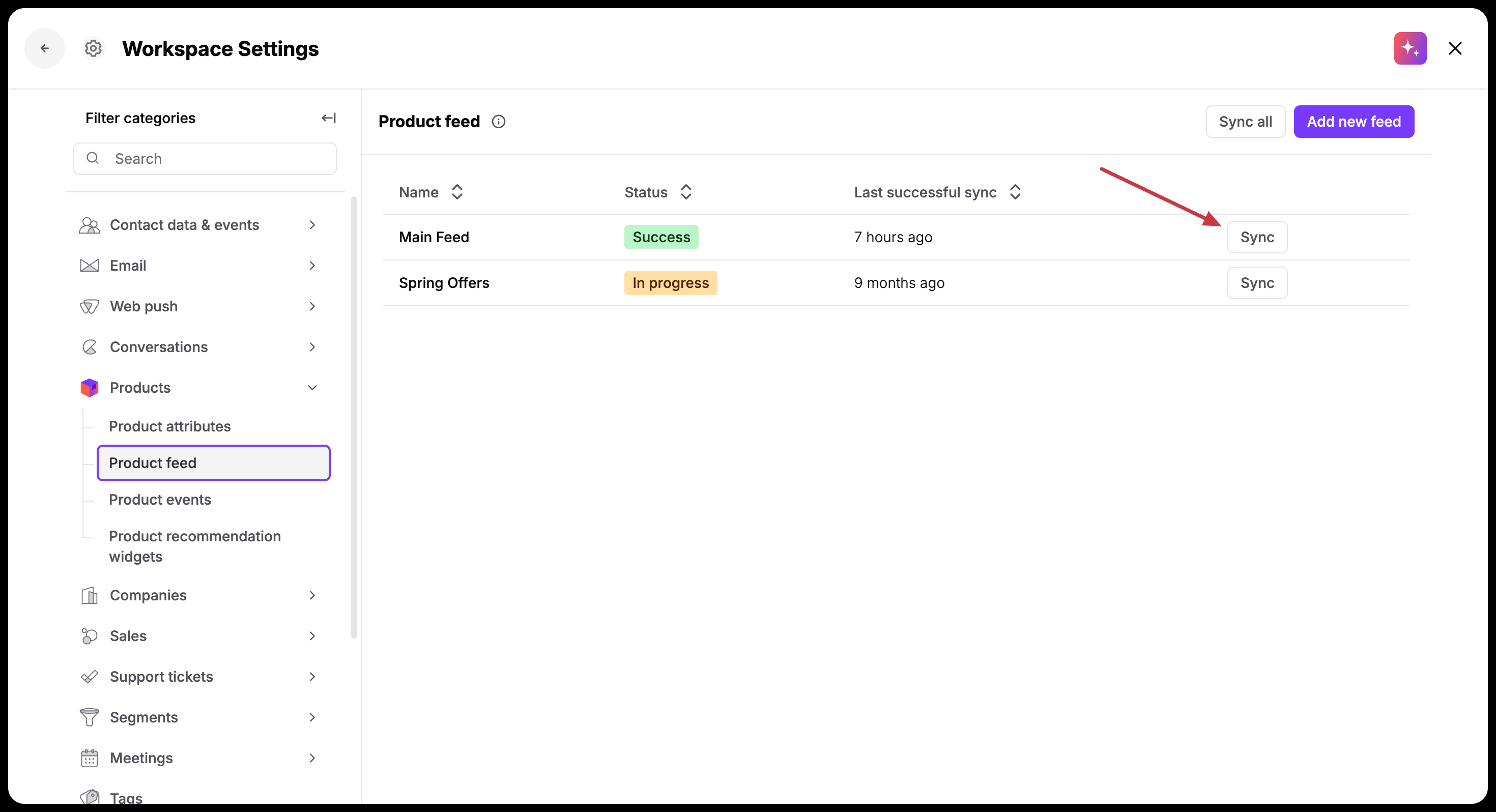
To import your products and start using them in your campaigns right away, click the "Sync" button on the right.
You can connect multiple language versions of a store to a single Positive User Workspace. However, you must be careful with how data is overwritten to avoid losing information.
If two feeds use the same “custom_id” (e.g., 123), the feed that synchronizes last will overwrite the previous values for attributes like “Title” or “Price”.
The Correct Way to Sync Multiple Languages: To keep data for all languages, create unique custom attributes for each version in your feed files:
Feed "EN":
<g:id>123</g:id>
<title>The Product</title>
<name_en>The Product</name_en>
<price_en>100</price_en>
Feed "FR":
<g:id>123</g:id>
<title>Le Produit</title>
<name_fr>Le Produit</name_fr>
<price_fr>120</price_fr>
These rules explain how Positive User processes your data during each update:
Automatic Updates: By default, synchronization happens automatically every night around 1:00 AM UTC.
Field Mapping: Standard fields like “Category” (<g:google_product_category>), “Image URL” (<g:image_link>), and “Product URL” (<link>) are mapped automatically.
Attribute Creation: Any field not already defined in your workspace will be created as a "string" (text) attribute.
Data Preservation: You can update attribute values with the feed, but you cannot "nullify" (delete) them. If a field is missing from the feed, the old value stays in Positive User.
Sync via API: Apart from automated sync option, you can always trigger it via REST API using the following endpoint.
Remember, that product feeds create an update the existing products, but never delete the products from your Positive User workspace. Make sure you have some procedures to clean up your product list once in a while.
Personalized Recommendations: Use the synced “Image URL” and “Product URL” to automatically show contacts the items they recently viewed.
Language Targeting: Use your custom language attributes (like “price_fr”) to ensure your French customers see prices in the correct currency in your email campaign.
