Tasks in User.com help you plan, assign, and track work across sales, support, and onboarding processes. They make sure that follow-ups, calls, meetings, and internal actions are visible, structured, and never missed.
In this article, you’ll learn all available ways to create tasks in User.com from single manual actions to automated, bulk, and API-based creation - so you can choose the best approach for your workflow.
You can manually create a task from several places in the application, depending on which object you are working with. Regardless of the entry point, all options open the same Add a Task form.
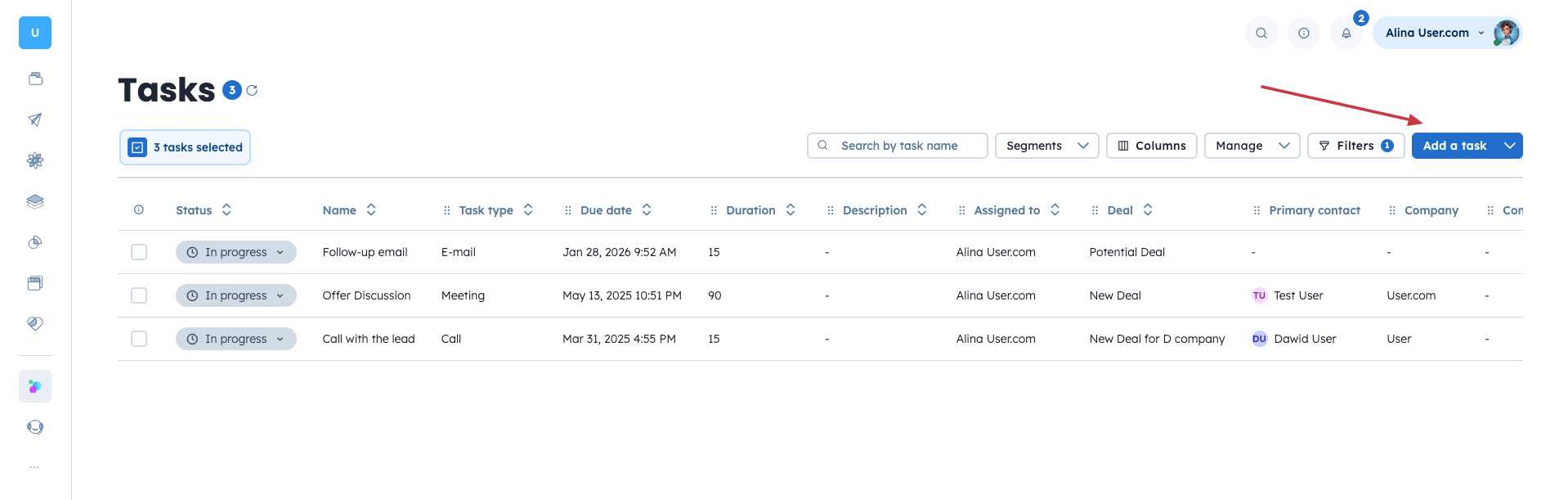
Go to “Sales” → “Tasks”.
Click the “Add a task” button in the top-right corner of the panel.
Fill in the task details and save the form.
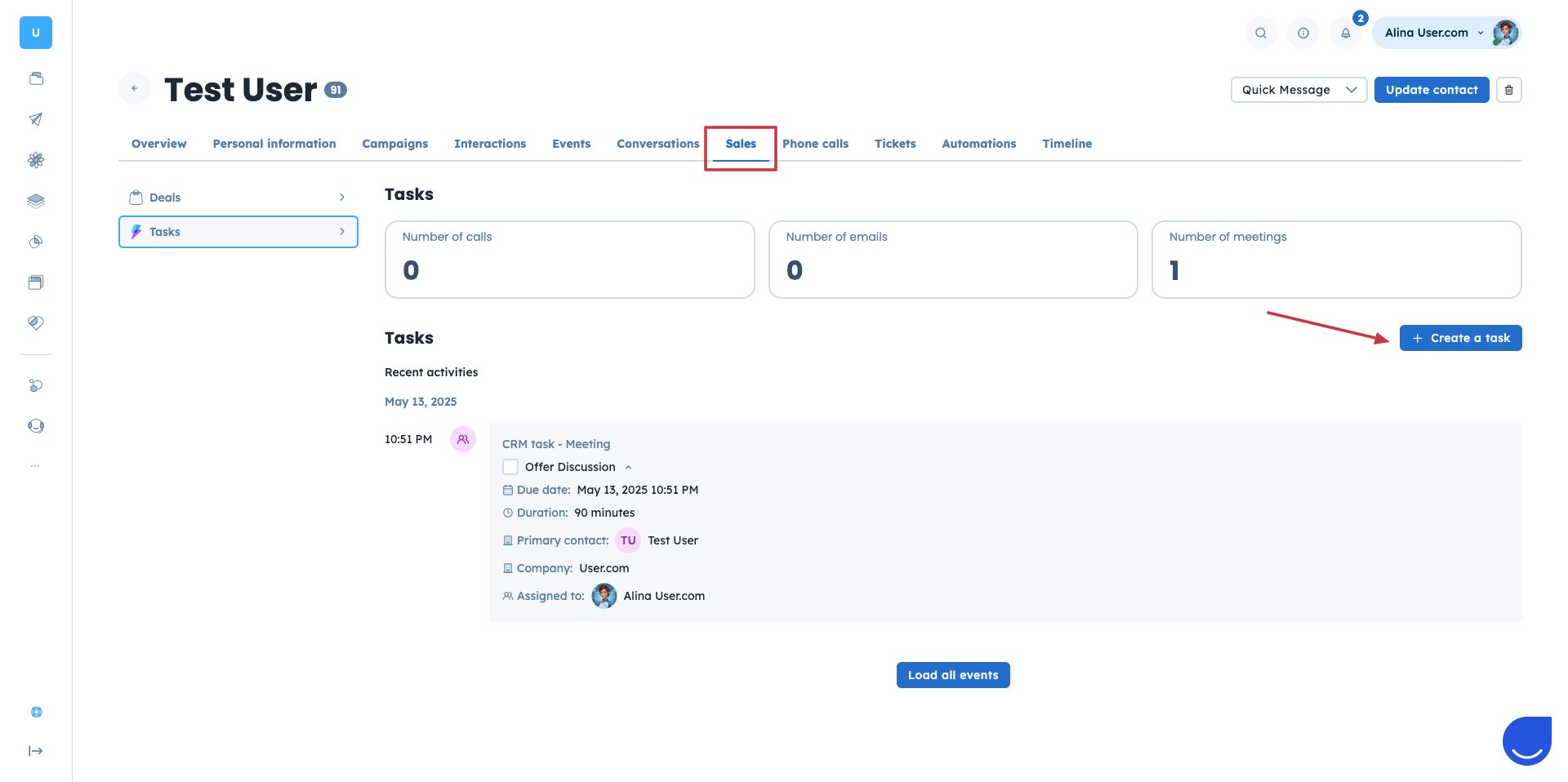
Go to “Data” → “Contacts”.
Open the contact profile.
Go to “Sales” → “Tasks” → “Create a task”, in the central part of the profile.
Fill in the task details and save.
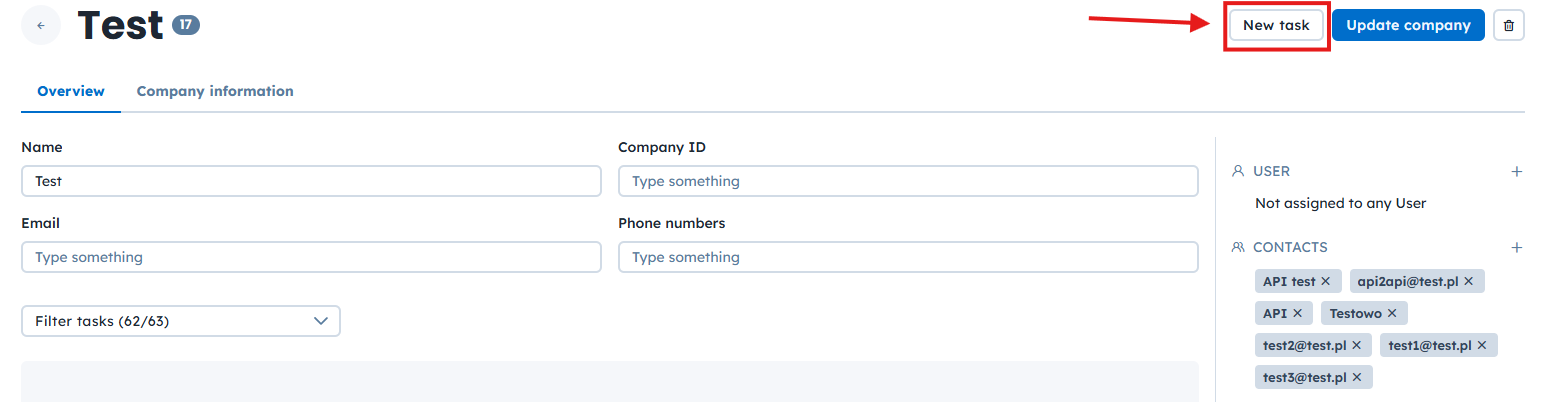
Go to “Data” → “Companies”.
Open the company profile.
Click the “New task” button in the top-right corner of the profile.
Fill in the task details and confirm.
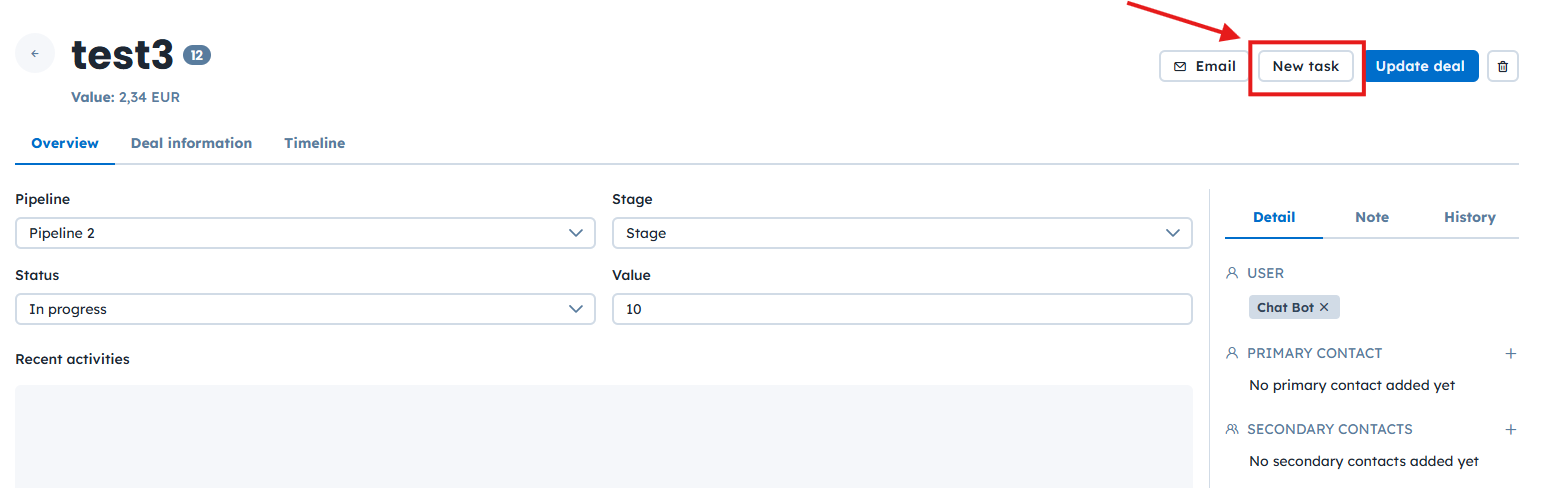
Go to Sales → Deals.
Open the deal profile.
Click the New Task button in the top-right corner.
Fill in the task details and save.
All of these options open the same “Add a Task” form, which includes standard and custom task attributes. Choose the required fields and complete them with the appropriate data.
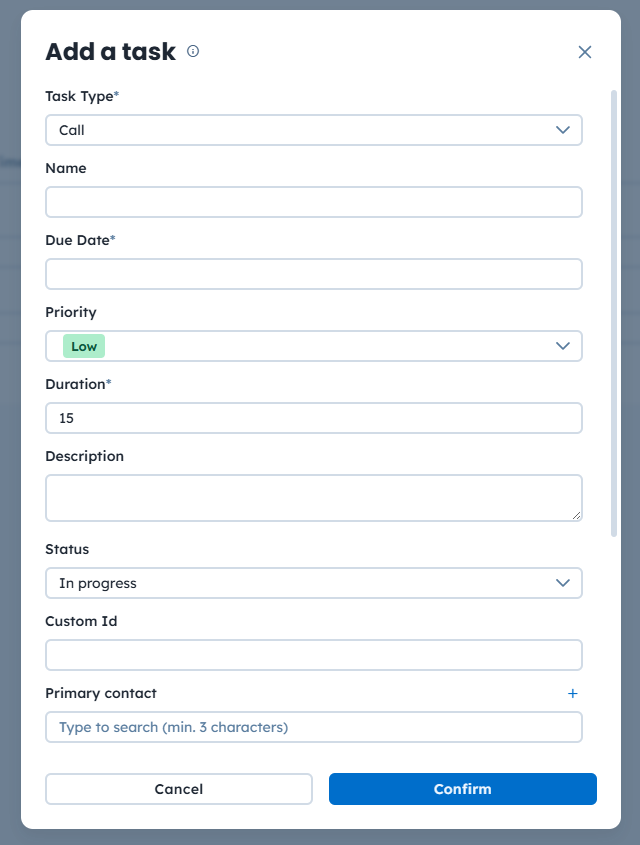
Example: A sales representative working on a deal schedules a follow-up call directly from the deal profile. The task automatically appears on the timelines of all related objects.
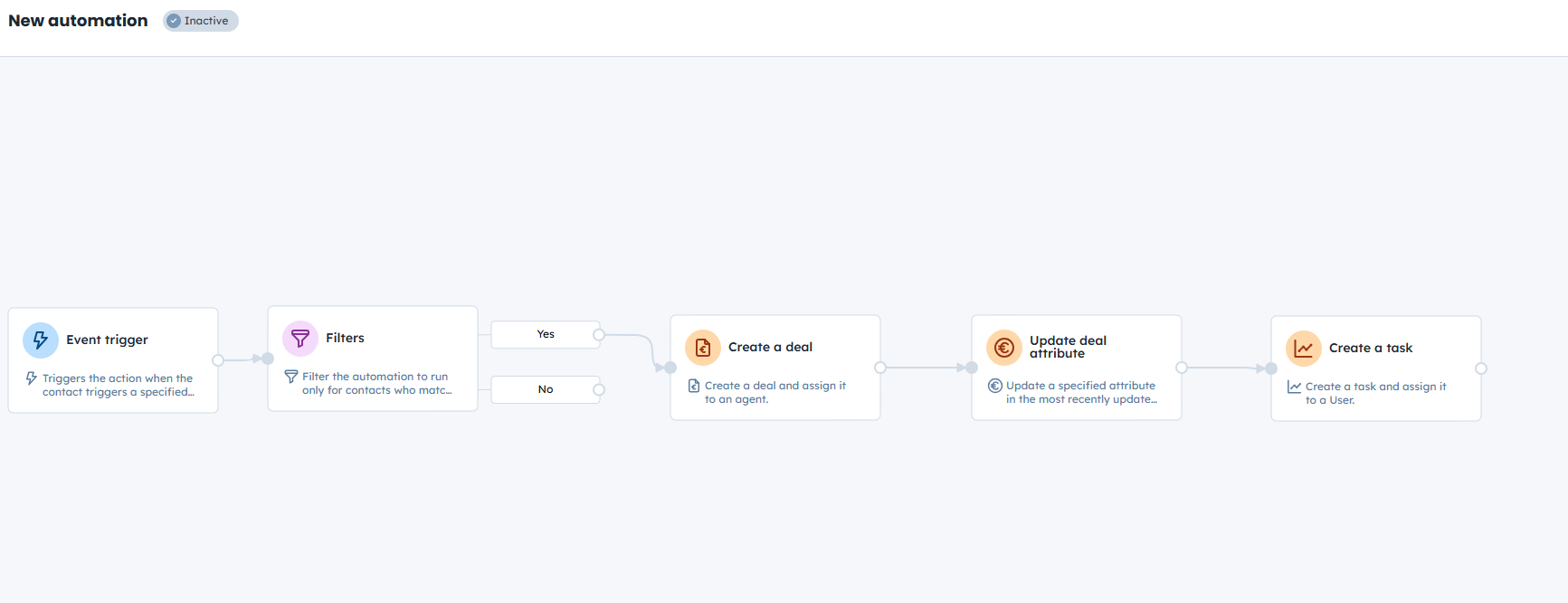
Tasks can be created automatically using automations. This is useful when actions should be generated in response to contact behavior or sales events.
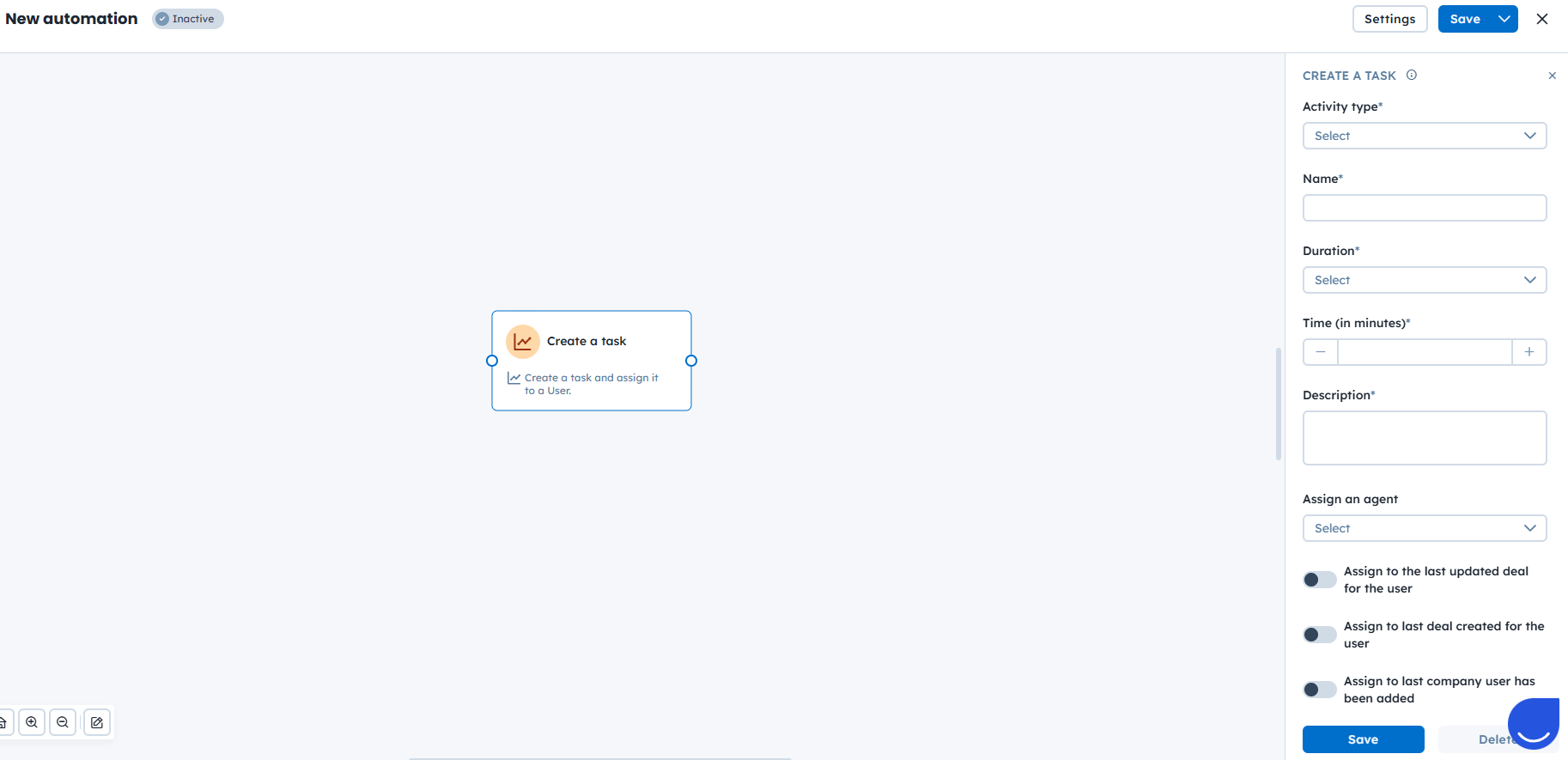
You can add a task with the “Create a Task” action module. When configuring the module, define the required fields such as task type, name, due date, and owner. Dynamic content [LINK] can be used to generate names or descriptions.

Example: When a person submits a “Demo Request” form, an automation creates a deal in a selected pipeline, assigns it to a sales representative, and automatically creates a call task for that person.
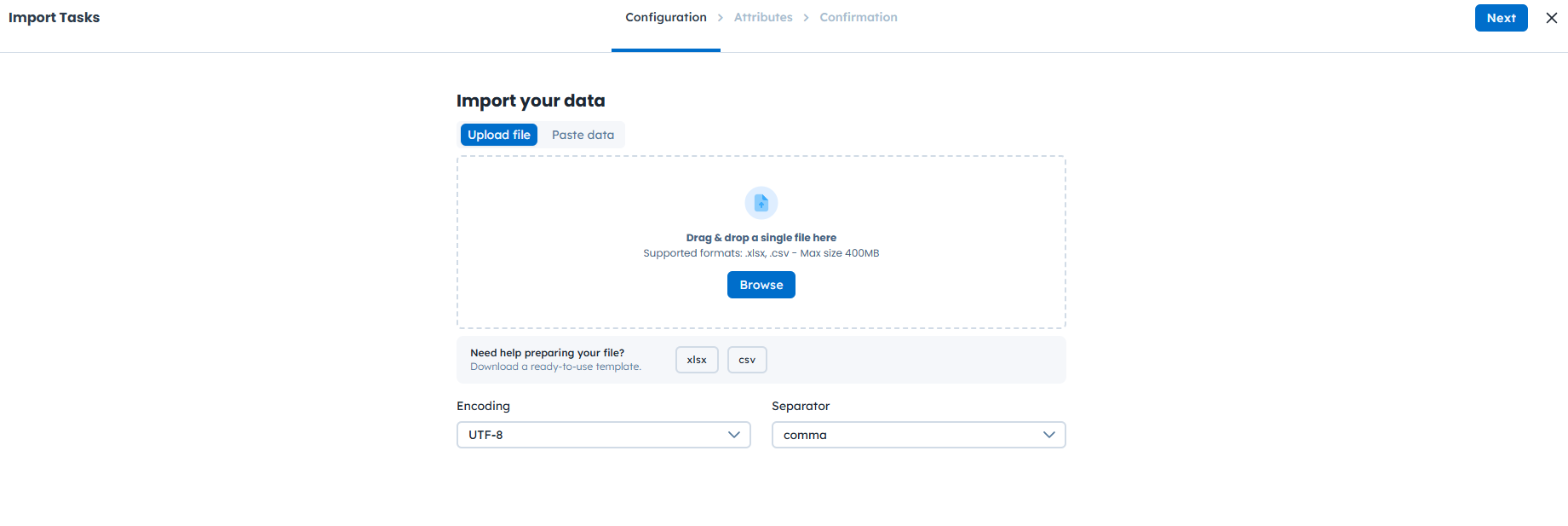
If you need to create many tasks at once, you can use the import feature. This is helpful when migrating tasks from another system or planning work in advance.
To import tasks in bulk:
Go to “Data” → “Importers” → “Import Tasks”.
Choose whether to upload a CSV file or paste data directly into the importer.
Verify that the separator and encoding match your data structure.
Upload and start the import.
For detailed instructions and file preparation tips, see the dedicated import article [LINK].
You can also create tasks programmatically using the User.com REST API. This method is recommended for advanced integrations and external systems.
To create a task via API, use the Create a task endpoint. Additional endpoints are available for managing tasks and related Sales objects.
In order to check other useful endpoints, please check the REST API documentation.
Example: An external sales system creates follow-up tasks in User.com automatically after a deal reaches a specific stage.
How to Import Tasks from CSV
What is a Deal
Module guide: Create Task action
Module guide: Task trigger