Managing different communication channels can be messy. By using workspace email, your team can view and respond to every incoming email directly from the "Conversations" panel. This ensures all context is saved in one place and helps your contacts get the support they need without jumping between platforms.
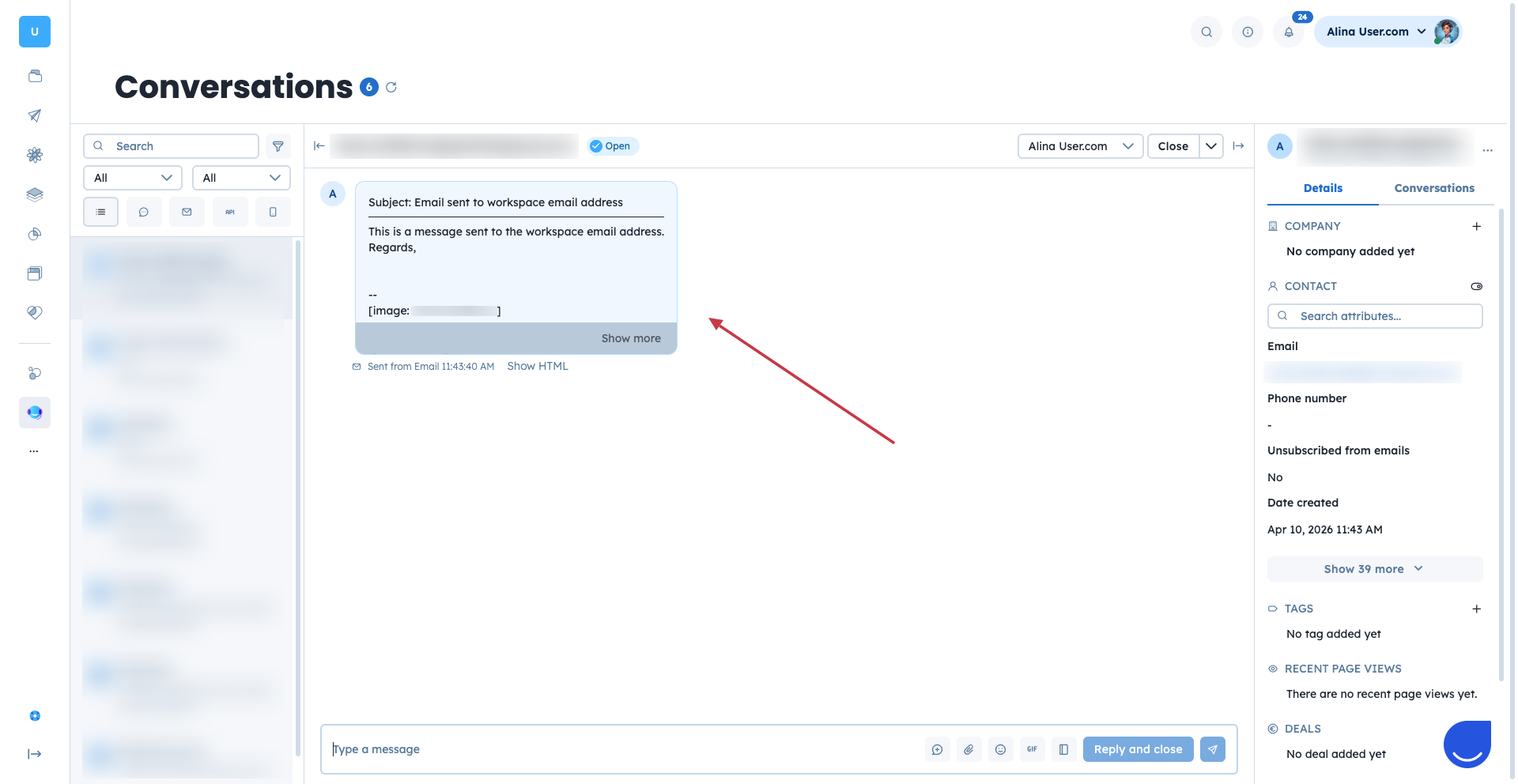
Workspace email is a system-generated email address unique to your Positive User workspace. When a message is sent to this address, it doesn't go to a traditional inbox; instead, it appears as a new message in the "Conversations" section.
It exists to help you bridge the gap between different communication channels. While a standard email inbox is private and siloed, workspace email makes messages visible to your entire team within the contact timeline. If a contact already has an open conversation, the system automatically adds the new email to that thread. If not, it creates a new one.
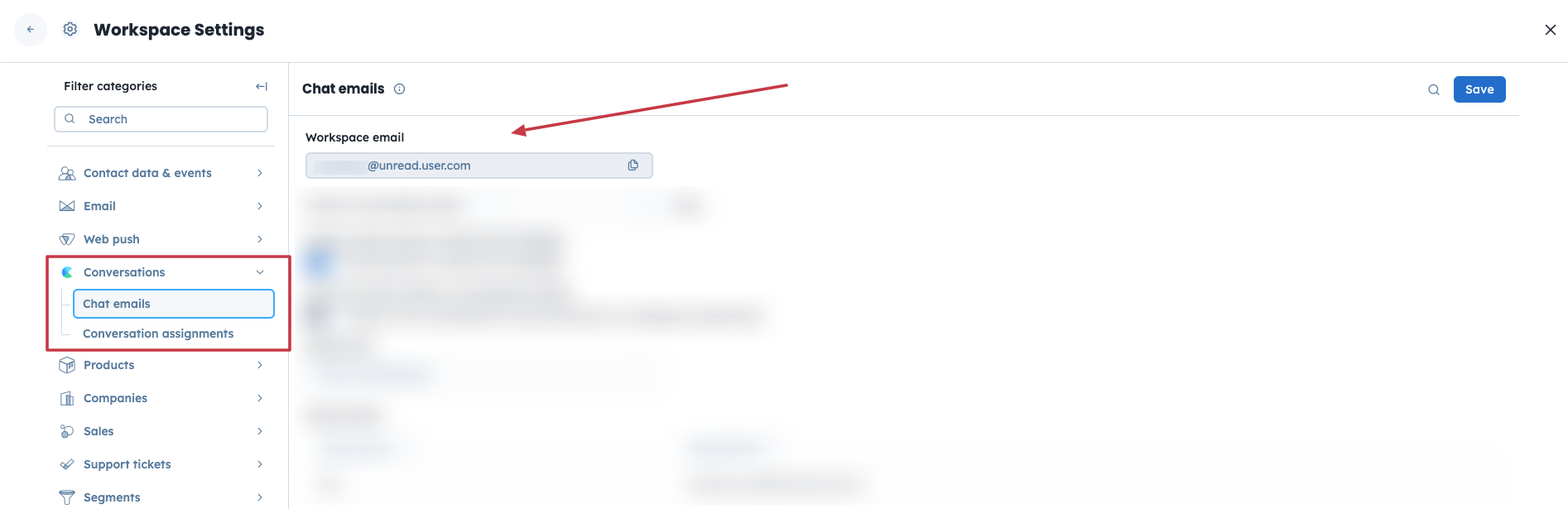
The email address is created from the name of your workspace + default domain.
You can find it in “Settings“ → “Workspace Settings“ → “Conversations” → “Chat emails“.
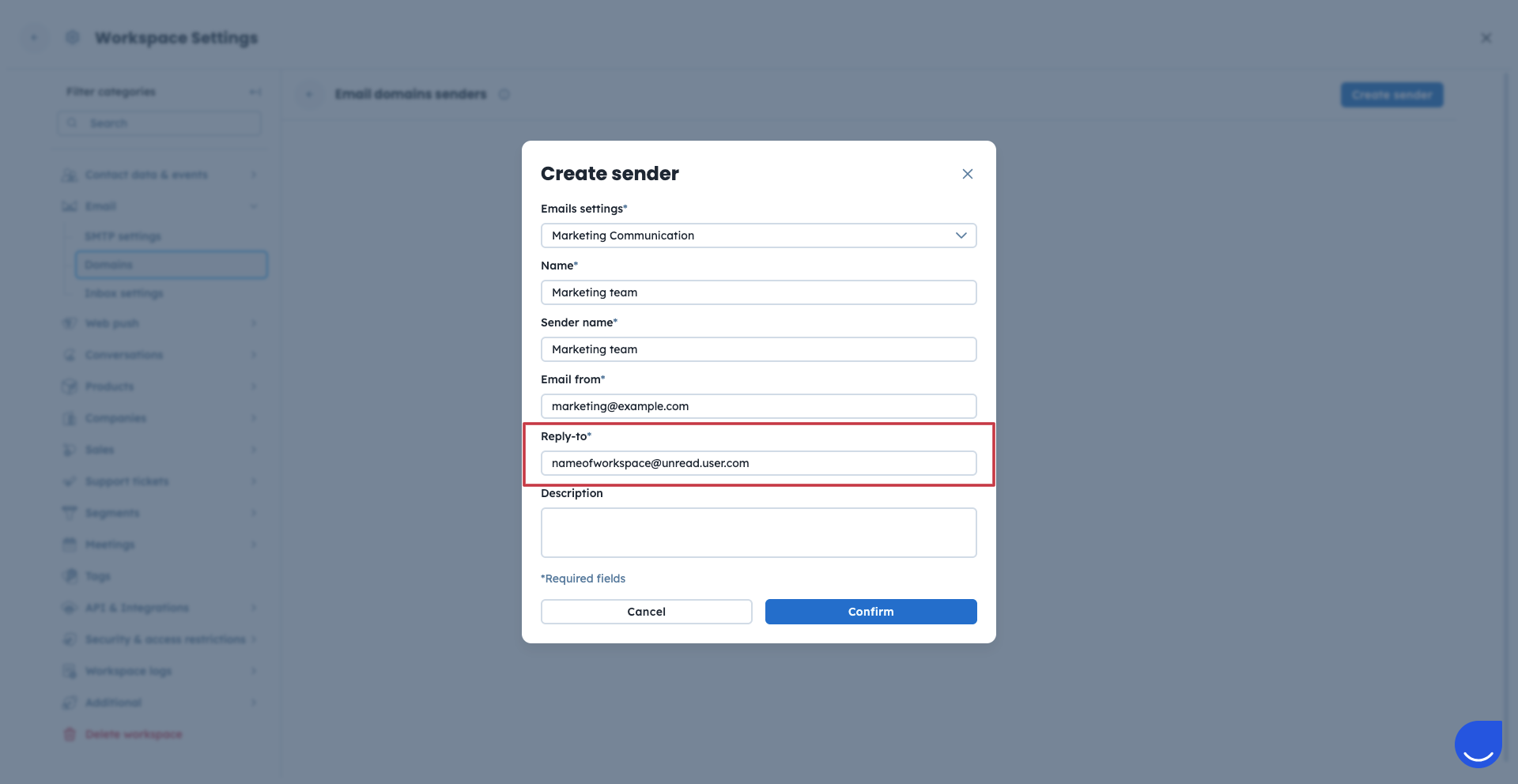
You can use this address as the "reply-to" for an email sender connected to your email delivery domain. This ensures that when a contact hits reply on your marketing campaign, the message goes straight into Positive User.

Once you connect your company domain with Positive User, you need to create senders for different types of email campaigns.
When you configure sender settings, you can define a “reply-to” address. This defines where the recipient’s responses should come to. If you want to receive the responses in “Conversations'“, use workspace email address here.
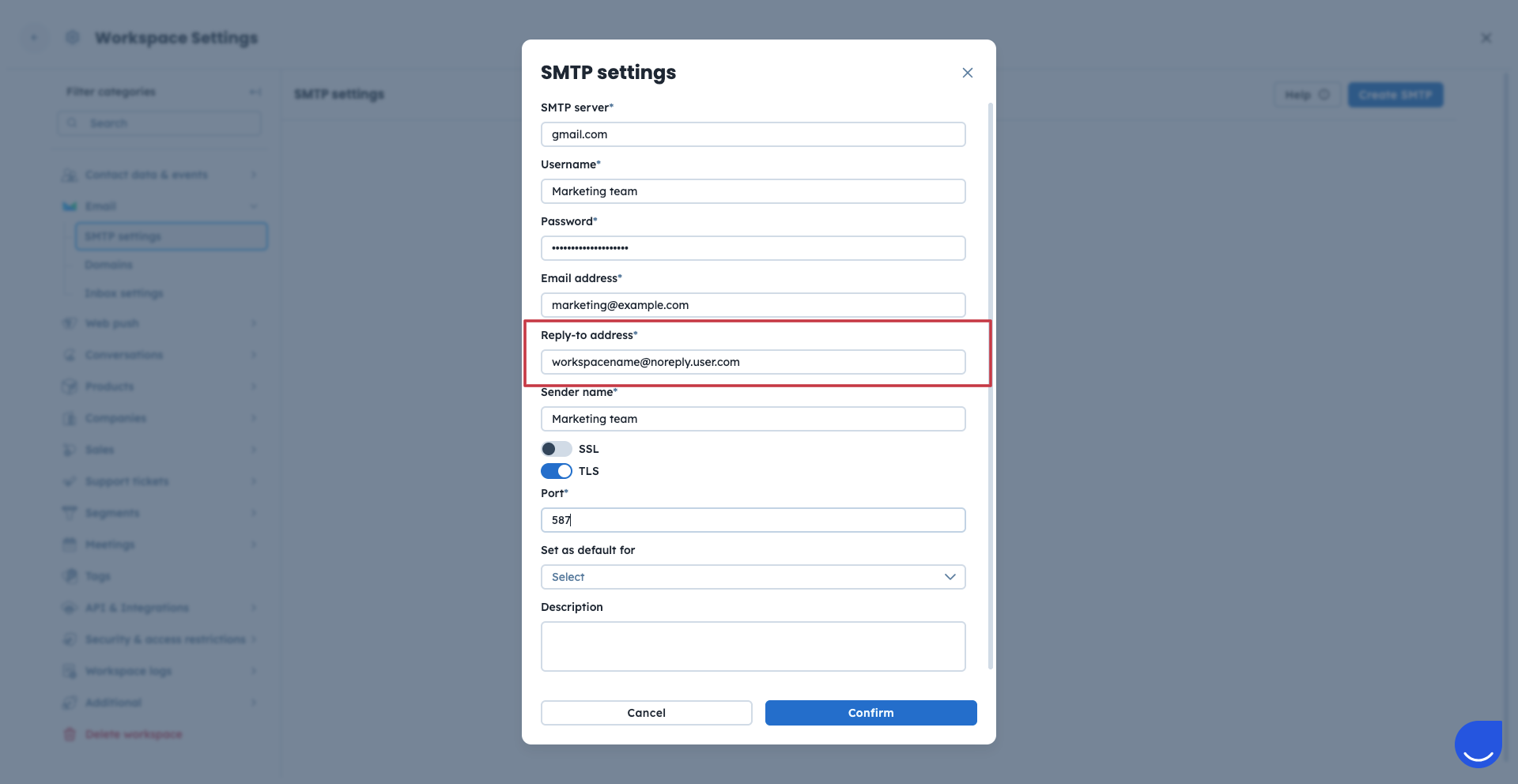
Your team can set this address as the “reply-to“ for any email address connected to your custom SMTP settings. This helps ensure that when a contact replies to your campaign sent from custom SMTP, their message lands directly in Positive User.
If you want to receive your contacts’ responses in “Conversations” section, use the workspace email address in the "Settings" → "Workspace Settings" → “Email” → “SMTP Settings” form.
Set this address as the forwarding destination for your standard company inbox (like [email protected]). This moves messages from your private inbox into the shared team space.
You need to do it directly in your company email inbox settings.
If you have custom contact forms for your customers on your website, you can forward the responses of the contacts to “Conversations” section to optimize the work of your customer support team.
There are two primary ways to handle these messages once they arrive in Positive User:
Chat panel replies: Responding directly from the "Conversations" section. These replies are sent back to the contact using a default template found in "Settings" → "Workspace Settings" → "Workspace logs" → "Email Notifications". [LINK]
Profile replies: You can go to a contact profile and use the "Quick Message" option. This allows you to choose a specific sender and custom subject line, though it won't be "threaded" to the original incoming email in the same way a chat reply is.
Centralized Support: Forward your support alias to your workspace email so your team can collaborate on all requests in a single view.
Campaign Feedback: Set your workspace email as the reply-to for newsletters to capture and log contact responses directly on their timeline.
“Conversations” Section Overview [LINK]
