Keeping your attributes up to date is crucial for accurate segmentation, personalization, and automation in User.com. In this article, you’ll learn all the available ways to update attribute values for different objects, including contacts, companies, deals, tickets, and more.
To know more about the attributes, check the following articles:

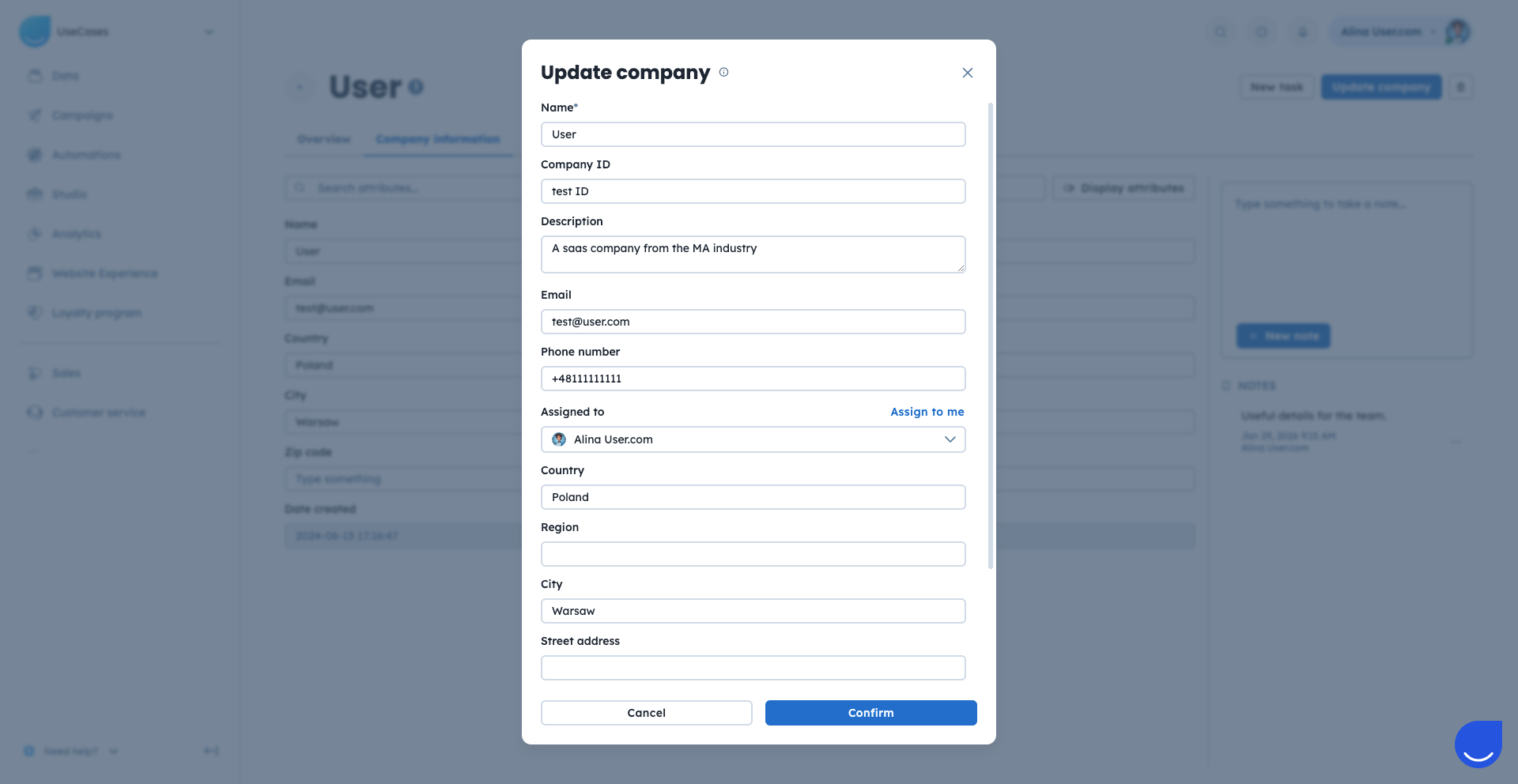
Manual updates are best for small changes to individual records. This method works well when you need to correct or adjust data for a specific object (contact, company, deal, etc.), but it is not recommended for bulk updates.
If you are working on the profiles you might want to update some parameters straight away. It’s very easy to do:
Open the profile of the selected object (contact/company/product/deal/task/ticket).
Choose between “X information” section from the central part of the profile and “Update X” option from top right corner of the profile.
Both options open the list of the attributes that you can manually modify.
Apply the changes and save the results.
You can manually update the attributes directly from Data sections such as “Contacts”, “Companies”, “Deals” and others. This method is useful when you need to implement one smal change to a group of objects you can easily filter out.
The steps are similar for all object types:
Contact attributes: “Data” → “Contacts” → Apply filters or select users manually → “Manage” → “Update contacts”
Company attributes: “Data” → “Companies” → Apply filters or select companies manually → “Manage” → “Update companies”
Product attributes: “Data” → “Products” → Apply filters or select products manually → “Manage” → “Update products”
Deal attributes: “Sales” → “Deals” (table view) → Apply filters or select deals manually → “Manage” → “Update deals”
Ticket attributes: “Customer support” → “Support tickets” (table view) → Apply filters or select deals manually → “Manage” → “Update tickets”
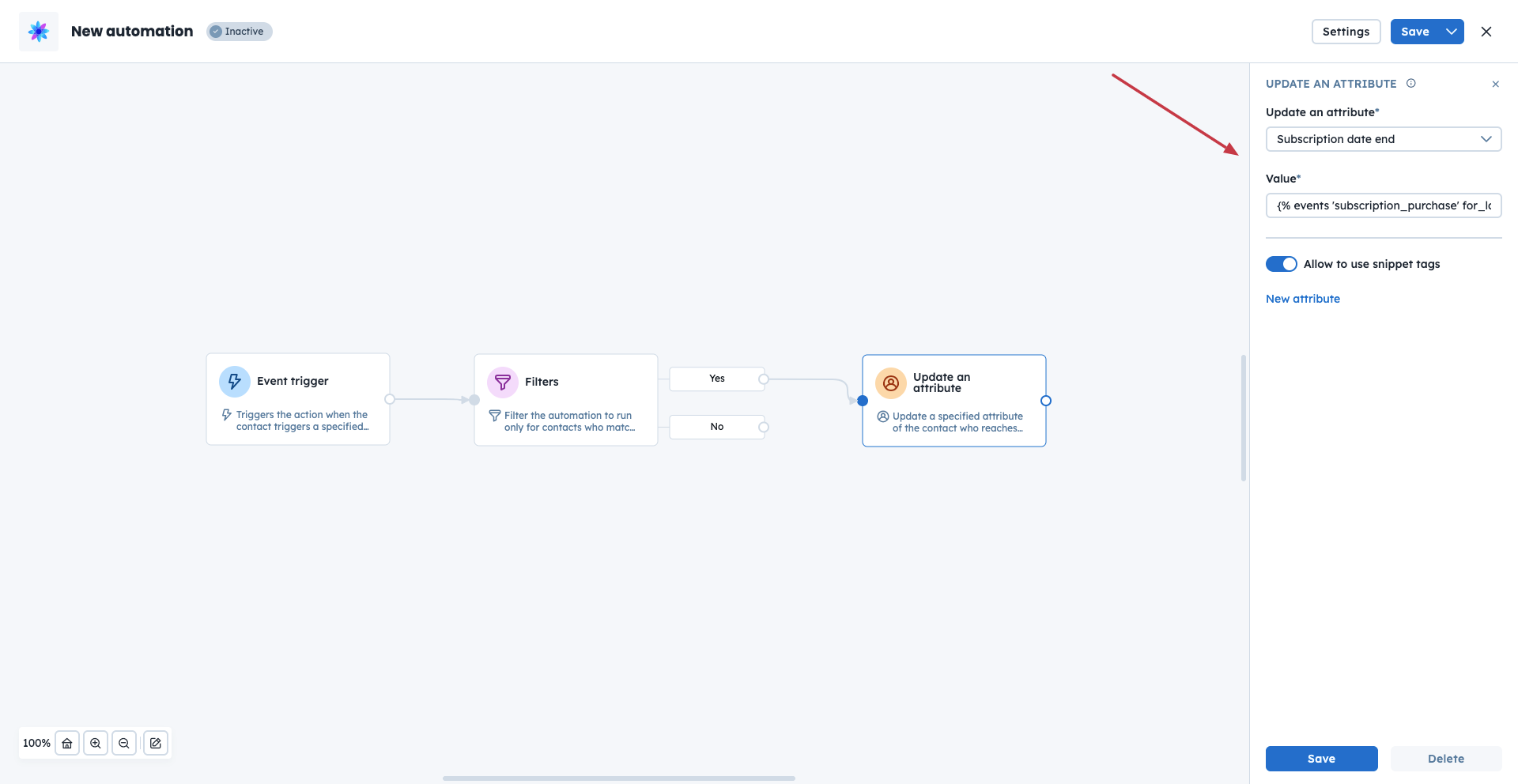
Automation allows you to update attributes automatically based on conditions and events. This is useful when you want to keep data synchronized or dynamically updated during the customer journey.
There are several modules that can help you update various attributes based on the conditions and actions you define within the automation flow.
Update an Attribute (contact attributes only) [LINK]
Update Numeric Contact Attribute (numeric contact attributes only) [LINK]
Update Company Attribute [LINK]
Update Deal Attribute [LINK]
Update Ticket Attribute [LINK]
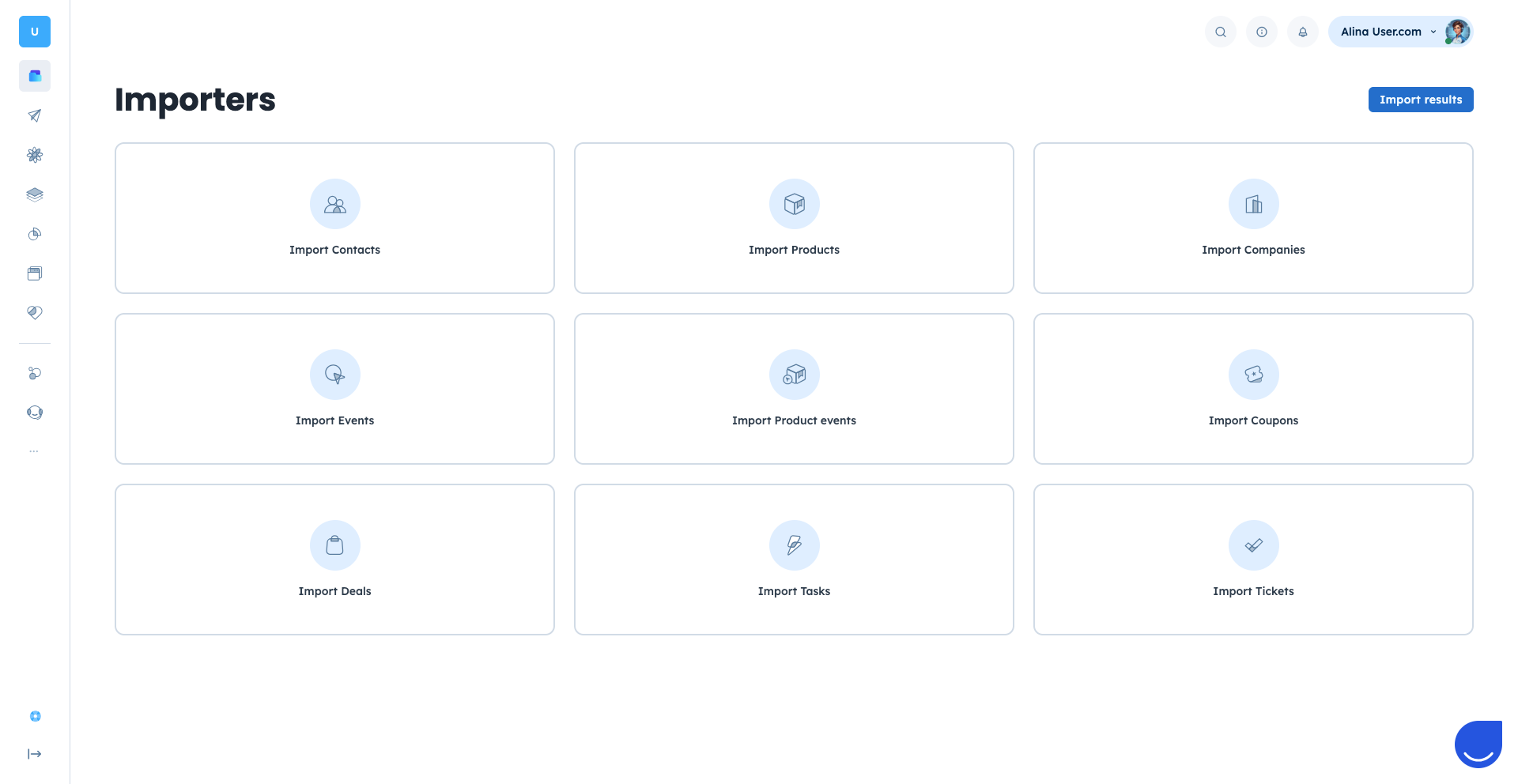
CSV import not only allows to upload fresh data into the application, but also update the existing parameters. When you upload the same objects with new values for the attributes the system overwrites old values with the news ones from the imported file.
Go to “Data” → “Importers” section.
Choose type of data you want to upload.
Upload the file/paste data and match the names of the column with the attributes you want to update.
Finish the import.
Check dedicated articles for each type of the imports. [LINK]
Using JavaScript methods you can update:
Contact attributes
Company attributes
Send events with custom attributes
Send product events (that update product attributes)
Check dedicated documentation to know more about these possibilities.
You can use the REST API to update attributes programmatically. This option is ideal if you synchronize data with external systems or maintain real-time updates.
Full API documentation, including endpoints, request examples, and parameters, is available here.
You can use integration platforms such as Make.com or Zapier to send updated data from external tools to User.com. This is useful when you want to synchronize CRM systems, forms, payment platforms, or other marketing tools with your workspace.
You can use:
Accurate attributes power many core features in User.com. Keeping them updated allows you to:
Automations: Trigger automation flows when specific attribute conditions are met (for example, when a contact’s plan changes or a deal status is updated).
Segments: Create dynamic segments based on up-to-date attribute values, ensuring your campaigns target the right audience.
Campaigns: Personalize email, SMS, or other communication channels using attribute values such as name, company, or subscription details.
Filtering Data: Filter and analyze data using current attribute values to make better business decisions.
