Email tracking records contact interactions like email opens and link clicks so your team can measure campaign performance. Due to strict data protection regulations in countries like France and Spain, gathering explicit consent from contacts before tracking their email activity is essential.
In Positive User, your team can manage email tracking behavior by going to "Workspace Settings" → "Email” → “Email tracking" and selecting one of three workspace options:
Disable for all: Turns off email tracking across your entire workspace for all contacts.
Enable per contact: Tracks email opens and clicks only for contacts who explicitly provide email tracking consent.
Enable for all: Tracks email opens and clicks for all contacts automatically.
More details about these options in “How to Send Emails without Tracking”.
Choose the method that best aligns with your team's compliance requirements and technical setup.
This recommended two-step verification method includes an automated confirmation email with a with an email tracking consent snippet to confirm the contact's choice.
Create a Custom Attribute.
Create a custom boolean attribute to record initial form submissions before confirmation. Go to "Workspace Settings" → "Contact data & events" → "Contact attributes” and create a boolean attribute. For example, “Initial email tracking status”.
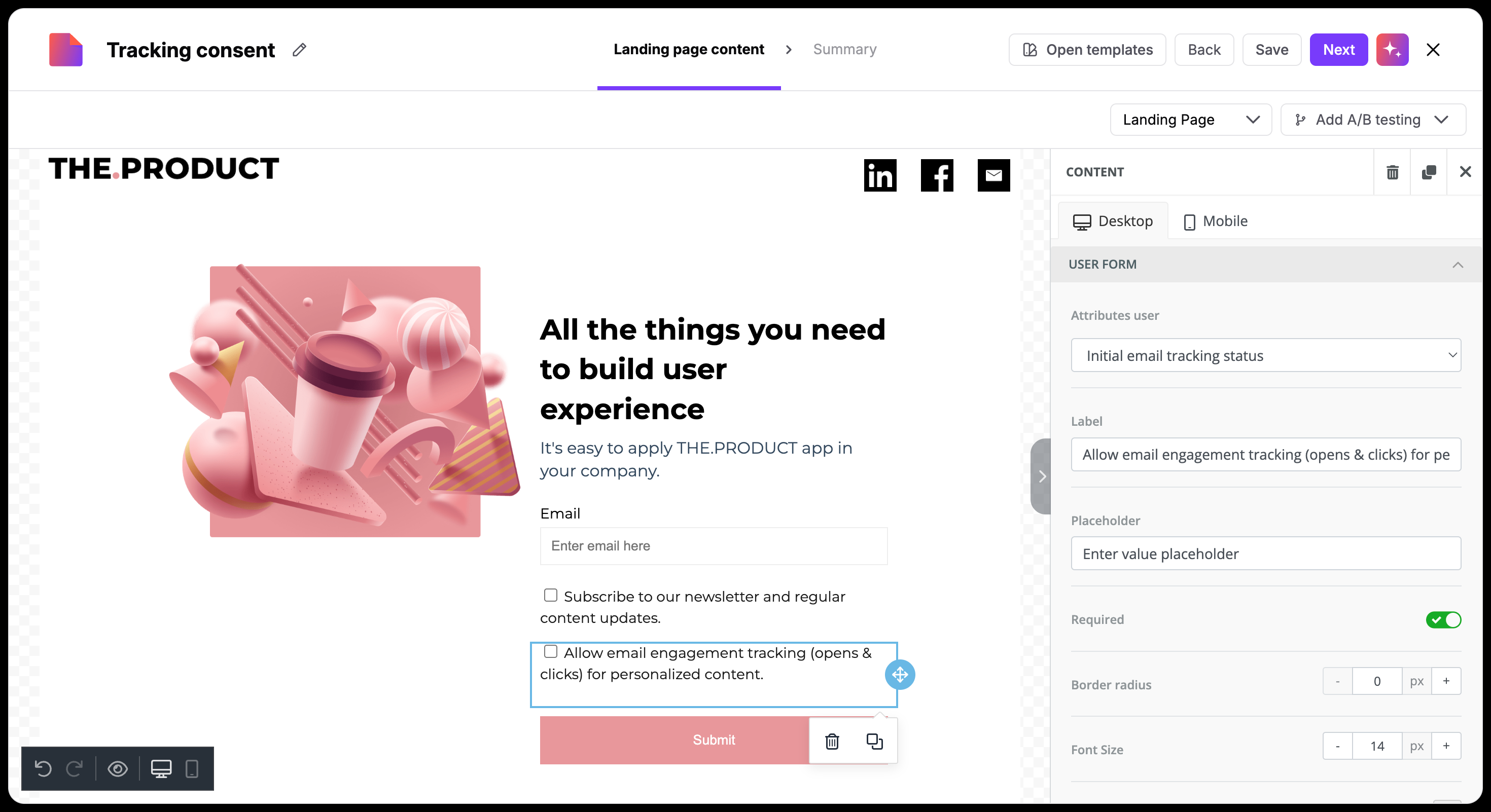
Create a Landing Page or an Embed Form/Pop-up.
Build a landing page with a form to collect initial tracking requests. Go to "Website Experience" → "Landing pages" and click "New landing page" (or “Forms” → “New form”, “Pop-ups” → “New pop-up”). Include a checkbox field mapped to your custom boolean attribute "Initial email tracking status".
Create the Confirmation Email Campaign.
Design a clear email asking contacts to confirm their email tracking preference. Go to "Campaigns" → "Email" and click "New Campaign". Enter a subject line, such as "Please confirm your email tracking preferences." Add a call-to-action button or text link in the email editor with the email tracking consent snippet:
{% email_tracking_consent %}Here you can check the detailed instruction for this topic: “How to Add a Tracking Consent Link to Email Messages”.
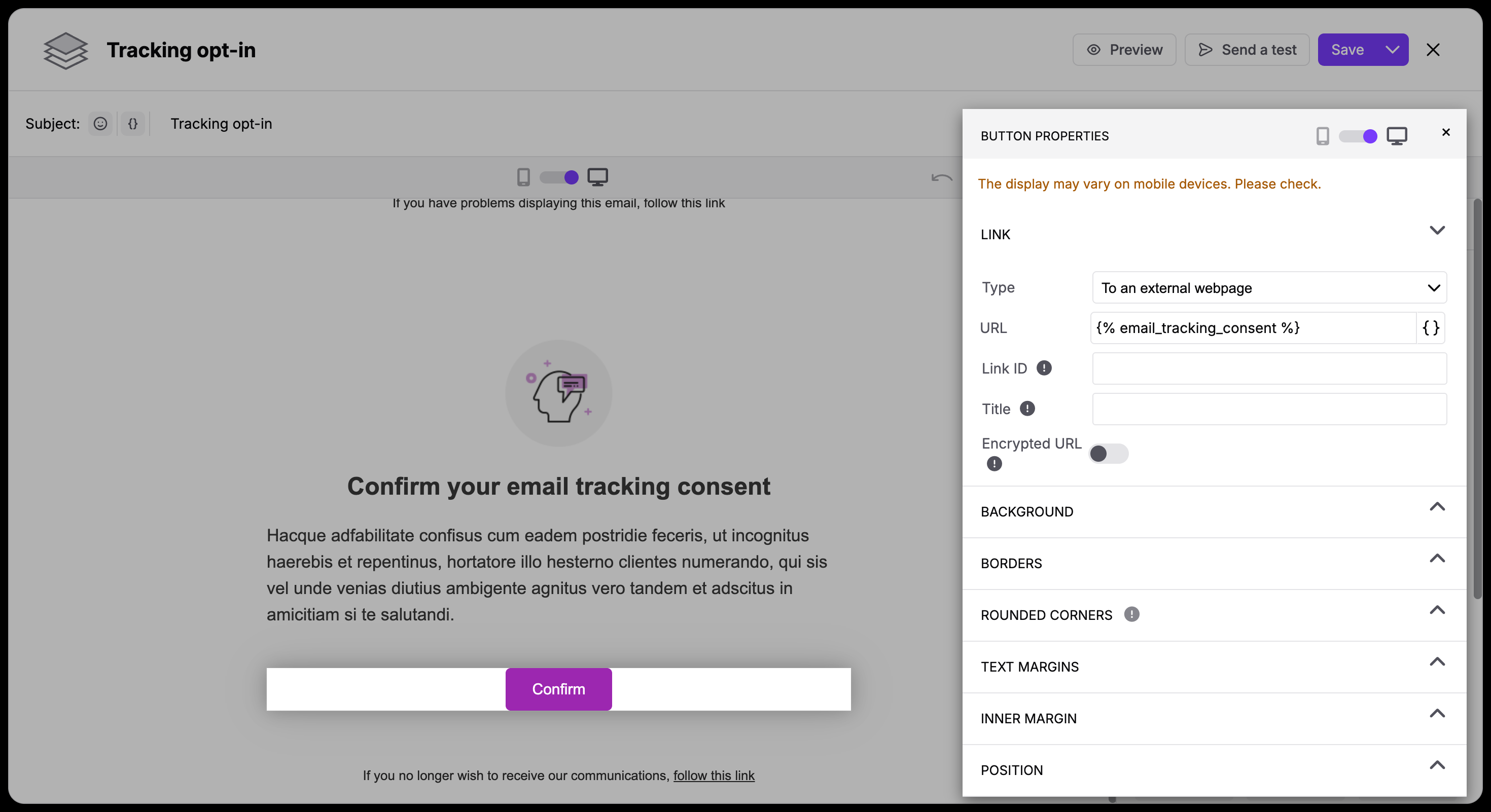
Clicking this link takes the recipient to a dedicated confirmation page where they can grant or revoke consent for email tracking at any time. This link remains active and fully functional regardless of your workspace's current tracking settings.
It automatically updates a standard “Email tracking consent” attribute with a new value and fires an “Email tracking subscription”
(Optional) Create a Welcome Email Campaign.
Prepare a follow-up email confirming that preferences have been saved. Go to "Campaigns" → "Email" and click "New Campaign". Enter a subject line, such as "Your tracking preferences are updated!" and write a brief thank-you message and click.
Follow a detailed “How to Create an Automated Email Campaign” guide.
Build the Double Opt-in Automation Flow.
Connect your landing page, confirmation email, and tracking status updates into an automated workflow.
Go to "Automations" and click "New automation".
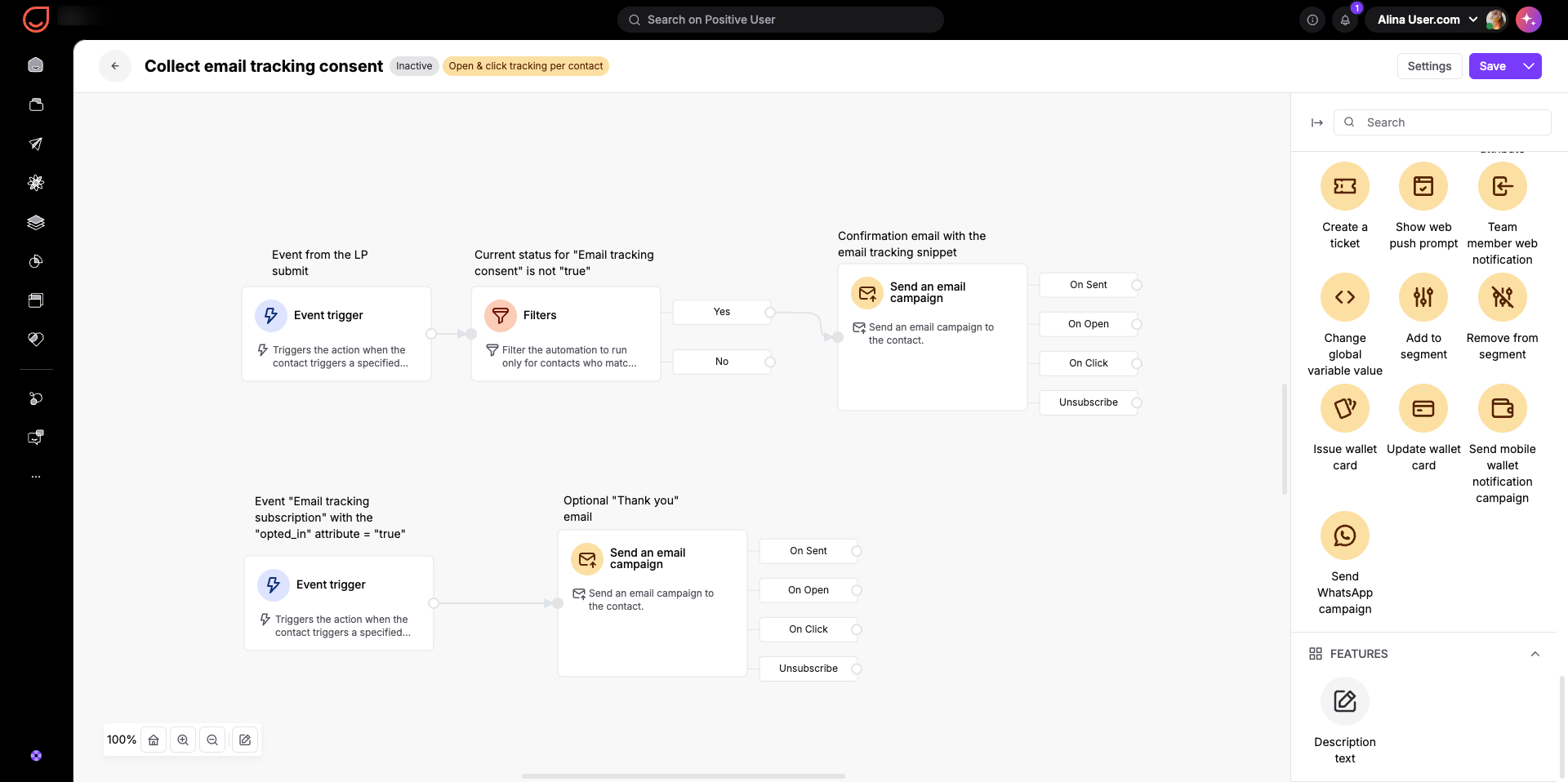
Add an "Event" trigger set to form submission on your landing page. Use the system “landing_page_conversion” event and “landingpage_id” attribute to narrow the automation to a specific LP you collect consents from.
Additionally pick the your custom attribute for the consent and set it to “true” - to start the automation only for those which gave you the initial consent.
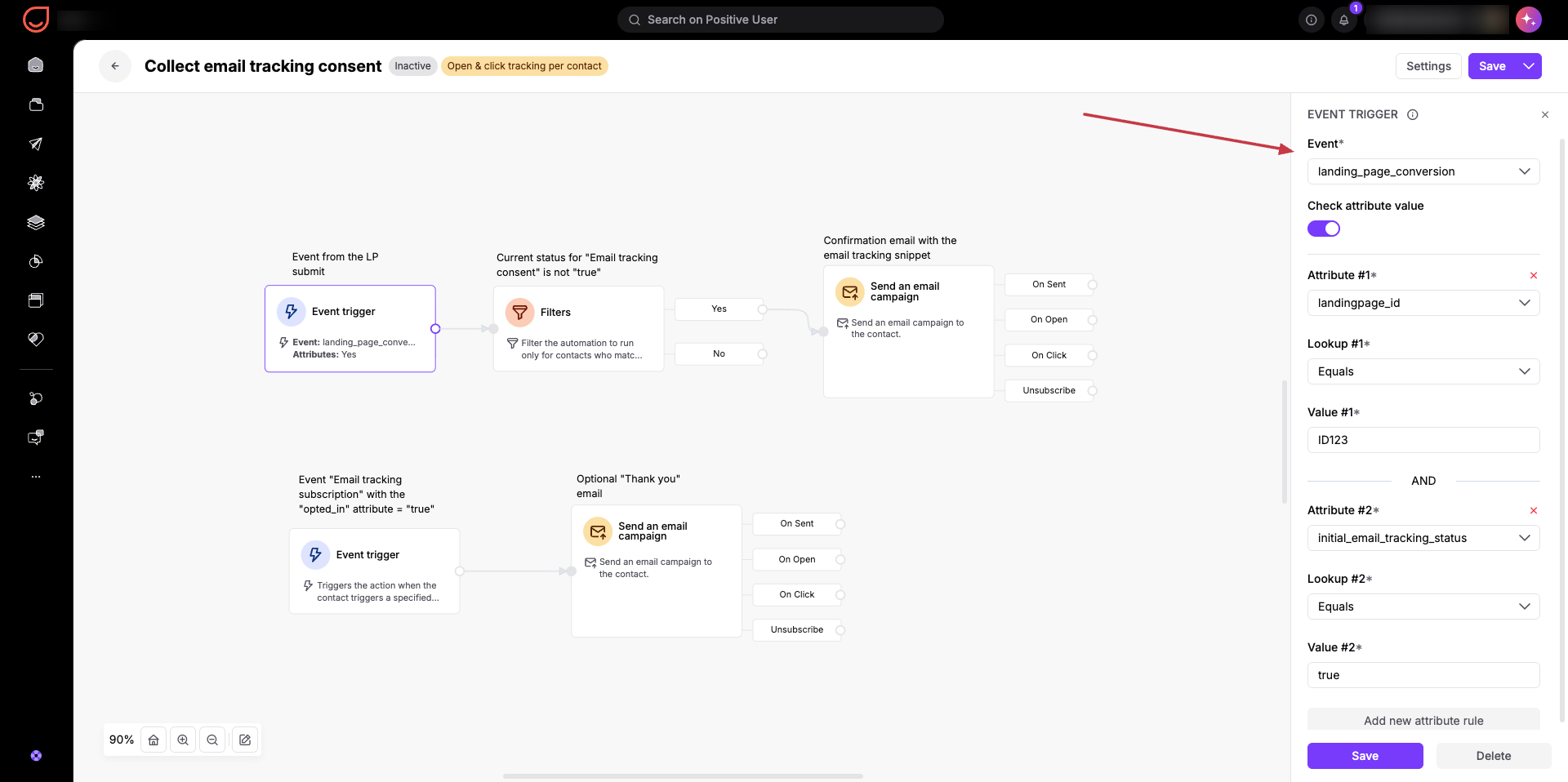
Then use the “Filters” module to filter out only those contacts whose “Email tracking consent” is not “true” at the moment. There is no need to send a double opt-in to contacts, whose permission for tracking you already have.
Connect a "Send an Email Campaign" module selecting your confirmation campaign.
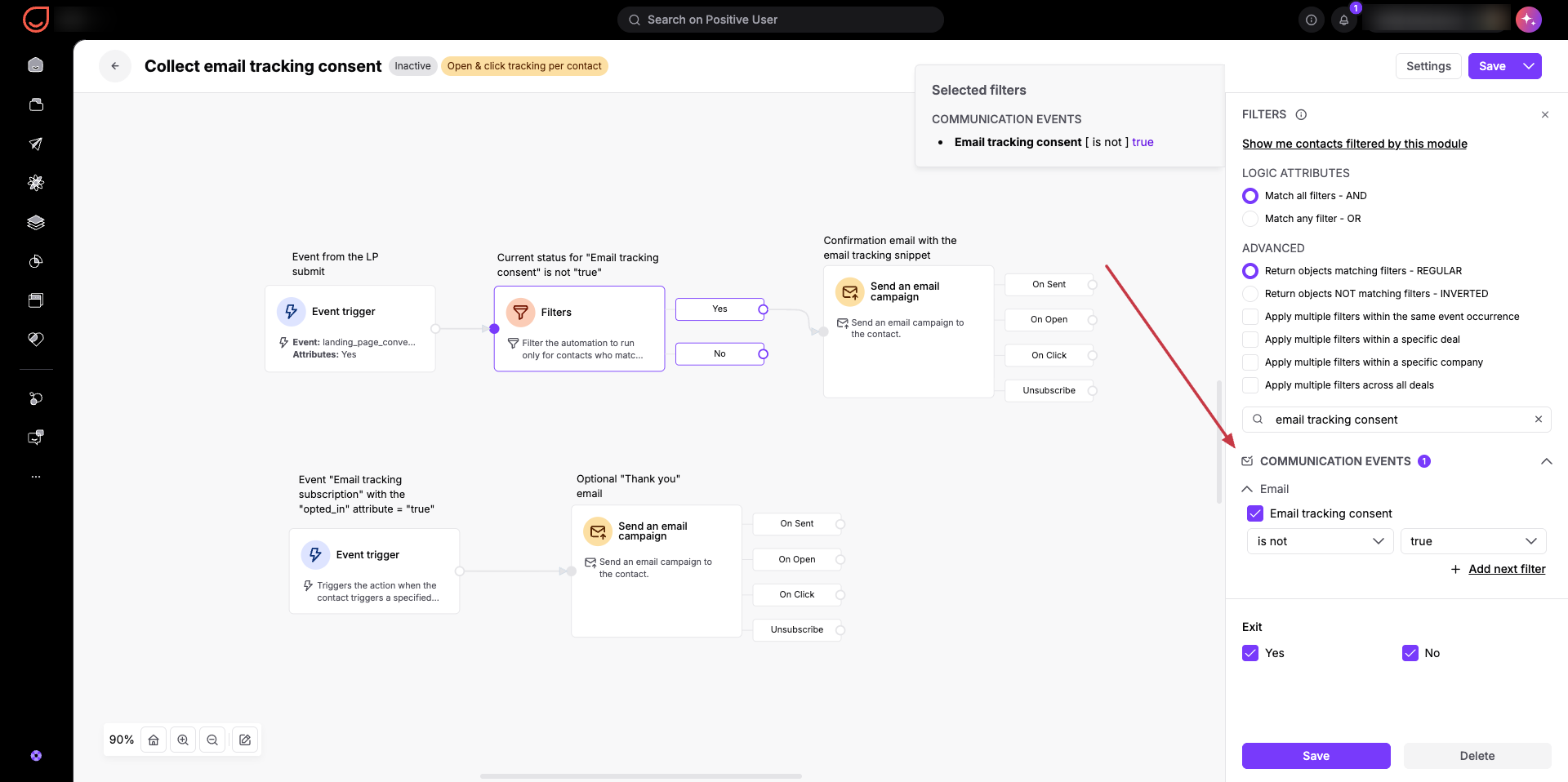
Add an "Event" trigger set to the “Email tracking subscription” event fired when contacts click the the email tracking consent snippet link in the email. System updates the system attribute “Email tracking consent” to “true” automatically. Connect a "Send an Email Campaign" module selecting your optional welcome email.
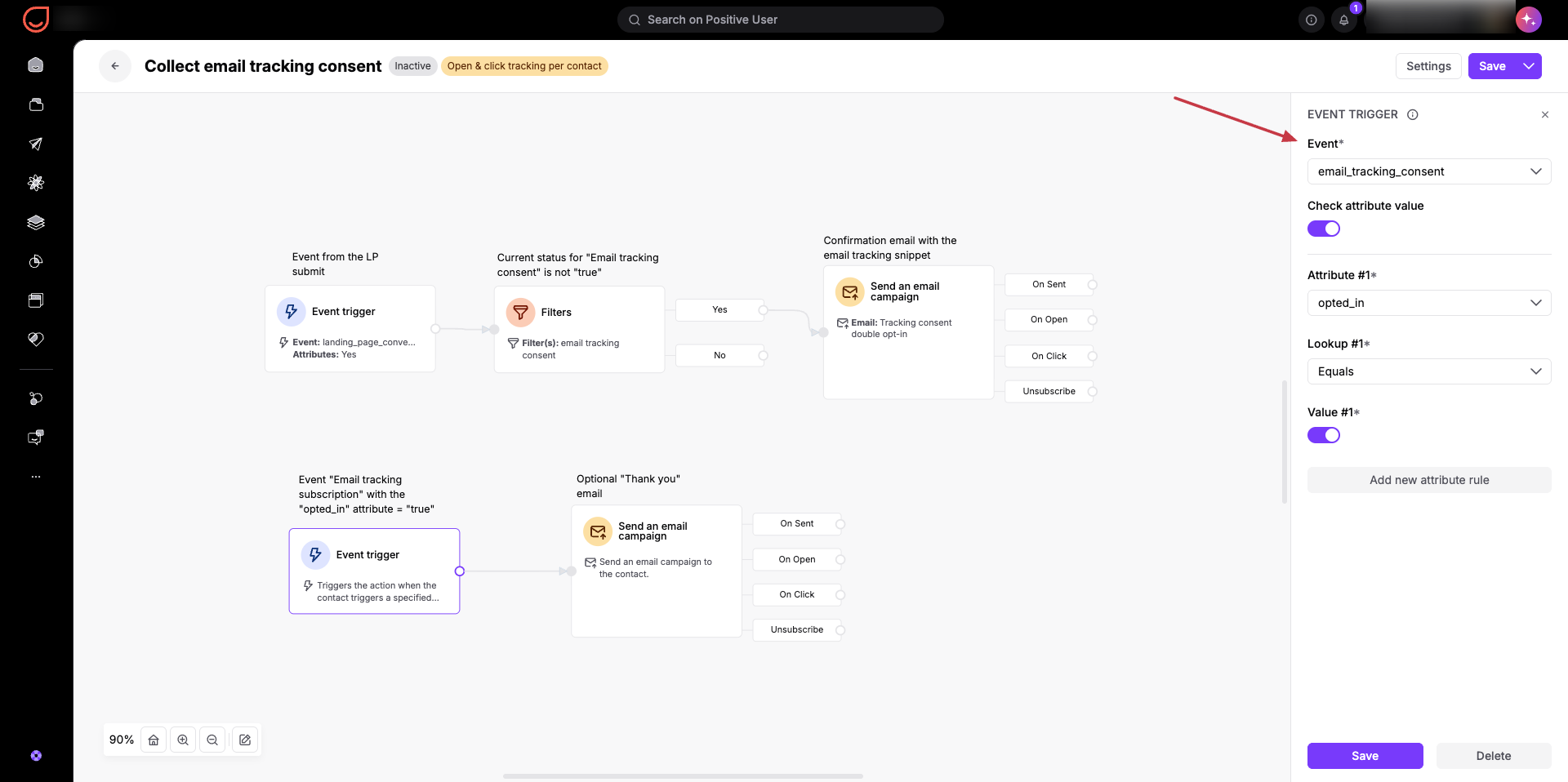
Add a "Finish Path" module to complete the automation, if you want to count the number of the contacts who reach this point.
Collect consent immediately upon form submission without requiring email verification.

Create a Custom Attribute.
Create a custom boolean attribute to record initial form submissions before confirmation. Go to "Workspace Settings" → "Contact data & events" → "Contact attributes” and create a boolean attribute. For example, “Initial email tracking status”.
Create a Landing Page or an Embed Form/Pop-up.
Build a landing page with a form to collect initial tracking requests. Go to "Website Experience" → "Landing pages" and click "New landing page" (or “Forms” → “New form”, “Pop-ups” → “New pop-up”). Include a checkbox field mapped to your custom boolean attribute "Initial email tracking status".
Create an Automation.
Update the system contact attribute automatically when contacts submit the form. Go to "Automations" and click "New automation".
Add an "Event" trigger for form submissions on your landing page (or form). Use the system “landing_page_conversion” event and “landingpage_id” attribute to narrow the automation to a specific LP you collect consents from.
Additionally pick the your custom attribute for the consent and set it to “true” - to start the automation only for those which gave you the initial consent.
Connect an "Update contact attribute" module setting the system attribute “Email tracking consent” to “true”.
Add a "Finish Path" module to complete the automation, if you want to count the number of the contacts who reach this point.
Provide transparent options for contacts to update their preferences or withdraw tracking consent at any time.
Automate consent withdrawal by placing an email tracking consent link near the unsubscribe button in your email campaigns.
Follow the detailed instructions from “How to Add a Tracking Consent Link to Email Messages”.
When a contact clicks this link, Positive User automatically redirects them to the confirmation page, fires the system tracking event, and updates “Email tracking consent” attribute.
Give contacts a dedicated page to review and adjust their email tracking choices. This page can be built as a landing page in Positive User, provided as a accessible link to contacts at any time, or hosted as a custom page on your website.
Allow contacts to opt out through a pop-up or subscription management form on your website.
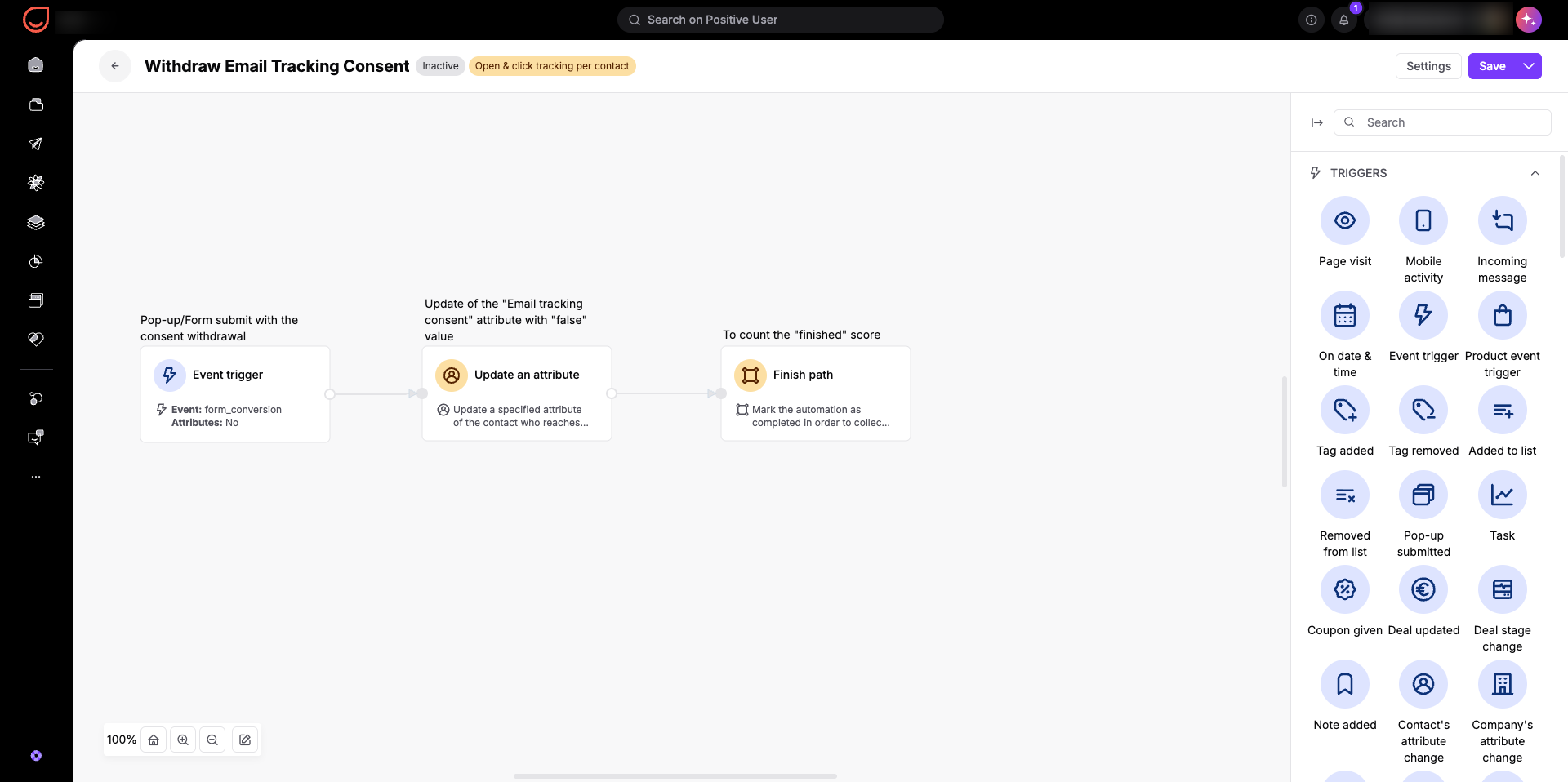
Create a Custom Attribute.
Create a custom boolean attribute to record initial form submissions before confirmation. Go to "Workspace Settings" → "Contact data & events" → "Contact attributes” and create a boolean attribute. For example, “Initial email tracking status”.
Create a Pop-up or an Embed Form.
Build a pop-up/form with a checkbox to collect initial tracking requests. Include a checkbox field mapped to your custom boolean attribute "Initial email tracking status".
Activate it with the help of the automation.
Follow the instructions from:
Create an Automation.
Update the system contact attribute automatically when contacts submit the pop-up/form. Go to "Automations" and click "New automation".
Add an "Event" trigger set to form or pop-up submission. Connect an "Update contact attribute" module setting the system attribute “Email tracking consent” to “false”.
Add a "Finish Path" module to complete the automation, if you want to count the number of the contacts who reach this point.