In Positive User, a contact is one of the core objects that your entire system revolves around. Whether you're tracking leads, customers, app users, or subscribers - each of them is represented as a contact in your database. Understanding what a contact is, how contacts are structured, and how they relate to other data is crucial for effective segmentation, automation, and personalized communication. This article will walk you through the concept of a contact in Positive User, the types of contacts you might encounter, and how contact data fits into the platform’s overall hierarchy.
A contact is the central object that represents an individual interacting with your business - whether it’s a potential anonymous lead browsing your website, a registered customer using your app, a subscriber receiving your newsletter, or an imported record from an offline event.
Each contact has a unique profile in Positive User that stores key information like their contact details, behavior, preferences, and interactions across different channels. This data-rich profile allows you to understand who your contacts are, what they’re doing, and how to engage them more effectively. From marketing automation and sales tracking to customer support and personalization, nearly every action in Positive User starts with the contact.
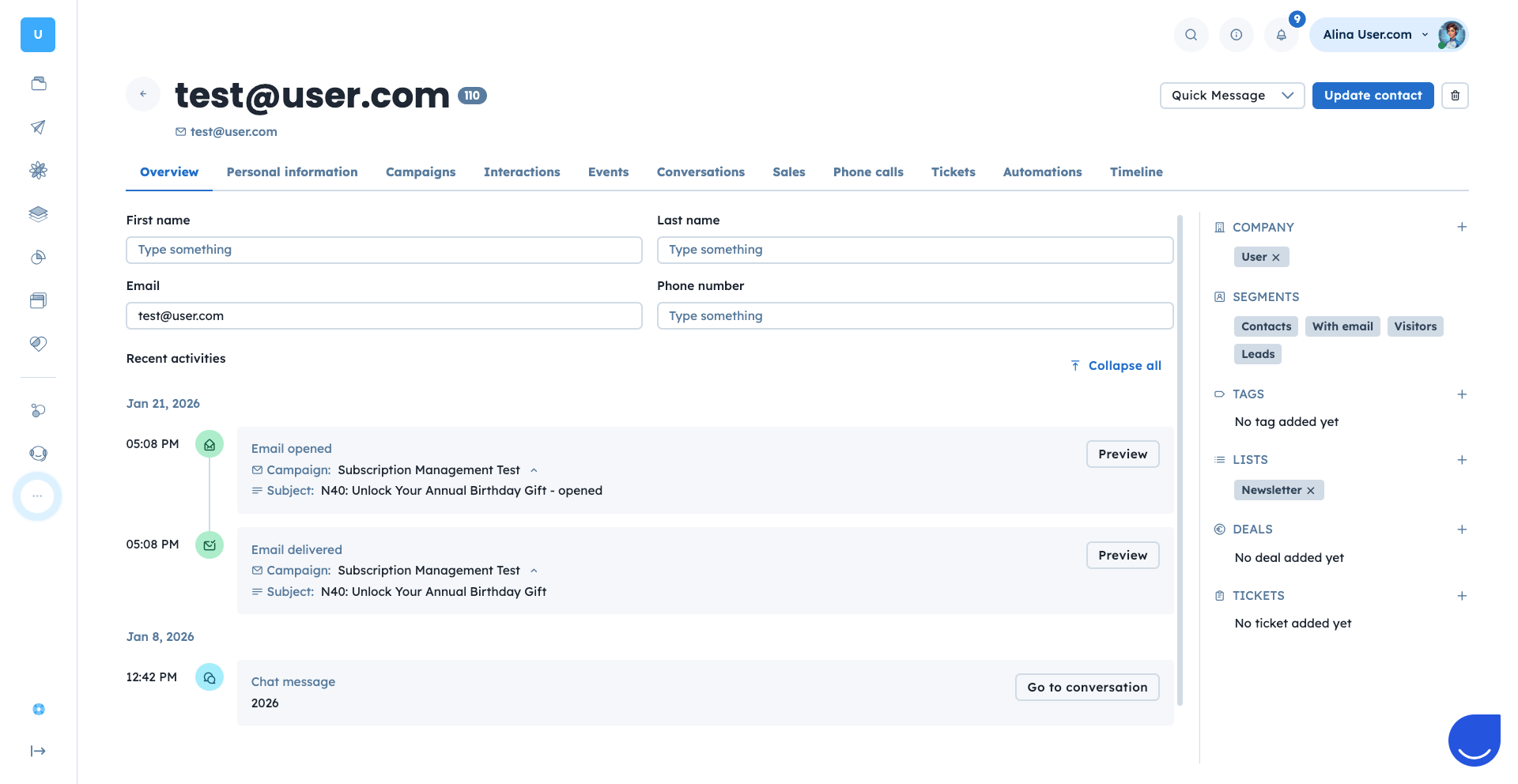
It's also important to understand what the contact attributes are – these are the characteristics of the object that store all needed information in the profile. You can learn more about attributes in the following article.
In Positive User, not all contacts are the same – each one can exist in your database in a different state, depending on how much information you’ve collected about them. Understanding the difference between these contact types helps you segment your audience more effectively and engage them with the right timing and message.
Anonymous Contacts: These are visitors who land on your website or use your app without providing any identifying information. They are tracked through cookies or device fingerprints, and their actions (like page visits or clicks) are recorded on their contact profiles. Once they submit a form, sign up, or log in, they can be identified. These are the contacts you want to focus on in your lead generation scenarios.
Identified Contacts: Once a contact provides a unique piece of information (like an email address, phone number, or contact ID) they become identified. This allows you to build a richer profile over time and personalize your communication. Identified contacts are essential for triggering automations, sending emails, and tracking meaningful engagement.
Each type plays a role in the contact journey - from anonymous visitor to loyal customer - and the platform is designed to track and evolve contact data dynamically as people engage with your brand.
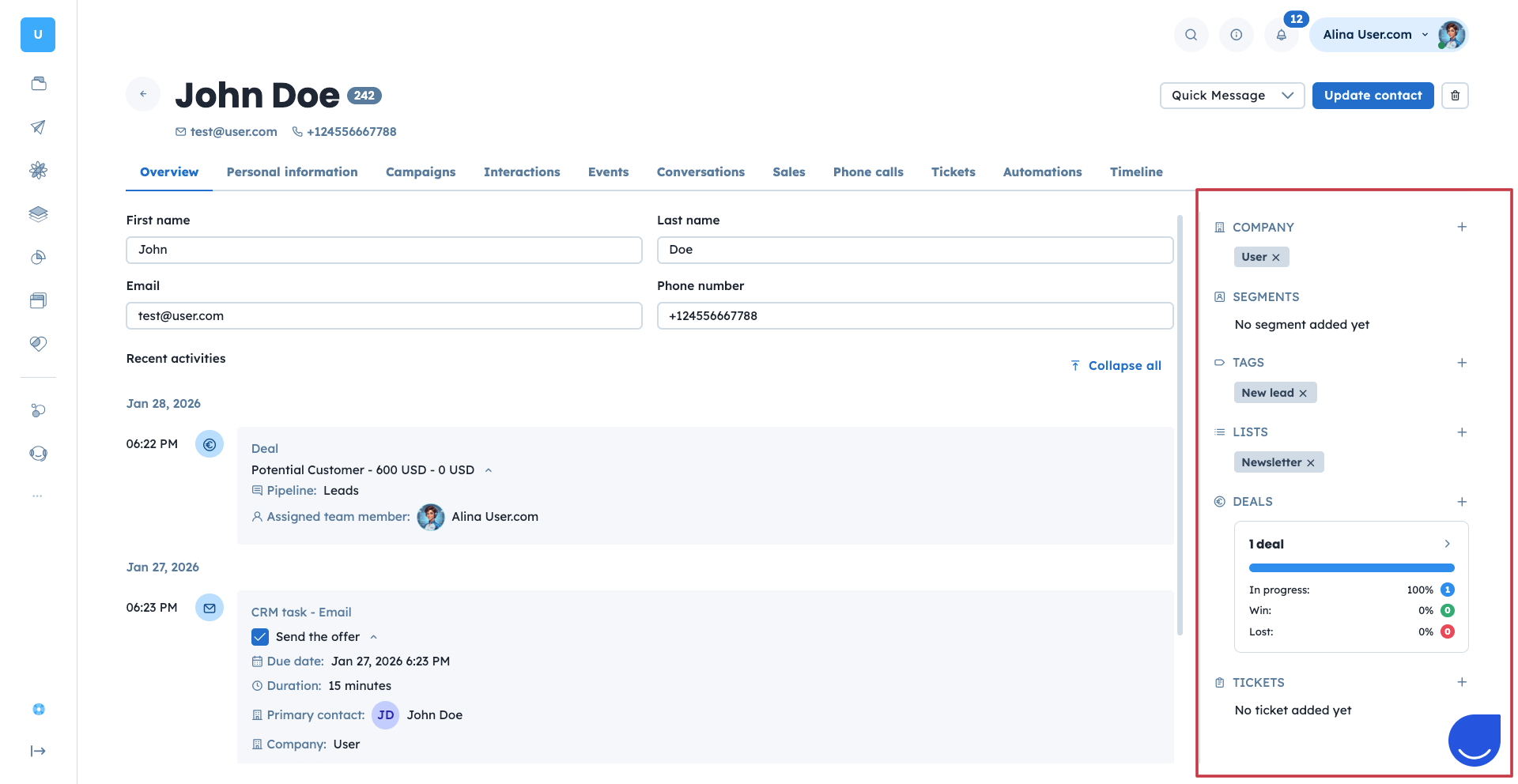
Every contact has their own profile - a central place where all data and activity related to that person is stored and visualized. The contact profile is built to give your team a complete picture of who the contact is, what they’ve done, and how you interact with them (all the campaigns sent).
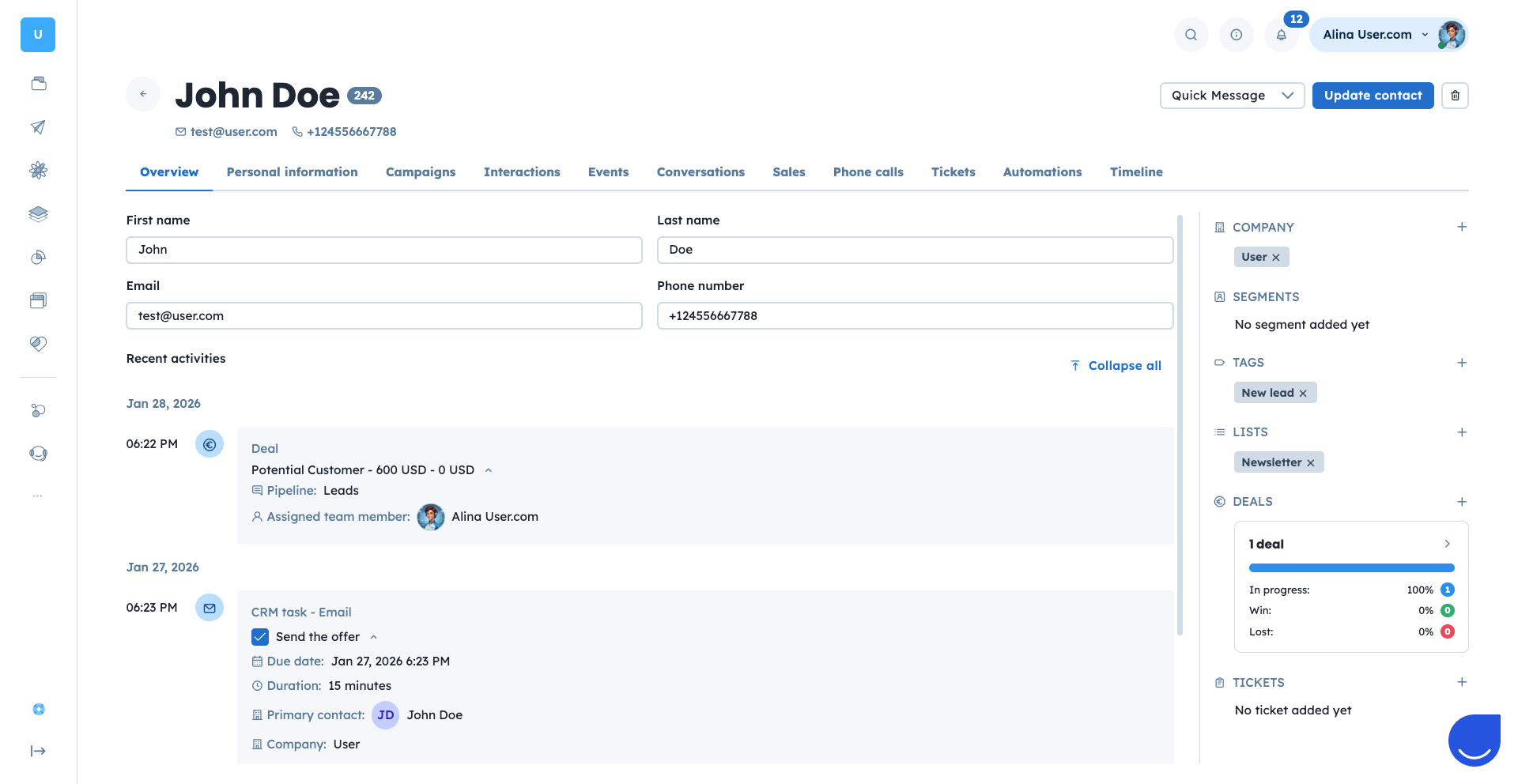
The contact profile can be divided into 3 main sections:
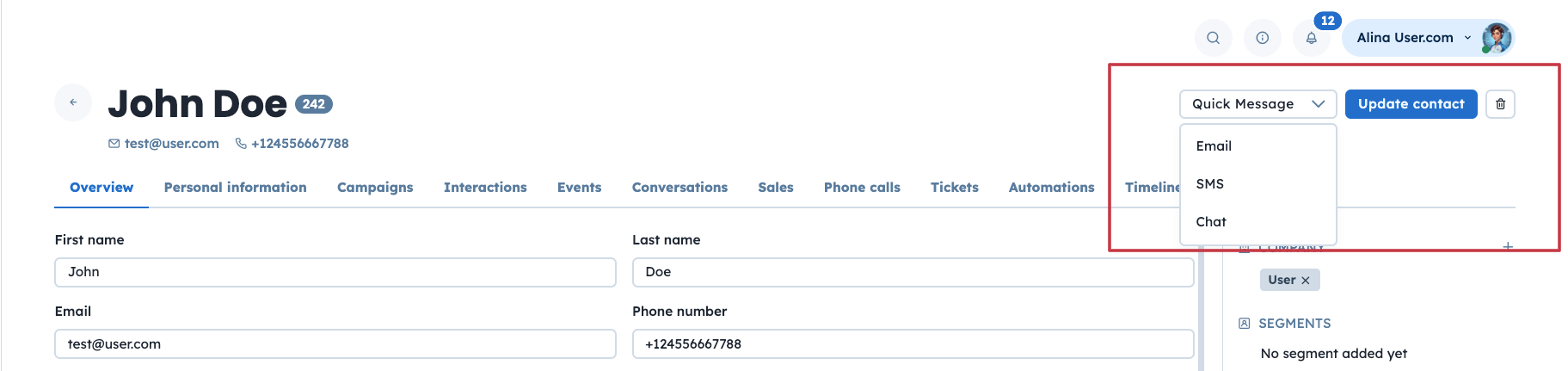
Section 1 - allows direct contact (via email, SMS or chat message), updating and deleting contact.
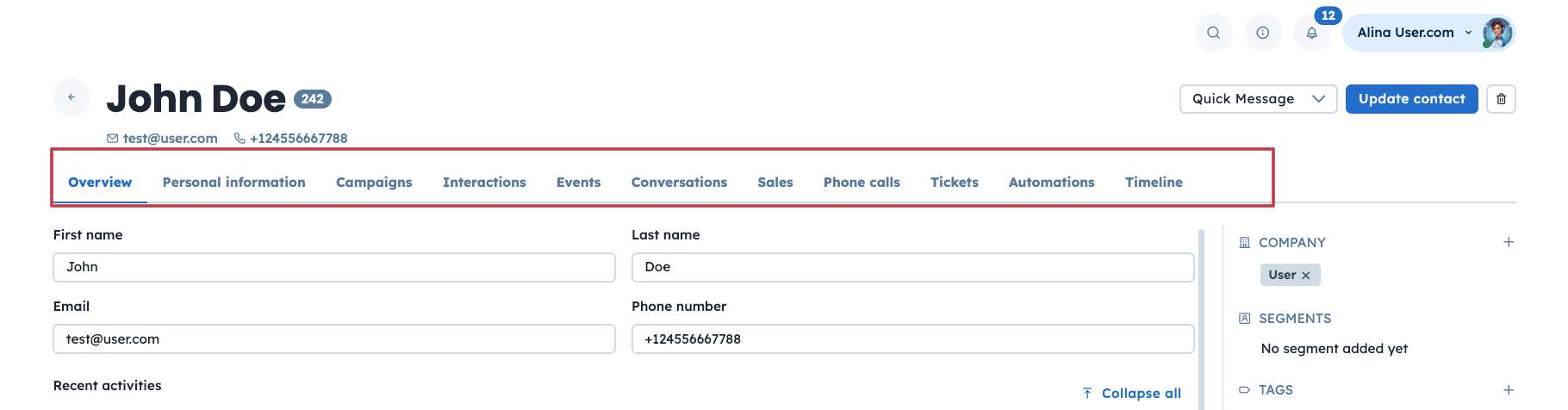
Section 2 - allows you to click through individual sections regarding the contact's activity and check dedicated timelines or table with data.
Section 3 - with additional information about the contact (company, tags, lists, etc.)
Data is mostly structured around the contact, but contacts don’t exist in isolation. They are connected to other objects and data types that help you manage relationships, track engagement, and personalize interactions. Understanding how these pieces fit together is essential for building a clean, scalable, and insightful database.
At the top of the hierarchy is the contact – the core object representing an individual person. Every other object in the system either provides context about the contact or supports actions taken around them. Here's how contacts relate to other elements in the platform:
Companies: A contact can be connected to one or many companies as an employee. This is especially useful in B2B contexts where you want to group contacts by the organizations they belong to and manage relationships on both individual and company levels.
Deals: These represent sales opportunities. A contact can be linked to one or many deals depending on your pipelines. Deals are used to track progress, revenue potential, and the outcome of specific business opportunities. It's a part of the Sales module.
Tasks: These are internal actions for the agents like calls, follow-ups, meetings, or emails that your team schedules and completes in relation to a contact. They help structure outreach and internal workflows.
Support Tickets: Support interactions with the contact are tracked as tickets. Each ticket can be assigned, categorized, tagged, and resolved to manage ongoing conversations or technical issues.
Events: These log every tracked action taken by the contact like visiting a page, clicking a button, or completing a goal. Events can be simple or product-related.
Tags, Lists, and Segments: These are tools for grouping contacts. While tags and lists are more manual or rule-based, segments are dynamic groups based on conditions and real-time data.
Whether you're building automations, launching campaigns, or following up on sales leads, this interconnected model ensures your actions are always relevant and data-driven.
There are several different options for how contacts can enter the database:
Tracking script
API and other integrations
CSV import
Manual creation
Check all the available options and possible methods in the following article.
Once contacts enter your database, you’ll find them in multiple places across the Positive User platform. Here are the main areas where contacts appear in the app:
Contacts Section: This is the main database view of all contacts. You can search, filter, sort, and bulk-edit contacts. It’s perfect for building segments, or manually managing attributes, lists, and tags.
Conversations: When contacts interact with your chat widget or support email address, their conversations appear here. You can view their main details, past messages, and tags while chatting with them in real time.
Automations: Contacts are the main drivers of automated flows. Every automation starts with the contact and their actions/attributes or is connected with the object related to the contact. Automations rely on contact data to run personalized campaigns and workflows.
Campaigns: Contacts are the recipients of the campaigns. You can target them using filters, lists, or segments often based on contact attributes or behavior tracked in their profile.
Sales: In the Sales/CRM section, contacts are connected to deals and tasks that help your sales team track opportunities and manage follow-ups.
CSV import of contacts
How to Assign Contacts to Companies
